
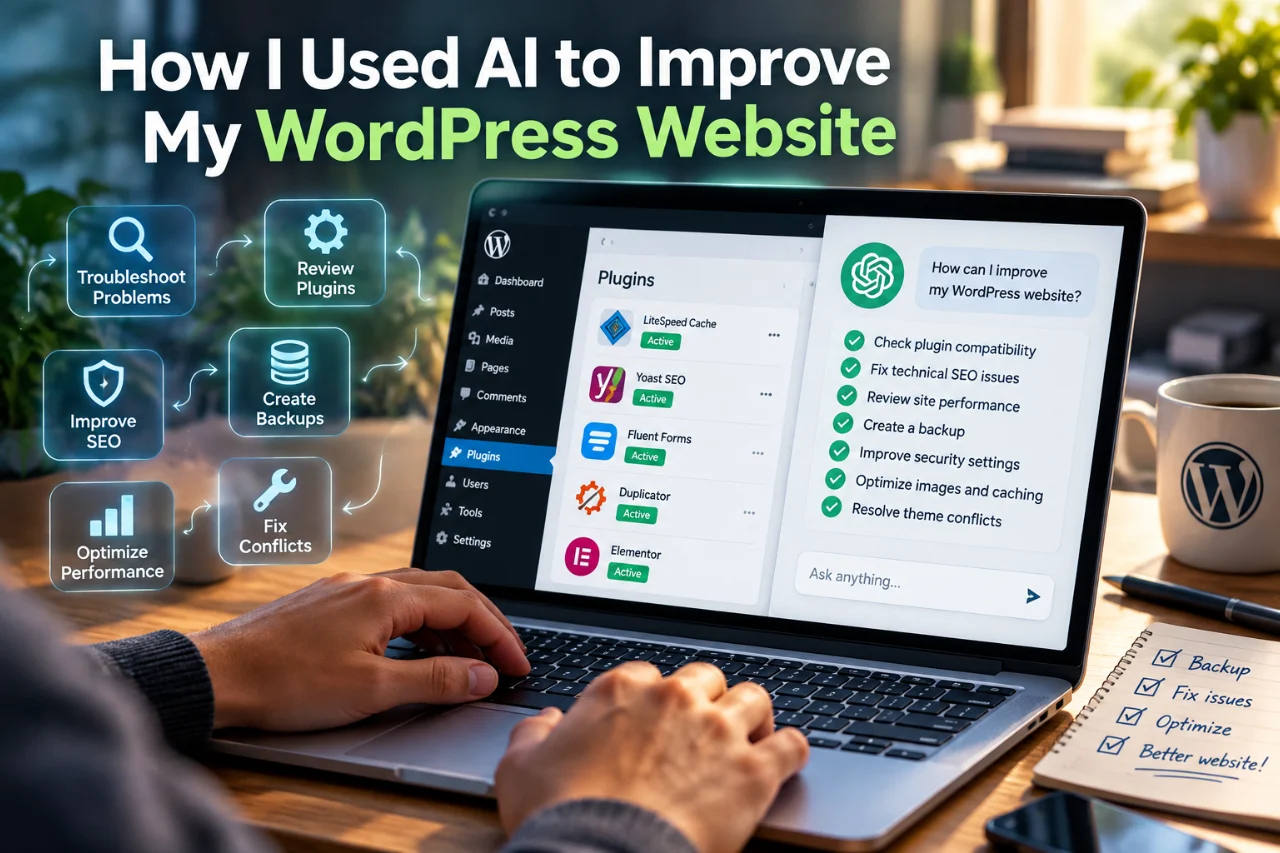
Can a beginner use AI to improve a WordPress website? Yes—but the useful part is not asking AI to “optimize everything.” The better approach is to use AI as a technical partner: give it access only to the information and actions it needs, make a backup, inspect the site, diagnose one problem at a time, make reversible changes, and verify the result.
I learned this while improving TechEduCareer. I was not approaching the project as a WordPress expert. I wanted to understand what was wrong, what actually mattered, and what could safely be fixed. AI helped with the investigation, but I remained the person approving important decisions.
What AI can actually do for a WordPress website
An AI assistant can be useful far beyond writing blog posts. Depending on the tools and permissions available, it can help inspect WordPress settings, review plugins, analyze page HTML, find broken or outdated links, examine SEO configuration, interpret browser-console errors, check sitemaps and robots directives, suggest internal links, draft content, and explain unfamiliar technical information in plain language.
The important distinction is between advice and action. An AI can tell you what it thinks should change. A connected AI tool may also be able to make that change. Those are not the same risk level.
Step 1: Make a backup before letting anything change
This became one of my most important rules. Before a meaningful round of website changes, create a restorable backup. WordPress itself recommends regular backups so you can restore your site if an update causes trouble.
A backup changes the whole working style. Instead of being afraid to touch anything, you can make careful, reversible changes and test them. It does not justify reckless changes, but it gives you a recovery point.
How I backed up my WordPress website using Duplicator
For my own website, TechEduCareer, I used the Duplicator WordPress plugin to create a backup before making significant changes.
The process is straightforward:
- Install and activate Duplicator from the WordPress plugin directory.
- Open Duplicator → Backups and create a new backup.
- Select a full-site backup that includes both the WordPress files and database.
- Run the backup and wait for it to finish.
- Download the backup archive and any accompanying recovery or installer file provided by your Duplicator version.
- Store the downloaded files somewhere safe, preferably outside your hosting account.
I particularly recommend keeping an offline copy. If your hosting account becomes inaccessible, a backup stored only on that same server may not help.
One important lesson: a successful backup doesn’t automatically guarantee a successful restoration. Ideally, test the recovery process on a staging website before relying on it for major changes.
With a backup available, I could experiment more confidently, knowing I had a recovery option if something went wrong.
Step 2: Give AI context, not your passwords
At first, a beginner may think the easiest approach is to paste administrator credentials into an AI chat. Do not do that. Passwords, API keys and other secrets should stay private.
A safer model is to use an authorized connector or management tool that exposes specific WordPress capabilities. In my case, the AI could inspect and perform supported WordPress operations through an authorized connection while I retained control over sensitive or destructive actions. Some steps still required me to use the WordPress interface manually.
This division of responsibility turned out to be useful: AI could do the repetitive inspection and analysis, while I handled credentials, approvals and decisions that could have larger consequences.
Step 3: Let AI inventory the site before fixing it
Before changing a WordPress site, ask: What theme is active? Which plugins are installed? Which are active? What WordPress and PHP versions are running? Which SEO and caching plugins are involved? What content types exist?
Taking inventory helps prevent a common beginner mistake: installing another plugin every time there is a problem. Sometimes the better solution is to configure an existing plugin correctly—or remove a plugin that is no longer needed.
Step 4: Review plugins by purpose, not by quantity alone
We reviewed plugins individually: what does this plugin do, is that function still needed, does another plugin already provide it, and does it add front-end code or maintenance overhead?
I removed several plugins that no longer had a useful role. Others stayed because they supported functions I still needed. The goal was not to reach an arbitrary “perfect” plugin count. It was to understand why each component existed.
A real example: tracing a JavaScript error to the actual plugin
This was one of the most useful lessons from the project. The browser console reported a JavaScript syntax error in a file generated by LiteSpeed Cache. It would have been easy to conclude that LiteSpeed was broken and disable optimization.
Instead, we traced the generated file back to the WordPress script that supplied the code. We traced the source to a front-end vendor bundle from UserFeedback, a plugin I had previously installed while looking for a simple Facebook-style “Like” feature.
UserFeedback was not actually needed for that purpose. I removed it, cleared the relevant caches and tested again in a clean browser session. The syntax error disappeared.
The lesson was bigger than one plugin: a filename tells you where an error appeared, not necessarily where the error originated. AI was useful because it could follow the evidence across the browser console, generated cache file, WordPress script handle and plugin inventory instead of guessing.
Step 5: Use AI to understand SEO settings instead of chasing scores
We then worked through the technical SEO foundation: page titles and meta descriptions, canonical URLs, XML sitemaps, robots directives, indexation settings, schema, author information, internal links and redirects.
This also taught me that an SEO audit warning is not automatically a problem. For example, if you deliberately mark a page noindex, you don’t need to optimize it as though it were an important search landing page. Keeping thin tag and archive pages out of search may be more useful than adding artificial descriptions just to quiet an audit report.
If you are starting from zero, our guide to improving Google and Bing visibility without paying for ads explains the broader search-discovery side of the process.
Step 6: Check what search engines can actually discover
We verified the public sitemap and robots file rather than assuming the settings screen was enough. We also connected the site to Google Search Console and Bing Webmaster Tools and submitted the canonical sitemap.
Here’s a useful habit for AI-assisted work: verify the output, not just the setting. If a plugin says a sitemap option is enabled, inspect the public sitemap. If a redirect was created, request the old URL and confirm the HTTP response. If a page should be noindexed, inspect its rendered robots meta tag.
Step 7: Improve content for people, search and AI answers
We reviewed the existing articles and improved titles, search intent, direct answers, headings, internal links and metadata. The aim was not to stuff keywords into every paragraph. It was to make each article easier for a person—and for a search or AI system—to understand.
For answer-oriented content, I found a simple structure useful: answer the main question early, use descriptive headings, explain important distinctions clearly, link related topics, and support factual claims with reliable sources. The same principles make content easier to quote, summarize and navigate.
Step 8: Use AI to find causes, not just symptoms
Another audit reported internal links using HTTP instead of HTTPS. Searching the article bodies did not find the links. We kept investigating and discovered that approved WordPress comments contained an old http://techeducareer.com author URL. WordPress rendered those comment-author links on the affected pages, where the crawler found them.
After removing the unnecessary comments and crawling the site again, the errors disappeared. This is exactly the kind of task where an AI assistant can save time: correlate the crawler report with rendered HTML, WordPress content and configuration instead of repeatedly editing the article itself.
Step 9: Measure before and after
We used an external site audit as one verification layer. During the final cleanup, the Ahrefs Site Audit Health Score moved from 99 to 100 and the reported technical errors went from two to zero. That does not mean a score of 100 guarantees rankings, traffic or AI citations. It means we resolved the specific technical issues that the crawl detected.
That distinction matters. AI can help you make a technically cleaner website, but it cannot promise first place on Google, traffic growth or inclusion in an AI-generated answer.
What I would not let AI do blindly
- Delete plugins, files or database records just because they look unused.
- Make broad search-and-replace operations without a backup and preview.
- Change themes or production code without understanding the rollback path.
- Share passwords, private API keys or authentication codes in chat.
- Publish AI-written factual claims without checking reliable sources.
- Chase every SEO audit warning simply to maximize a score.
A good rule is simple: the larger the possible impact, the more human review you want before execution.
A beginner-friendly AI + WordPress workflow
- Create and verify a backup.
- Explain your goal and current problem to the AI.
- Let it inspect the relevant settings and evidence where authorized.
- Ask it to explain the likely cause before proposing a fix.
- Prefer the smallest reversible change.
- Make sensitive or destructive changes manually or with explicit approval.
- Clear caches when relevant.
- Verify the public result independently.
- Record what changed so you can reverse it.
- Re-run the relevant audit or test.
Useful tools in an AI-assisted WordPress workflow
The exact stack will differ from site to site. In this project, different tools had different jobs: WordPress provided the publishing platform and Site Health information; an SEO plugin managed search metadata and schema; a caching plugin handled performance optimization; search-engine webmaster tools showed discovery and indexing information; a crawler provided an independent technical audit; the browser developer console exposed front-end errors; and the AI assistant connected the evidence and helped plan or perform supported changes.
WordPress also documents a troubleshooting approach in which plugins can be isolated to identify conflicts. The principle is worth remembering even if you use different tooling: test hypotheses rather than randomly changing settings.
What I learned as a beginner
The biggest surprise was that I did not need to become a WordPress developer before I could understand and improve my website. AI reduced the distance between seeing a technical problem and understanding what it meant.
But AI worked best when I treated it as a collaborator, not an autopilot. I asked questions, checked changes, sometimes did the manual step myself, and learned enough along the way to make better decisions the next time.
If you are building a new website, you may also find our website launch and promotion checklist useful. The technical cleanup described here is only one part of growing a site; useful content, authority, distribution and patience still matter.
Frequently asked questions
Can ChatGPT or another AI fix a WordPress website?
It can help diagnose problems, explain settings, write or review code and content, and—when connected through an authorized tool—perform supported WordPress actions. It should not be given unlimited control or sensitive credentials, and important changes still need human review and verification.
Do I need to know coding to use AI with WordPress?
No. Many useful tasks require no coding. However, understanding basic WordPress concepts, HTML, caching and browser developer tools gradually makes AI-assisted troubleshooting more effective.
Should AI automatically remove plugins it thinks are unnecessary?
No. First identify what each plugin does and whether the site depends on it. Deactivation is often a safer test than immediate deletion, and a backup should exist before meaningful changes.