
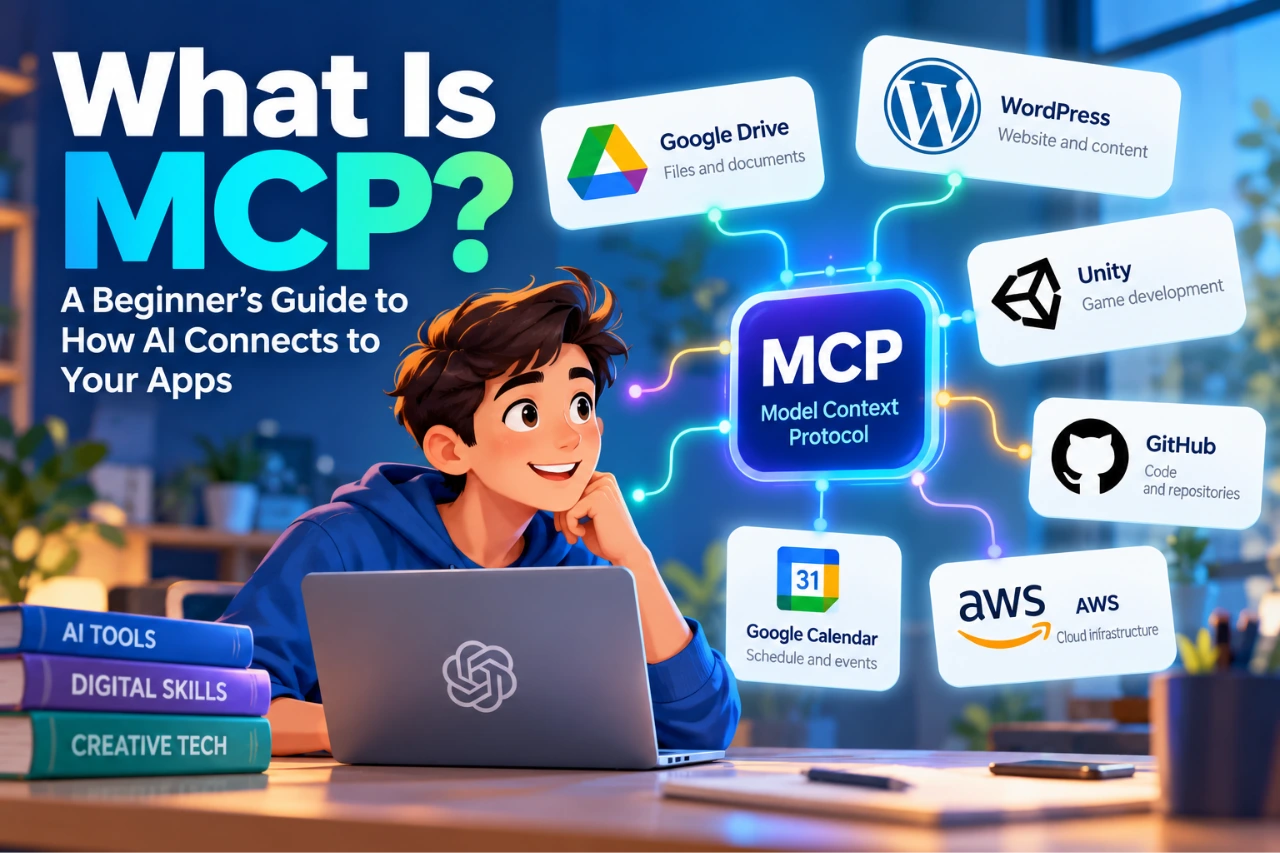
AI assistants can answer questions, explain concepts, write text and help solve problems surprisingly well.
But there is an awkward limitation.
Ask an AI to summarize a document stored in your Google Drive, and it may not be able to see the document. Ask it what is causing an error in your Unity project, and it cannot inspect the project unless you give it the relevant code or error messages. Ask it which posts are currently sitting as drafts on your WordPress website, and the same problem appears.
So what do we usually do?
Open the app. Find the information. Copy it. Paste it into the AI. Get the answer. Copy that answer. Go back to the original app.
Humanity has become remarkably good at Ctrl+C and Ctrl+V.
MCP — Model Context Protocol — is designed to make that relationship between AI and our tools much smarter.
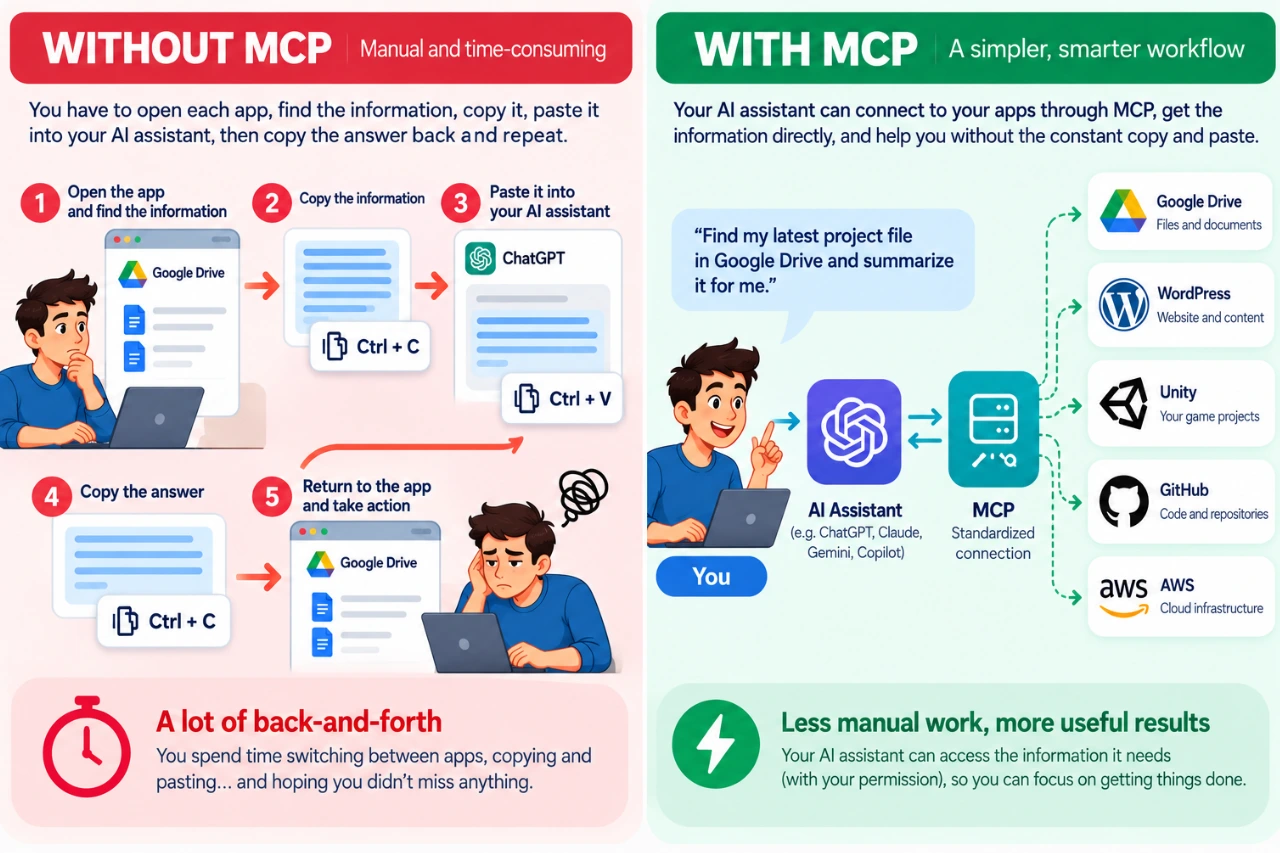
Instead of constantly carrying information between an AI assistant and the applications we use, MCP provides a standardized way for AI applications to connect to external tools and data.
And despite the rather technical name, the basic idea is surprisingly simple.
What Does MCP Stand For?
MCP stands for Model Context Protocol.
The three words make more sense when we separate them:
Model — the AI model helping you.
Context — information and capabilities outside the model that may be useful for your request.
Protocol — an agreed set of rules that allows different systems to communicate.
Put them together and MCP is essentially a common language that AI applications can use to work with external systems.
It was introduced by Anthropic in 2024 as an open standard and has since developed into a broader ecosystem used across different AI applications, developer tools and services.
The important word here is open. MCP isn’t a feature that belongs exclusively to one AI assistant or one software company. Different AI applications and services can implement the same protocol.
Think of MCP Like USB-C — Sort Of
The official MCP documentation uses USB-C as an analogy, and it’s a useful one.
Your laptop doesn’t need a completely different concept of connectivity for every keyboard, monitor, storage device or dock you attach to it. USB-C provides a common standard.
MCP tries to provide something similar for AI applications and external software.
But don’t take the analogy too literally. There isn’t a tiny AI USB cable hiding behind your computer.
A better way to think about it is:
MCP = the standard
MCP server = something that implements that standard and exposes particular tools or information
Your application = the system containing the data or functionality you want the AI to work with
And this distinction is important because MCP itself is not a product you install. An MCP server is one of the pieces that makes the connection possible.
How Does MCP Work?
Let’s imagine you ask an AI assistant:
Find my latest project document in Google Drive and summarize it.
Without a connection to Google Drive, the AI cannot simply wander into your account looking for the file.
With an appropriate MCP connection, the process can look roughly like this:
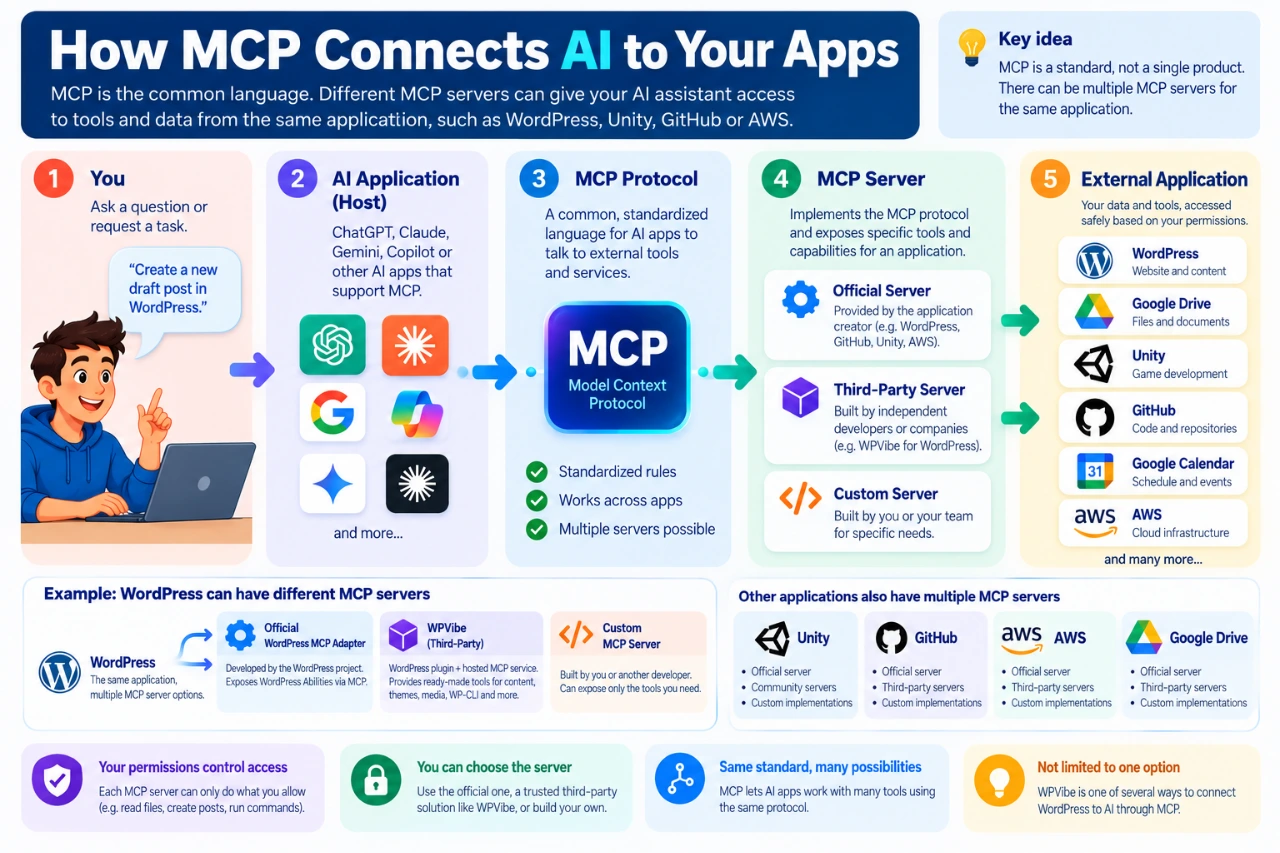
You → AI application → MCP → MCP server → Google Drive
Behind that simple diagram there are a few more pieces. The AI application acts as the host. It can use an MCP client to communicate with an MCP server. The MCP server exposes specific tools, resources or capabilities that the AI application is allowed to use.
So a slightly more technical version looks like:
You → AI host → MCP client ↔ MCP server → external application
You don’t need to memorize those terms to use MCP.
The important idea is that the AI isn’t receiving unrestricted access to an entire application. It receives access to particular capabilities made available through the MCP server and permitted by your account and configuration.
One App Can Have More Than One MCP Server
This is an easy detail to miss.
An MCP server doesn’t necessarily have to be created by the company that makes the application you’re connecting to. There can be official MCP servers created or maintained by the application provider, third-party MCP servers created by another company or developer, and custom MCP servers built by you or your organization for a particular workflow.
That means two MCP servers connecting to the same application may expose very different capabilities.
WordPress is a good example. WordPress has an official MCP Adapter that can expose selected WordPress abilities through MCP. But third-party solutions can also provide MCP access to WordPress. One example is WPVibe, which provides a WordPress integration and MCP-based service for exposing WordPress capabilities to compatible AI environments. Developers can also build their own implementations.
So:
MCP is the common standard.
WPVibe is one way of implementing the connection for WordPress.
That’s similar to USB-C docks: several manufacturers can build different docks around the same standard, and those docks don’t necessarily provide exactly the same capabilities.
The same principle applies beyond WordPress. An application such as Unity, a development platform such as GitHub, or a cloud environment such as AWS may have official, community-built or specialized MCP implementations.
What Can an MCP Server Let AI Do?
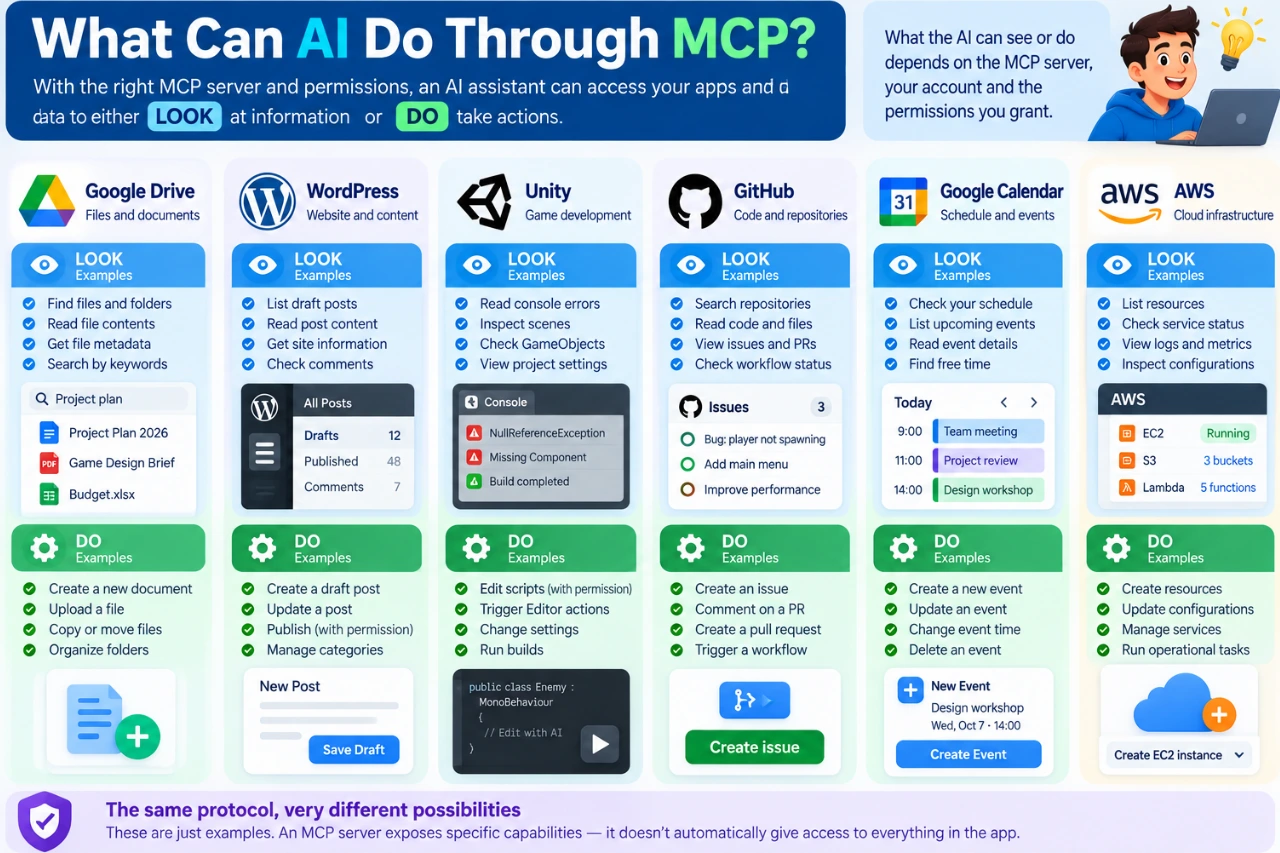
The easiest way to understand its capabilities is to divide them into two groups: LOOK and DO.
LOOK
An AI may be allowed to retrieve or inspect information. For example, it might find a document, read a file, inspect code, list WordPress posts, check a calendar, examine an error log or retrieve project information.
The AI is essentially saying: “Let me look at the information I need.”
DO
An MCP server may also expose tools that allow the AI to perform actions. It might create a document, create a WordPress draft, create a GitHub issue, update a calendar event, trigger a development workflow or perform an allowed cloud operation.
Now the AI isn’t simply reading information. It’s doing something.
And that distinction matters enormously. Giving an AI permission to read your draft posts is very different from giving it permission to publish or delete them.
What Can You Connect With MCP?
MCP isn’t limited to websites or cloud services. Depending on the available server and integration, MCP can expose capabilities from cloud services, local applications, files and folders, developer environments, databases, internal business systems and other software-controlled resources.
The key word is expose. MCP doesn’t automatically see everything. An MCP server deliberately makes selected capabilities available to the AI application.
Google Drive and Google Workspace
Imagine asking:
Find the project proposal I worked on last month and summarize the main points.
With an appropriate Google Workspace connection, an AI application can potentially search and retrieve permitted information from services such as Drive. Depending on the available integration and permissions, capabilities can also extend beyond reading information to actions such as working with files or calendar events.
Instead of downloading a document and uploading it into an AI conversation, the AI can retrieve the permitted information through the connection.
Unity
Unity is especially useful for understanding that MCP is not just about cloud software, particularly if you are learning game development.
An MCP server can communicate with a locally running Unity environment and expose selected project information to a compatible AI assistant. The assistant could potentially inspect project context or console errors and, when appropriate tools and permissions are available, trigger certain Editor actions.
Instead of repeatedly copying an error message into an AI chat, you can potentially give the assistant controlled access to the environment where the error actually exists.
It still won’t build GTA VII before lunch, unfortunately.
GitHub
A GitHub MCP server can give an AI assistant structured access to development information such as repositories, code, issues, pull requests and workflows.
Depending on the tools and permissions available, the AI might inspect an issue, summarize changes or perform permitted actions such as creating an issue.
This is especially useful for coding assistants because the AI can work with current project context instead of relying entirely on snippets pasted into a conversation.
AWS
MCP can also connect AI applications to cloud infrastructure. AWS provides MCP tooling that can allow compatible AI environments to interact with AWS services while respecting the user’s AWS permissions.
This is a good reminder that MCP isn’t only about documents and chat. An MCP server can expose real operational tools.
Which is also why permissions become extremely important.
WordPress
WordPress is a particularly interesting example for anyone managing a website.
An MCP connection can potentially expose selected WordPress capabilities such as reading posts, finding drafts, inspecting site information, working with media, creating or updating content, and performing selected administrative or development tasks.
But again, MCP doesn’t automatically expose your entire WordPress site.
What the AI can actually see or do depends on the MCP server, the capabilities it exposes, your WordPress permissions and the AI application you’re using.
There can also be different ways of connecting WordPress. The official WordPress MCP Adapter is one approach. Third-party services such as WPVibe are another. Developers can also create custom implementations.
We’ll explore that properly later in this series when we actually connect an AI assistant to WordPress and test what it can do.
Can MCP Connect to Software on My Computer?
Yes. MCP isn’t limited to websites and cloud services.
An MCP server can run locally and expose selected capabilities from software, files, development tools or other resources on your computer.
Unity is a good example: a suitable MCP server can communicate with a locally running Unity project and expose selected project context or Editor tools to a compatible AI environment.
But installing an application on your computer doesn’t automatically make it accessible to AI.
If you have Adobe Photoshop installed, for example, an AI assistant cannot simply open Photoshop because MCP exists. There would need to be an appropriate integration or MCP server capable of communicating with Photoshop, and the AI application would need a supported way to connect to that server.
MCP can expose what the MCP server knows how to expose — not everything on your computer.
The same principle applies to local files, databases, development environments and other desktop applications.
Can MCP Connect AI to Any Website or App?
Not automatically.
MCP isn’t a magic key that suddenly gives an AI assistant access to every application on the internet—or everything installed on your computer.
For the connection to work, there needs to be an MCP server or integration capable of exposing the relevant application’s data or tools. That server might be provided by the application itself, provided by a trusted third party, hosted locally, hosted remotely, or built specifically for your organization.
And even when an MCP server exists, the AI application still needs to support the way that server is being used.
So the real question isn’t:
“Does MCP support this application?”
A better question is:
“Is there a suitable MCP server for this application, does my AI application support it, and what capabilities and permissions does it provide?”
That’s less catchy. But considerably more useful.
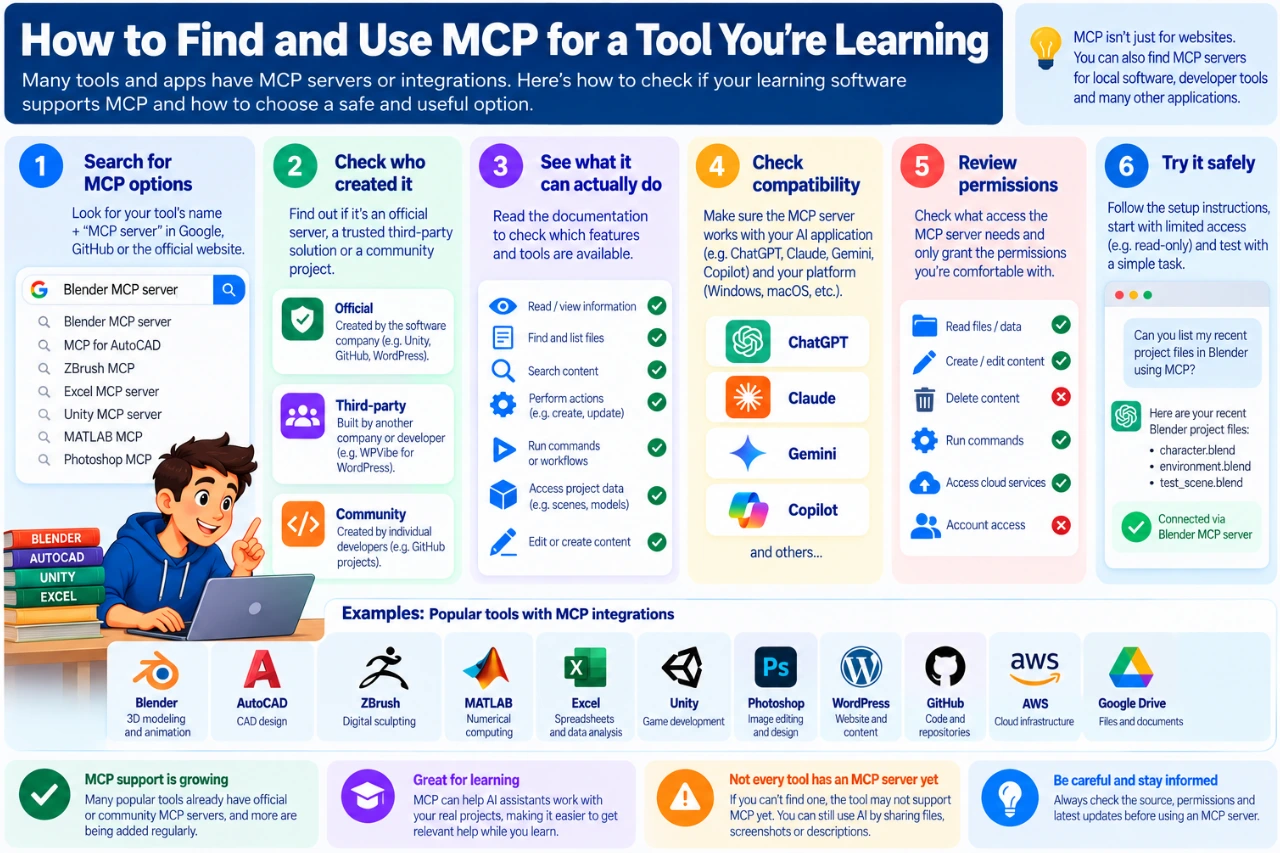
Learning a New Tool? Search for Its MCP Ecosystem
This is where MCP becomes especially interesting for students and young people learning digital skills.
Suppose you’re learning Blender, AutoCAD, ZBrush, Mathcad, Excel, Unity or another creative or technical application. Alongside ordinary tutorials, you can investigate whether an MCP integration exists for the software you’re learning.
A simple search such as “Blender MCP server”, “MCP for AutoCAD” or “Excel MCP server” can be a useful starting point.
But finding a project with “MCP” in its name doesn’t automatically mean you should install it.
Before using one, check:
- Who created it? Is it official, from a known company or developer, or an unknown project?
- What can it actually do? Does it only read information, or can it change your files or projects?
- Is it maintained? Look for current documentation, recent releases or development activity.
- How does it connect? Is it a remote service or something you install locally?
- Does your AI application support it? An MCP server existing doesn’t mean every AI assistant can use it.
- What permissions does it require? Don’t grant more access than you need.
For learning, the difference can be significant.
Without integration:
Student → describes the problem → AI works from the description.
With suitable MCP access:
Student → AI can inspect permitted project context → AI explains the problem using that context.
That doesn’t replace learning the software yourself. Used well, it can give an AI tutor better context about the thing you’re actually trying to learn.
MCP vs API: Haven’t Apps Been Talking to Each Other for Years?
Yes.
APIs already allow software applications to communicate with each other, and they aren’t disappearing because MCP exists.
In fact, an MCP server may use an application’s API behind the scenes.
The difference is mostly about standardization for AI applications. Traditionally, developers integrate separately with different APIs. Each service can have its own authentication, endpoints, data structures and documentation.
MCP provides a common way for AI applications to discover and use tools and context exposed by MCP servers.
A useful beginner shortcut is:
API = how software can interact with a service
MCP = a standardized way of presenting external tools and context to AI applications
They aren’t enemies. MCP often sits on top of systems and APIs that already exist.
So if someone tells you MCP has “killed the API,” you may safely keep one eyebrow raised.
Is MCP the Same as a Plugin or Connector?
Not necessarily.
This terminology gets confusing because AI products use words such as apps, connectors, integrations, plugins and tools. Those describe features you see as a user. MCP describes a protocol that may be used underneath some of those integrations.
One connector might use MCP. Another might use a company’s proprietary API.
From a beginner’s perspective, you don’t need to obsess over the terminology. Instead, ask two questions:
What information can the AI access?
What actions can the AI perform?
Those answers matter much more than the marketing label attached to the connection.
Is MCP Safe?
MCP can be used safely, but connecting an AI assistant to external systems creates responsibilities that ordinary AI chat doesn’t have.
If an AI can only answer a question, a mistake may produce a bad answer. If an AI can modify a website, create cloud resources or change a repository, a mistake can have real consequences.
A sensible approach is to:
- start with read-only access where possible
- use MCP servers you trust
- grant only the permissions actually required
- review important actions before they happen
- be especially careful with delete, publish, payment, infrastructure and account-management capabilities
- revoke connections you no longer use
You should also treat credentials carefully. Don’t paste ordinary passwords, API secrets or other sensitive credentials into an AI conversation simply because a random tutorial tells you to.
And remember that an MCP server itself becomes part of your security chain. An untrusted or poorly designed server can create risks regardless of how good the AI application is.
The more an AI can do for you, the more carefully you should decide what it’s allowed to do.
Do I Need to Know How to Code?
Not necessarily.
If you’re building an MCP server, then yes, you’re entering developer territory.
But if you’re using an existing MCP integration, the experience can be much simpler.
Some integrations can be configured through graphical interfaces. Others require installing software, entering configuration information, using credentials designed for integrations or running a few commands.
So MCP isn’t universally “one click” yet.
Sometimes it’s easy. Sometimes it’s still nerd territory.
But the direction is clear: more applications are packaging these connections so ordinary users don’t need to understand the underlying protocol.
Is MCP Free?
MCP itself is an open protocol.
That doesn’t mean everything you connect through MCP is free.
A typical setup can involve several layers:
AI service → MCP support → MCP server → external service
Any one of those layers may have its own pricing or usage limits.
An MCP server may be free while the AI service requires a paid plan. The AI client may be free while the external cloud service charges for resources you use. Or a third-party MCP provider may offer a limited free tier and charge for additional capabilities.
So remember:
Open protocol ≠ everything is free.
We’ll look at this more closely in the next article because the differences between AI assistants matter quite a bit here.
Why Does MCP Matter?
The bigger story isn’t really MCP itself. It’s what happens when AI assistants stop being isolated chat boxes.
For the first few years of mainstream generative AI, much of our interaction looked like this:
Ask → receive answer → manually do something with the answer.
Connections such as MCP can change that workflow to something closer to:
Ask → retrieve context → reason → use a tool → return the result.
For students, that might mean an AI assistant understanding permitted context from a coding, 3D or Unity project. For developers, it might mean working with repositories and development tools. For content creators, it could mean working with documents and publishing systems. For businesses, it can mean connecting AI to internal tools and workflows.
And for website owners, it may mean something as practical as asking:
Which WordPress posts are still drafts?
and getting the answer without opening WordPress and searching manually.
That’s a considerably more useful AI than one waiting patiently for another copy-and-paste.
Five Things to Remember About MCP
- MCP stands for Model Context Protocol. It is an open standard for connecting AI applications with external tools and data.
- MCP is the protocol, not the individual product. MCP servers implement the protocol and expose particular capabilities.
- There can be multiple MCP servers for the same application. They may be official, third-party or custom-built.
- MCP can connect to cloud and local resources. What matters is whether an appropriate server can expose them to your AI application.
- AI can potentially LOOK and DO — so permissions matter. Reading information and performing actions are very different levels of access.
Once those ideas click, most of the confusing MCP terminology becomes much easier to understand.
What’s Next?
Understanding MCP is only the first part of the story.
The next question is probably the one most people actually care about:
Which AI assistants can I use with MCP — and how much will it cost me?
In the next article, we’ll compare ChatGPT, Claude, Gemini, Copilot and other AI tools to see what MCP support they currently provide, what you can use for free, what requires a paid plan, and how beginner-friendly the different options really are.
Then we’ll stop talking about MCP in theory.
In the third article, we’ll connect AI to a real WordPress site, test what it can see and do, and show the process step by step.
Because eventually, even Ctrl+C and Ctrl+V deserve a day off. 😄