
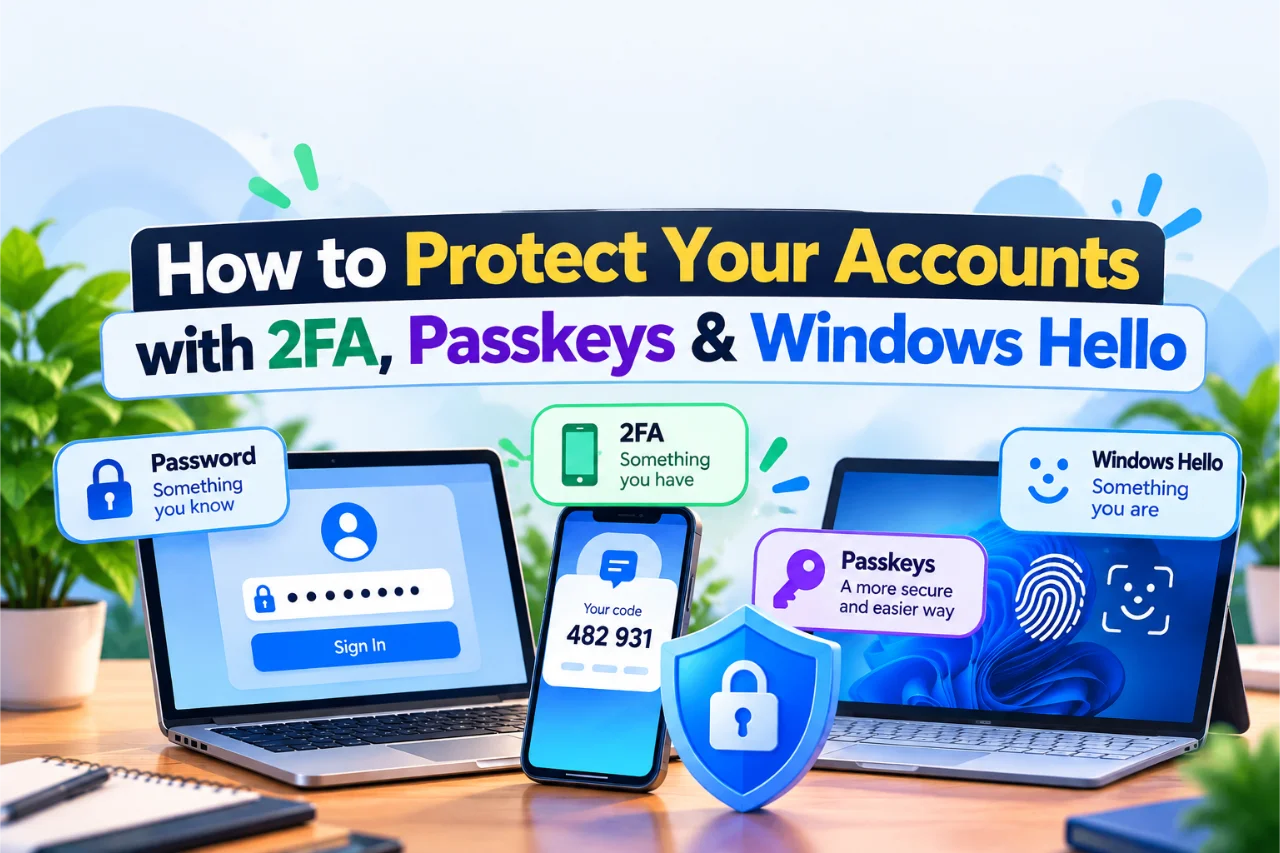
How to Protect Your Accounts with 2FA, Passkeys & Windows Hello
Your friend messages you on Instagram asking for money. Strange, because you were having pizza together yesterday, and they definitely didn’t mention needing an emergency loan.
A few minutes later, you discover their account was hacked. Their password wasn’t enough to keep someone out. But what if there had been a second lock on the door?
That’s where two-factor authentication (2FA) comes in. It’s one of the simplest ways to protect your online accounts, and it’s much easier to use than it sounds.
Why Your Password Needs a Sidekick
Think about how many accounts you have. Email, Instagram, TikTok, gaming platforms, shopping websites, streaming services, and probably a few you’ve completely forgotten.
Now think about how many passwords you remember. If the answer is suspiciously small, you’re not alone.
Passwords can be stolen in several ways. A website might suffer a data breach, exposing account information. Someone might trick you into entering your password on a fake login page, a scam called phishing (the NIST authentication guidance explains why some login methods resist this kind of attack better than others). Or you might reuse the same password on several websites.
Imagine using one key for your house, car, office, and bicycle. Convenient? Absolutely. A brilliant security plan? Not so much.
That’s why a strong, unique password is a great beginning, but shouldn’t always be your only protection.
If you’re still figuring out how to manage passwords without memorizing dozens of them, our earlier guide, Tired of Remembering Passwords? Simple Ways to Manage Them, is a good place to start.
What is two-factor authentication, anyway?
Think of 2FA as a second lock on your door
Imagine someone finds your house key. Normally, that’s enough to get inside. But what if your door also required a code that only you could provide?
That’s the idea behind two-factor authentication.
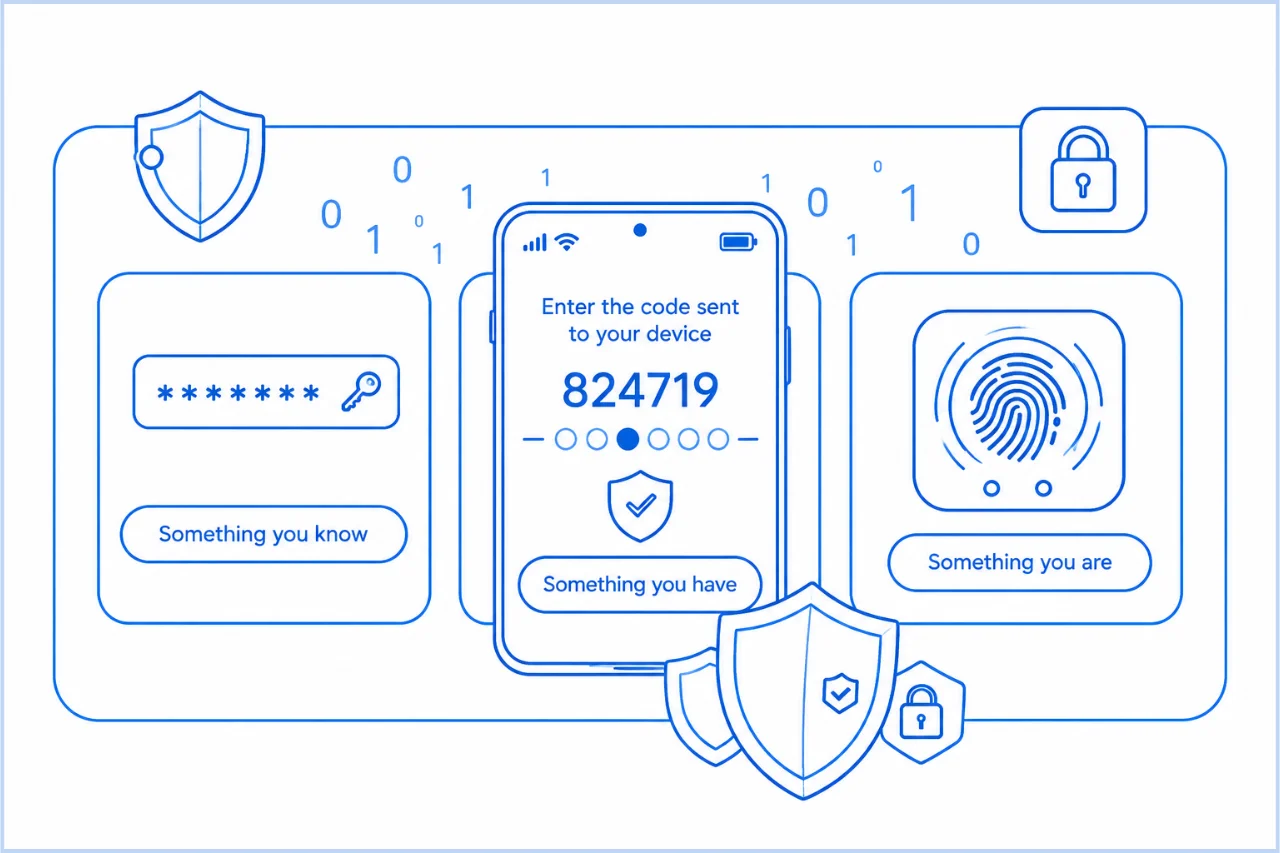
When you log in to a website, your password is usually the first check. The second might be a code from your phone, a physical security key, or another way of proving it’s really you.
Security experts group these checks into three categories: something you know (a password or PIN), something you have (your phone or a security key), and something you are (your fingerprint or face). That’s the whole list—no special vocabulary required.
The important part is combining two different kinds of proof. Entering two passwords doesn’t count as two-factor authentication, because both are things you know.
You might also see the abbreviation MFA, meaning multi-factor authentication. It’s the broader name for using two or more authentication factors.
And that’s really all you need to understand before we look at the different methods.
Quick tip: If a website offers 2FA, turn it on—especially for your main email account. Your email is often the key to resetting passwords for everything else.
The 3 Most Common 2FA Methods
There are several ways websites can ask for that second piece of proof. Some are easier to use, while others offer better protection against scams.
| Method | What’s good | What’s less good | Strength |
|---|---|---|---|
| SMS codes | Simple, works on most phones | Codes can be phished; phone numbers can be hijacked | Basic |
| Authenticator apps | Free, often work offline, stronger than SMS | Codes can still be stolen through fake login pages | Good |
| Hardware security keys | Excellent phishing protection | You need a compatible key and a backup plan | Very strong |
SMS codes: the familiar text message
You enter your password, and the website sends a six-digit code to your phone. You type the code, and you’re in.
It’s easy, and it’s certainly better than having no second factor. But scammers can trick you into giving them that code, sometimes using a fake website that looks almost identical to the real one.
Criminals can also sometimes take control of a phone number through a SIM-swap attack, where they convince a mobile provider to transfer the number. So SMS is useful, but it isn’t the strongest option.
Authenticator apps: a little stronger
Apps such as Google Authenticator and Microsoft Authenticator can generate temporary login codes on your phone. Many of these codes change every 30 seconds and work without mobile reception.
That’s handy when you’re traveling or your phone signal decides to take a holiday.
Authenticator apps generally provide better protection than SMS because they don’t depend on your phone number. However, a convincing phishing website can still steal a code if you type it there.
Security keys: the physical option
A hardware security key is a small device, sometimes resembling a USB stick, that helps prove you’re signing in to the correct website.
Hardware security keys from brands such as YubiKey and Google Titan, along with other FIDO2-compatible devices, can provide phishing-resistant sign-ins. You might plug one into your computer or tap it against a compatible phone. One security key can protect multiple accounts—you don’t need a separate key for every website.
The clever part? A properly implemented FIDO2 login is tied to the real website. A fake copy can’t simply collect a reusable code and use it elsewhere.
Hardware keys are especially useful for people protecting important accounts. But they’re not mandatory for everyone, and having a backup key or recovery method matters.
Passkeys: what if you didn’t need a password at all?
Here’s where things get interesting. A passkey lets you sign in without typing a traditional password. Instead, you might use your phone’s fingerprint reader, facial recognition, or device PIN.
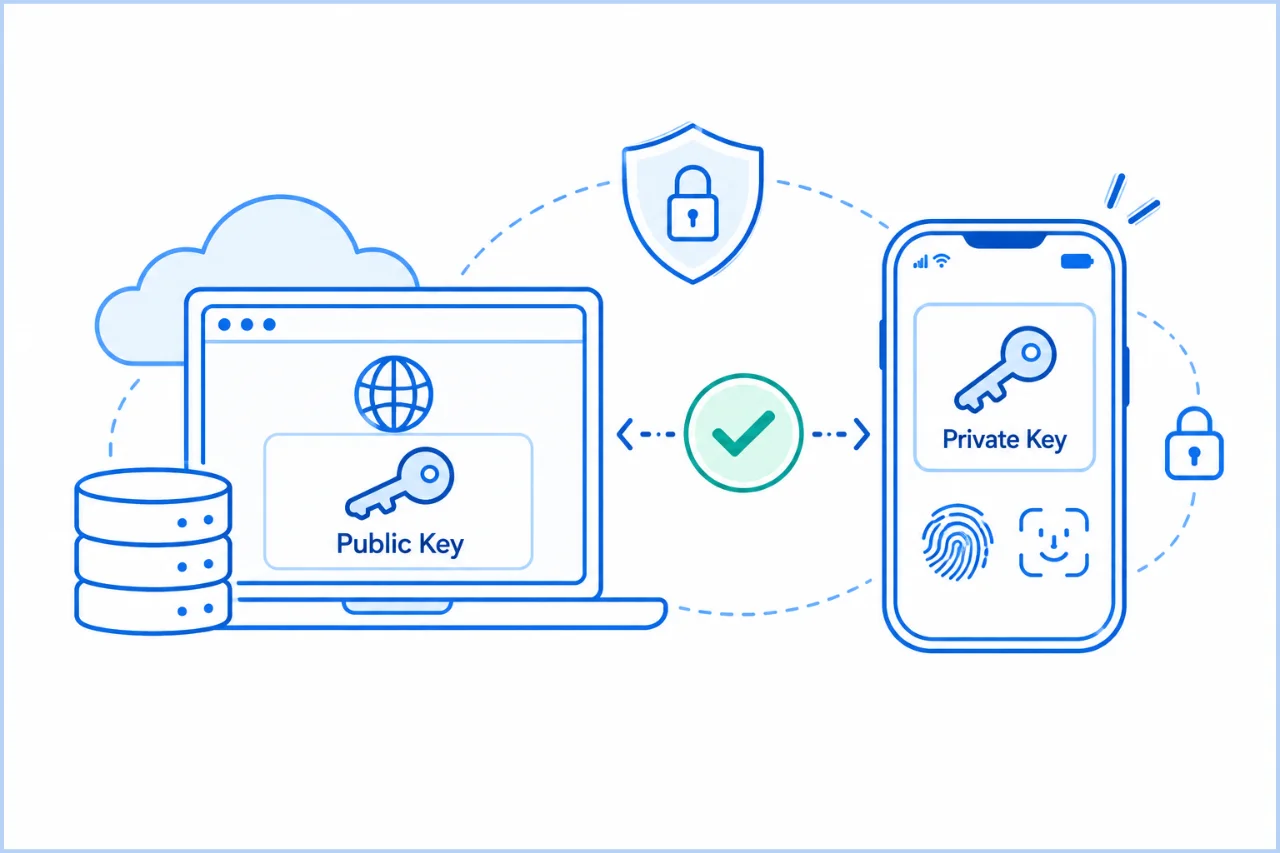
Behind the scenes, a passkey uses two matching digital keys. The website receives a public key, while the private key stays protected by your device or passkey provider. Some passkeys can also be securely synchronized between your devices.
When you sign in, your device proves it holds the private key without handing that secret to the website. Imagine a lock that checks your key without taking it away. That’s the basic idea.
Why passkeys are harder to steal
Traditional passwords can be typed into convincing fake websites. Passkeys work differently. They are connected to the legitimate website’s identity, so a fake website generally can’t trick your passkey into authenticating it as the real one.
That’s why passkeys are considered phishing-resistant.
They’re not magic, of course. Someone could still try to trick you into approving an action, compromise your device, or abuse an account’s weaker recovery options. But passkeys remove several common problems that come with passwords.
Can passkeys work across your devices?
Yes, depending on where they’re stored. Some passkeys are synchronized through supported password managers or device ecosystems, such as Apple’s iCloud Keychain or Google’s password-management services. Others remain tied to a particular device or hardware security key.
You may also be able to sign in on your computer using a passkey stored on your nearby phone, often by scanning a QR code and approving the request.
Support varies between websites, devices, browsers, and passkey providers, so the exact experience isn’t identical everywhere.
Windows Hello, Face ID, and fingerprints: what’s actually happening?
You’ve probably unlocked a phone by looking at it or placing your finger on a sensor. Windows Hello brings similar convenience to compatible Windows computers, using facial recognition, fingerprints, or a PIN.
Apple’s Face ID and Touch ID provide comparable device-verification experiences.
But here’s something that surprises people: your face or fingerprint isn’t normally sent to the website you’re logging into.
During normal passkey sign-in, your device checks your face or fingerprint locally. If the check succeeds, it can use your passkey to answer the website’s login request. The website gets cryptographic proof of a valid sign-in—not a photograph of your face or a copy of your fingerprint.
Is Windows Hello an extra layer on top of 2FA?
Sometimes additional checks are required, but Windows Hello isn’t automatically a third step after password and 2FA.
Consider two situations. In the traditional approach, you enter a password and then a code from your authenticator app.
With a passkey on your Windows computer, you might choose the passkey and confirm using Windows Hello. Your device holds the passkey, and your face, fingerprint, or PIN approves its use. That’s why this kind of sign-in can meet MFA requirements without asking for another six-digit code.
That combination can satisfy MFA requirements without a separate six-digit code.
Windows Hello for Business uses a device-bound cryptographic credential together with a PIN or biometric check. Personal Windows Hello and passkey experiences can differ depending on the account and service.
In other words, more login screens don’t necessarily mean more security. The goal isn’t to build a castle with seventeen doors. It’s to use the right locks.
Did you know? A device PIN used with Windows Hello isn’t the same as sending a website a password. It helps unlock a protected credential on your device. And using a fingerprint to unlock your phone doesn’t automatically mean every app on that phone has 2FA enabled.
Suggested diagram: Side-by-side login flows showing password + authenticator code versus passkey + Windows Hello.
Four security myths we can happily retire
“I’m not important enough to be hacked.”
You don’t need to be famous or wealthy to attract scammers. Many attacks are automated. Criminals try stolen passwords against large numbers of accounts, hoping some will work.
Your gaming account, email address, or social profile can still be valuable to someone else. For a wider look at where online scams and stolen data circulate, see our article on the surface web, deep web, and dark web.
“2FA is too annoying.”
Yes, entering another code can be irritating, especially when you’re in a hurry. But many services remember trusted devices, and passkeys can make secure sign-ins quicker than passwords.
A few extra seconds now can save hours of account recovery later.
“If I use Face ID, I don’t need any other security.”
Face ID can protect your device and help authorize passkeys, but it doesn’t automatically secure every online account. If a website still uses a password-only login, that account may remain vulnerable even though your phone has excellent biometric security.
“Once I enable 2FA, nobody can hack me.”
We wish! 2FA greatly reduces certain risks, but it doesn’t prevent every scam, stolen session, malicious app, or account-recovery attack. Good security means making attacks harder, not expecting a magical shield.
Your seven-step account safety plan for this week
You don’t need to become a cybersecurity expert by Friday. Start with these manageable steps.
- Secure your main email account first. Give it a unique password and enable the strongest available authentication method.
- Use a password manager. It can create and remember different passwords for every account.
- Enable 2FA on important accounts. Prioritize email, banking, social media, shopping, and gaming.
- Choose an authenticator app over SMS when possible. If SMS is the only available option, use it rather than leaving 2FA off.
- Try passkeys where supported. Start with one familiar service and learn how its recovery options work.
- Save your backup codes securely. Keep them somewhere accessible if your phone is lost, but not in an unprotected screenshot.
- Review account recovery and connected devices. Remove unfamiliar sessions and make sure your backup methods still work.
You can spread these tasks over several days. There’s no prize for completing everything in one evening.
And please don’t experiment with deleting your only working login method before confirming that your backup works.
Quick questions you might still have
- Is 2FA free?
- Usually, yes. Most major online services offer at least one free 2FA option, and many authenticator apps are free. Physical security keys cost money, but they’re optional for most everyday users.
- Can someone hack my account if I have 2FA?
- Yes, it’s still possible. Phishing, stolen login sessions, compromised devices, and weak account recovery can create risks. However, strong 2FA significantly improves your protection.
- What happens if I lose my phone?
- That depends on your setup. Backup codes, another registered device, a spare security key, or supported recovery options may help you regain access. Prepare these before you lose the phone, not afterward.
- Are passkeys better than passwords?
- For many online sign-ins, yes. Properly implemented passkeys resist traditional phishing and eliminate password reuse. Their overall safety still depends on device security, storage, synchronization, and account recovery.
- Do I need both a passkey and an authenticator app?
- Not necessarily. A passkey sign-in can already provide strong multi-factor protection when it includes device-based user verification. Some services may still require additional verification for sensitive actions or recovery.
One more lock, a lot more peace of mind
You don’t have to understand every technical detail to protect yourself online.
Start with your email. Add a second factor. Try a passkey when you’re comfortable. Make sure you have a way back into your accounts if a device disappears.
Good security shouldn’t make your digital life miserable. It should help you get on with your day—without wondering why your Instagram account is suddenly advertising suspicious sunglasses.
Help others discover this article.
Discover more from Technology Education & Career
Subscribe to get the latest posts sent to your email.
