
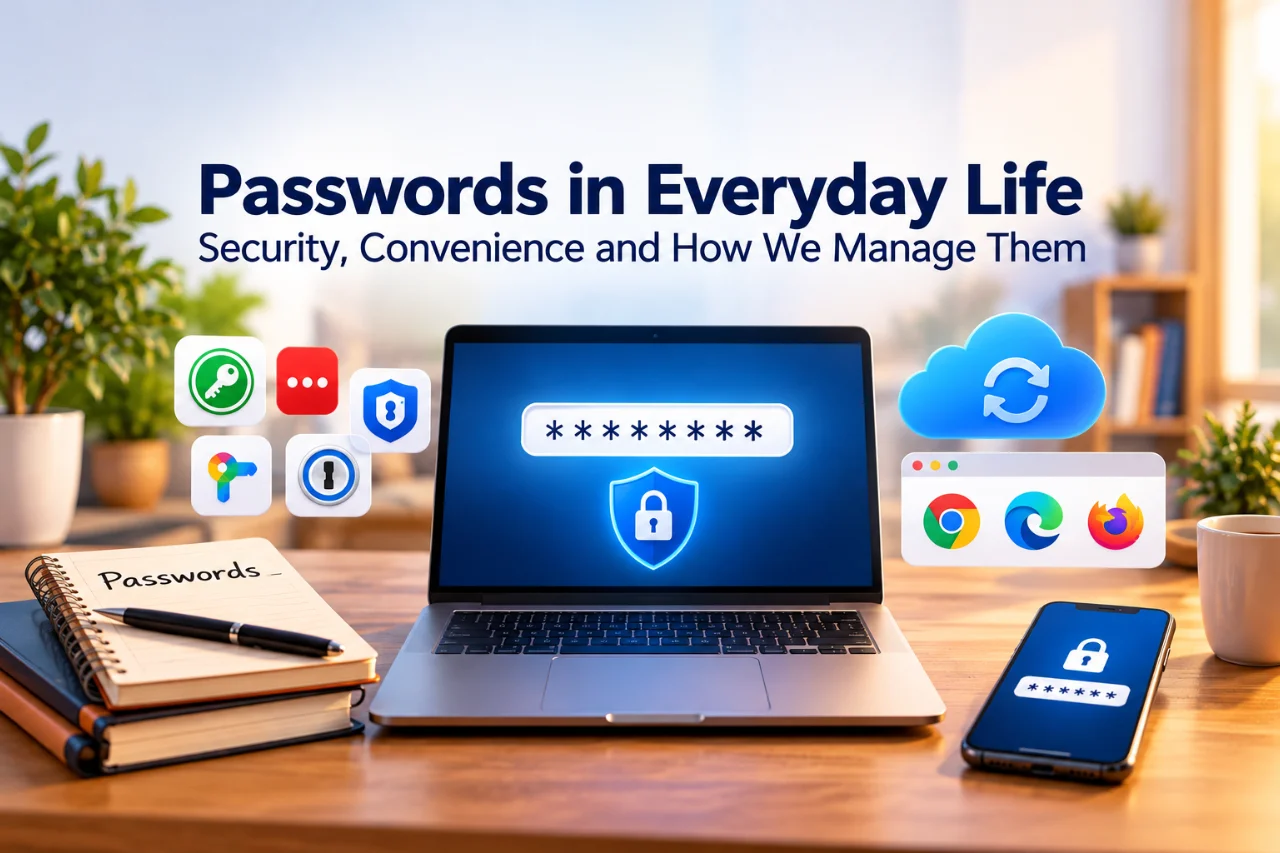
Tired of Remembering Passwords? Simple Ways to Manage Them
How many passwords do you have? Five? Twenty? Fifty?
There’s your email, banking, shopping, social media, streaming, gaming, and perhaps a few accounts you haven’t visited in years. Now imagine being told that every one needs a different, long password.
Excellent advice. There’s just one small problem: we’re humans, not password databases.
Fortunately, there are several ways to manage passwords. Some people trust their browsers, others prefer dedicated apps, and some still swear by a pen and notebook. Which one makes sense?
How Did We End Up With So Many Passwords?
Almost every online service now wants an account. Reusing one password everywhere sounds convenient, but if that password is exposed through one service, other accounts using it may also be at risk. Unique passwords help contain that problem. Learning to manage accounts securely is part of everyday digital literacy, alongside the other digital skills teenagers can develop before university.
And yet, expecting anyone to memorize dozens of them is hardly realistic.
What Makes a Strong Password Today?
For years, the familiar advice was to combine uppercase letters, lowercase letters, numbers, and symbols, then change the password regularly. But NIST’s current Digital Identity Guidelines emphasize length and checking against commonly used or compromised passwords, rather than mandatory character mixtures or routine changes.
Under those guidelines, a password used as the only authentication factor must be at least 15 characters long. This is a requirement for systems following that standard, not a claim that every website already enforces it.
A long, unpredictable passphrase may be easier to remember than a short password full of punctuation. If a password manager generates a random password, you generally don’t need to remember it yourself.
Why Passwords Sometimes Stop Being Private
A data breach or deceptive login page can expose even a strong password. A service may suffer a data breach; a convincing fake login page may trick someone into entering credentials; malicious software may capture sensitive information. And when people reuse the same password, one incident can affect several accounts.
There’s no need to imagine a mysterious villain waiting behind every website. The practical lesson is simpler: make passwords unique and have a manageable way to store them. Passwords are only one part of online privacy; other tools, such as Tor and onion routing, address different privacy concerns.
Option 1: Let Your Browser Remember
Chrome, Edge, Firefox, Safari and other modern browsers can save passwords, generate new ones, and fill them in when you sign in. Depending on your settings, they may also synchronize credentials between your devices.
For many people, a browser’s built-in manager is a perfectly reasonable starting point. The UK National Cyber Security Centre (NCSC) recognizes browser-based password management as a practical option.
But device security still matters. Someone using your unlocked computer may access accounts you’ve already signed in to, even without knowing your passwords. And you should avoid saving credentials in a browser on a public or shared computer.
Bottom line: Very convenient, particularly if you mostly use your own devices and one browser ecosystem.
Option 2: Cloud Password Managers
Dedicated services such as Bitwarden and 1Password keep credentials in an encrypted vault and can synchronize them across supported browsers and devices. They can generate passwords and fill login forms, reducing the temptation to reuse credentials.
Of course, storing an encrypted vault through an online provider raises fair questions about trust, security, access and recovery. Encryption is important, but no software or provider is immune to every failure.
Bottom line: Convenient for people who regularly switch devices, provided they understand how the vault is protected and recovered.
Option 3: Offline Password Managers
What if you prefer to control where the database is stored? KeePassXC keeps passwords in an encrypted database file that you manage yourself.
Does that mean opening a file and copying your email password by hand every morning? Fortunately, no. KeePassXC offers browser integration for supported browsers, so it can fill credentials without repeated manual copying.
The trade-off is responsibility: you need reliable backups and, if you use multiple devices, a method for accessing the database on each one. Keeping a vault locally doesn’t guarantee safety if malicious software compromises the computer.
Bottom line: Greater control over storage, with more responsibility for backups and synchronization.
Option 4: The Notebook — Still in Business
And now, the original password manager: a notebook and a pen.
No subscription, no software updates, no synchronization conflicts. Just paper. It sounds old-fashioned, but the NCSC has acknowledged that writing passwords in a dedicated book can be reasonable when it is kept physically secure.
Nobody can access a paper notebook remotely over the internet. It can, however, be lost, stolen, photographed or damaged. And manually typing a long password from page 17 of a notebook is not everyone’s idea of a relaxing evening.
Bottom line: A workable option for some people, provided physical security and convenience are considered.
Do We Really Enter Passwords Every Day?
Usually not. Many websites and apps keep us signed in using authenticated sessions. That is why you can open your email without typing the password every morning.
But this also means someone using your unlocked device might access an already signed-in account without needing the password at all. A good screen lock matters regardless of where you store passwords.
Four Approaches, Different Priorities
| Approach | Main advantage | What to consider |
|---|---|---|
| Browser manager | Easy and built in | Device and browser-account security |
| Cloud manager | Convenient across devices | Provider trust, vault protection and recovery |
| Offline manager | Control over database storage | Backups and synchronization |
| Paper notebook | No software dependency | Physical security and manual entry |
These are general trade-offs, not security ratings. If you use one laptop, a browser manager may be enough. Switching between several browsers and a smartphone? A dedicated vault might be more convenient. Others may prefer local storage or paper.
One practical rule matters more than the brand of manager: avoid keeping several competing, outdated copies of the same credentials. When a password changes, make sure the version you rely on gets updated.
Can a Password Manager Become a Problem Itself?
Yes. A password manager collects valuable credentials in one place. If someone opens your unlocked vault, the consequences can be serious. Losing access to the vault without a recovery method can also be painful.
But reusing weak passwords everywhere carries its own risks. Password managers are useful because they make good habits more practical, not because they magically eliminate every security problem. Both the NCSC and CISA offer guidance on using password managers.
What If a Password Has Already Been Exposed?
Have I Been Pwned lets you check whether an email address appears in its database of known breaches. Its separate password-checking service can help identify previously exposed passwords.
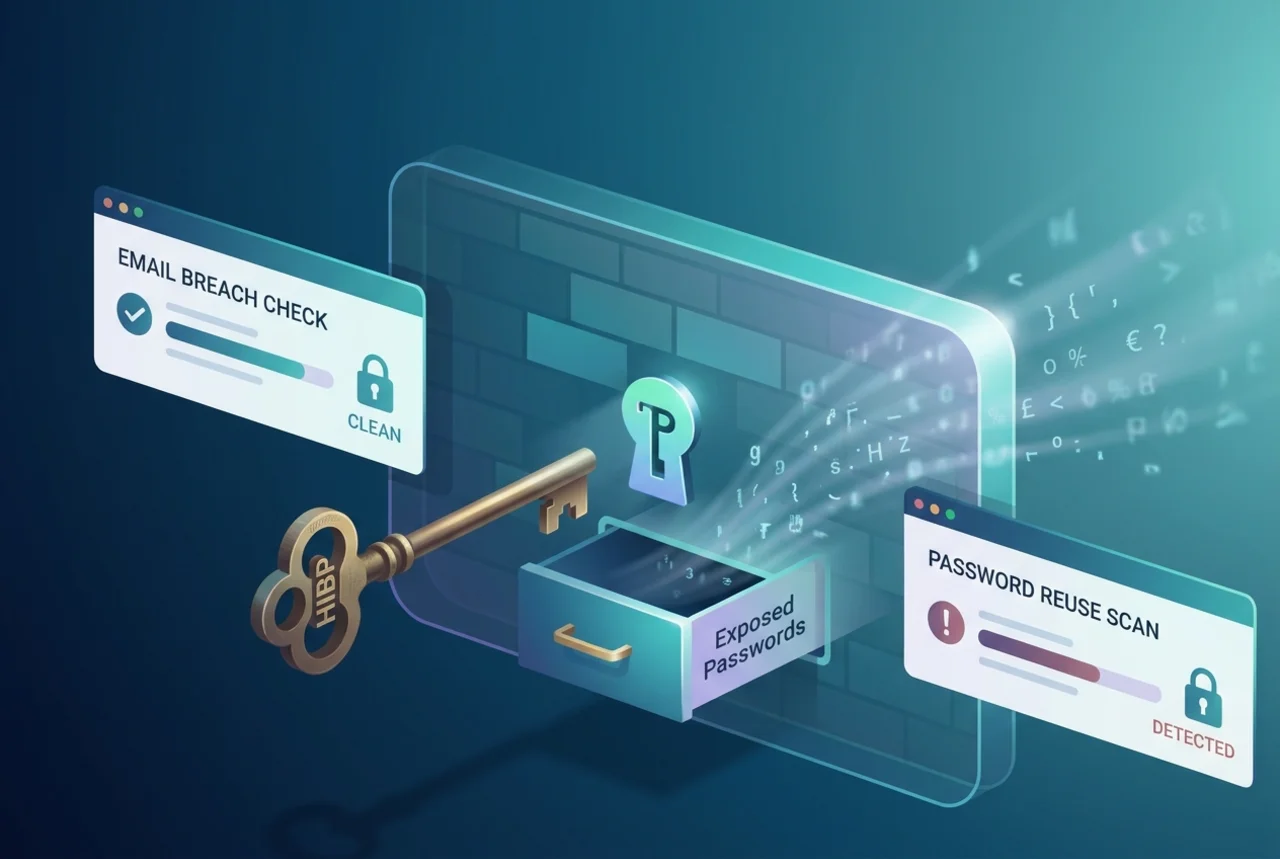
A conceptual view of data breach lookups and password security checks in action.
A match doesn’t automatically mean someone currently controls your account, and no match doesn’t guarantee complete safety. But if a breach exposes a password, change it on every account where you used it.
What About Signing In With Google?
Sometimes a website doesn’t ask you to create a separate password at all. You simply select Continue with Google.
In that case, the website typically relies on Google to authenticate you rather than receiving your Google password. If you use several Google accounts, it can still be helpful to record which one you used for each website. Otherwise, six months later, signing in can become a guessing game of a different kind.
And What About Passkeys?
Some services now let you sign in with passkeys, device PINs, fingerprints or other authentication methods. These can reduce dependence on traditional passwords, but they raise new practical questions: What happens when your trusted device is at home? What if you lose your phone?
We’ll explore those questions in our next article on two-factor authentication, passkeys and safer logins.
Conclusion: A System You Can Actually Live With
Password security shouldn’t feel like a second job.
Browser saving, cloud managers, offline encrypted databases and paper notebooks all offer ways to manage an increasingly complicated digital life. Each comes with trade-offs.
The goal isn’t to win a competition for the most sophisticated setup. It’s to use unique credentials, protect the places where they’re stored, and make sure you can still access your accounts when something goes wrong.
The best password system is one you can reliably use.
So, which camp are you in: Team Browser, Team Cloud, Team Offline—or Team Notebook? 😊
Sources and Further Reading
- NIST — Digital Identity Guidelines, SP 800-63B
- UK NCSC — Password Managers
- CISA — Use Strong Passwords
- KeePassXC — Official Website
- Have I Been Pwned
Discover more from Technology Education & Career
Subscribe to get the latest posts sent to your email.
