Person preparing for a data analyst interview, reviewing SQL queries, analytics dashboards, and interview study notes at a desk.

How to Prepare for a Data Analyst Interview

When people ask me how to get ready for a data analyst interview, they usually expect a list of advanced topics. In reality, most analyst interviews reward strong basics, clear thinking and calm communication far more than clever tricks.

At Dataford we collect interview reports from real candidates. For data analyst roles alone, that now covers 28k+ candidate reports and about 42k reported questions across 3,400+ companies. The pattern is clear. SQL appears in about 46% of company guides, more than any other topic. Behavioral and leadership questions are the largest question category, with about 18k reports. Metrics, statistics and product sense questions fill most of the rest.

Below is how I would prepare for each part, followed by a simple plan for the weeks before your interview.

Know what the process looks like

Before you study anything, it helps to know the shape of the loop. The median data analyst process in our data has three rounds. About 85% of reports mention a recruiter or HR screen, and about 57% mention an online assessment, case study or take-home exercise. Hiring manager, panel and final rounds show up less often, but be ready for them.

In practice, you will likely face a timed test, usually SQL, before you meet the team, and you will need to explain your work to people who are not analysts.

Ask your recruiter early what each round covers. Most are happy to tell you, and the answer will save you hours of guessing.

SQL: the round that decides whether you continue

The SQL screen is a common place for candidates to drop out. Our data shows about 9.7k reported questions in the SQL and data manipulation category for analysts, which makes it the second largest category after behavioral.

The good news is that the questions are rarely exotic. In most screens you can expect:

  • Filtering and aggregating with WHERE, GROUP BY and HAVING
  • Joining two or three tables, and knowing when a LEFT JOIN changes the row count
  • Window functions such as ROW_NUMBER, RANK and running totals
  • Date logic, such as weekly signups or monthly active users over a period
  • Handling NULLs and duplicates without losing rows by accident

When I practice SQL, I follow one rule: write the query on paper or in a plain editor before running it. Then explain each clause out loud as if a teammate were listening. Interviewers often care more about your reasoning than perfect syntax. Saying “I am grouping by user first so each person counts once” shows you understand the data.

Also practice checking your own answer. A quick sanity check, like comparing a total against a simple COUNT, catches many mistakes.

Statistics: depth on the basics

Statistics and probability questions make up about 3.7k of the analyst questions in our data, and A/B testing adds a few hundred more. Most of them test whether you can use basic ideas correctly.

Make sure you can explain these in plain words:

  • Mean versus median, and when an outlier makes the mean misleading
  • What a p-value tells you and what it does not
  • How an A/B test is set up, including the control group, sample size and test length
  • Common A/B test problems, such as stopping early or checking too many metrics
  • Correlation versus causation, with one real example you can describe

A useful test for yourself: try explaining an A/B test to a friend who has never studied statistics. If you can do it in two minutes without jargon, you are ready for most analyst rounds.

Business and product case questions

Metrics questions are the third largest category in our analyst data, with about 5k reports, and product sense adds about 2.3k more. These are the “how would you measure this?” or “why did this number change?” questions.

A typical prompt sounds like this: “Weekly orders in our app dropped 8% last week. How would you look into it?”

I like a five-step structure for these:

  1. Clarify. Which orders, which platform, and compared with what baseline?
  2. Rule out data issues. Was there a tracking change, an outage or a holiday?
  3. Segment. Break the drop down by region, device, channel and new versus returning users.
  4. Form a hypothesis. Say what you think happened and what data would confirm it.
  5. Recommend. Suggest a next step, even if it is simply a deeper analysis.

You do not need years of industry experience here, just structure and curiosity. A simple way to practice is to pick an app you use every day, write down its three most important metrics, and explain why each one matters. Then imagine one of them dropped and walk through the five steps.

Communication and behavioral questions

This is the part candidates most often skip, and it is the biggest category in our data. Several of the most common analyst questions we see are about communication, such as presenting analysis to non-technical leaders, explaining a technical concept clearly, and prioritizing competing data requests.

Prepare five or six short stories from your own experience. Class projects, internships, research work, volunteer roles and part-time jobs all count. Good themes to cover are:

  • A time your analysis changed a decision
  • A time you worked with messy or incomplete data
  • A time you explained something technical to a non-technical person
  • A time you had to choose between two urgent requests
  • A time you made a mistake and fixed it

Use the STAR format (situation, task, action, result) and keep each answer under two minutes. Put a number on the result when you can, such as hours saved or a change in a metric.

During technical rounds, communication matters too. Think out loud, state your assumptions, and ask questions when a prompt is vague. Silence makes it hard to give you credit.

A Simple Four-Week Practice Plan

If you have about a month, here is a plan that fits around school or a full time job. Aim for 45 to 60 minutes a day.

Week 1: Foundations. Do SQL basics every day: filters, aggregates and joins. Review mean, median and distributions. Write down your five or six behavioral stories in rough form.

Week 2: Depth. Add window functions and date logic to your SQL practice. Study A/B testing and p-values until you can explain them simply. Practice one metrics case question a day out loud.

Week 3: Realistic practice. Do a timed SQL set of three or four questions twice this week. Practice two case questions a day and tighten your behavioral stories to under two minutes each. Look up real questions for the companies you are targeting. I built the Dataford data analyst interview guide partly for this step, so candidates can see which topics and questions come up most often.

Week 4: Mock interviews and rest. Do at least two full mock interviews with a friend, mentor or your career center. Review your weakest area, and stop adding new topics in the last two days.

If you only have one or two weeks, keep the same order and shorten each stage. SQL and behavioral stories should always come first, since they appear in almost every process.

Final thoughts

Data analyst interviews are very learnable. The candidates who get offers are usually the ones who practiced SQL until it felt routine, can bring structure to a vague business question, and can explain their thinking to anyone in the room. Start early, practice out loud, and treat each interview as practice for the next one.

WordPress website customization with Claude and ChatGPT AI assistants, illustrating how to create features without installing another plugin.

Do You Really Need Another WordPress Plugin? How AI Can Help You Build Small Features Instead

A few days ago, I wanted to add a simple feature to my WordPress website: click an article image and see it enlarged.

Nothing complicated, right?

Normally, my first instinct would be to search for a plugin. Find one that supports my WordPress version, check whether it works with my theme, look at the reviews, install it, configure it, and hope it doesn’t introduce another problem.

And that’s exactly what I did.

WordPress plugins for image galleries and lightboxes, including MetaSlider, WPCode, and other customization tools, displayed on a laptop.

I searched for different solutions and tried several plugins. Some appeared to be designed for specific page builders, such as Elementor. Others raised questions about compatibility with Gutenberg, my theme, or the WordPress version I was using.

I even installed two more plugins that morning: MetaSlider and MetaSlider Lightbox. According to an article I found, they should work together to provide the functionality I needed.

Unfortunately, that didn’t work as expected either.

All I wanted was for readers to click an image and see a larger version without leaving the article. I didn’t need slideshows, complicated galleries, or dozens of settings.

That experience later informed another practical experiment: building a lightweight WordPress plugin for social publishing rather than installing a larger system. And after spending so much time on such a small feature, I started wondering: Do we really need another plugin for every little thing we want to add to our websites?

What if I ask AI to build it?

After trying different options without getting the result I wanted, I decided to approach the problem differently.

I opened Claude, explained what I wanted to achieve, and asked whether it could help.

To my surprise, the very first response included JavaScript code and an explanation of how to use it.

Seriously? After all that searching and experimenting with plugins, I suddenly had a possible solution in front of me.

But there was another question.

These days, we often see discussions about AI-generated code. Some people say it’s unreliable, messy, insecure, or full of bugs. Others claim AI can build almost anything.

I wasn’t interested in proving either side right. I just wanted my little feature to work without creating new problems for my website.

So I decided to ask another AI for a second opinion.

I copied the code into ChatGPT and asked it to review the proposed solution.

Instead of simply confirming that everything looked fine, we discussed how the feature should behave on different devices, what might go wrong, and whether anything needed to be improved.

After a few adjustments, I had a revised version ready to test.

I added it to WordPress using WPCode, a plugin I already had installed and had found useful for many other small website customizations.

Yes, I know. I was trying to avoid plugins while using a plugin! 😂

But there was an important difference: I wasn’t installing another dedicated plugin just to enlarge images. WPCode was already part of my website, and I could use it to add a small piece of custom functionality.

And it actually worked!

We tested the solution, made a few adjustments, and eventually got exactly the result I had imagined.

Now, when someone clicks an eligible image in one of my articles, it opens in a larger view over a darkened background. The reader can examine the image and close it without leaving the page.

Want to see the result? Click the image above to enlarge it. You’ll see the lightbox we created with AI assistance in action—no extra image needed.

Was everything perfect from the first attempt? Of course not.

At one point, the feature worked on one article but not another. We investigated with Chrome DevTools and eventually found that clearing the LiteSpeed cache resolved the issue.

I’m not going to explain every technical detail here, because that’s not the point of this story.

The interesting part is that I didn’t have to understand every line of JavaScript to participate in the process.

I knew what I wanted. I could explain the expected behavior, test the result, describe what wasn’t working, and ask AI to help investigate.

And together, we got there.

That was satisfying.

But the story wasn’t quite finished.

The unexpected discovery: WordPress could already do something similar!

Just when I thought everything was done, we accidentally discovered something rather funny.

WordPress already had a built-in image enlargement feature called “Expand on click.”

Yes. After all those plugin searches, installations, experiments, and AI conversations! 😂

So how did we miss it?

It turned out that the image I was working with already had a link assigned to it. In the editor menu we were using, the enlargement option wasn’t visible while that link remained.

Once we removed the existing image link, the Expand on click option appeared. You can read more about image options in the WordPress Image block documentation.

WordPress built-in Expand on click feature showing an enlarged image against a light background, compared with a custom AI-created lightbox.

We enabled it and compared the result with our custom solution.

WordPress’s built-in viewer enlarged the image against a light background that covered the article. Our custom version opened the image over a darkened, semi-transparent background, leaving the page visible underneath.

Both did the basic job, but they looked and felt different.

Could someone with WordPress development experience customize the built-in viewer using CSS, and perhaps a little JavaScript, to achieve something similar? Most likely.

But our solution was already working, and I preferred how it looked.

So I decided to keep it.

And no, I don’t regret the time we spent building it.

Without that experience, I wouldn’t have learned nearly as much about what AI could help me accomplish.

Does that mean WordPress plugins are unnecessary?

Not at all.

Plugins are incredibly useful, and many provide functionality that would be difficult or impractical to recreate with a small piece of custom code.

A dedicated lightbox plugin, for example, might offer image galleries, navigation between pictures, zoom controls, animations, and many other features.

For someone who needs those capabilities, installing a well-maintained plugin could be the right decision.

WordPress itself also includes more functionality than we sometimes realize. As my experience demonstrated, finding a built-in option isn’t always as straightforward as it sounds.

And then there’s a third possibility: creating a small, tailored feature with AI assistance.

None of these approaches is automatically better than the others.

What matters is understanding what you’re trying to achieve and choosing a solution that makes sense for your website.

The bigger lesson: AI gives us another option

Looking back, the most interesting part of this experience wasn’t the image lightbox itself.

It was realizing that something I previously would have approached only by searching for existing software could also be created with AI assistance.

And this isn’t limited to enlarging images.

Maybe you want a custom table that behaves differently from the standard WordPress block. Maybe you’ve imagined a small interactive element, a special layout, or a feature that none of the plugins you’ve found handles quite the way you want.

Until recently, many website owners would have faced a familiar choice: find an existing tool, hire a developer, or give up on the idea.

Now there’s another possibility.

You can explain what you’re imagining to an AI assistant and explore whether it can help you build it.

That doesn’t mean AI-generated code is always correct or safe. Testing still matters, and complex or security-sensitive functionality may require an experienced developer.

But for smaller, well-defined ideas, the possibilities are genuinely exciting.

There’s something else I learned during this experiment, too.

Working with AI isn’t simply about asking a question and copying the answer.

The way we explain our ideas, describe the expected result, provide context, and communicate what isn’t working can make a big difference.

There’s a name for this: prompt engineering.

It’s a subject I plan to explore in another article, because I believe learning how to communicate effectively with AI is becoming an increasingly useful skill—not just for programmers, but for anyone who wants to turn ideas into practical results.

And perhaps that’s the most important thing I’d like you to take away from this experience.

The next time you’re searching for a plugin or struggling to find a tool that does exactly what you need, consider another possibility.

What if you could create that little feature yourself, with some help from AI?

Sometimes the solution is already there. You just need to find it, and perhaps customize it.

Other times, AI can help you build something closer to what you imagined.

Either way, the ability to experiment and create is becoming accessible to more people.

And I think that’s one of the most interesting things about the future of technology.

If you’d like another real-world example, read how we approached building a WordPress tool with ChatGPT, Easy MCP AI and WPVibe.

Happy learning, and see you in the next article!

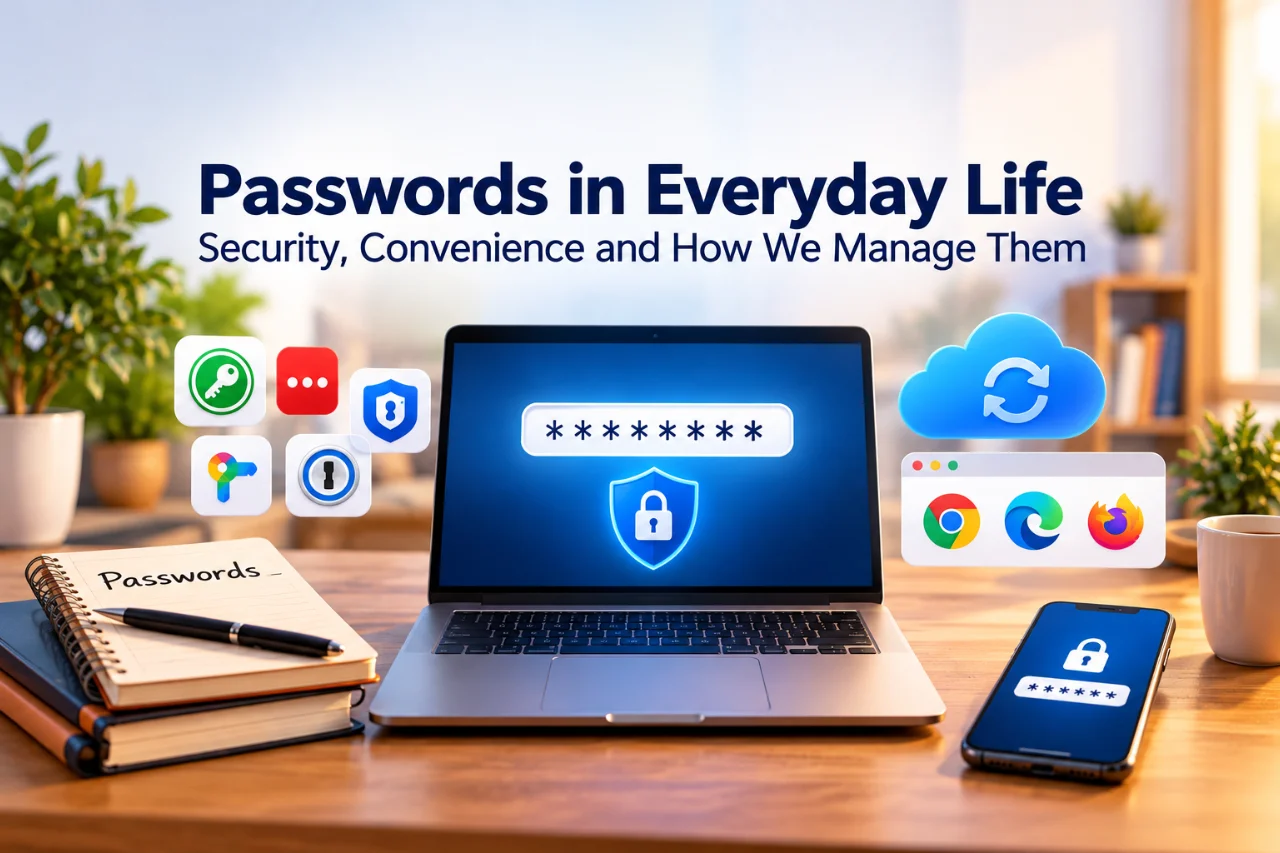
Illustration of everyday password management featuring a laptop with a secure password screen, browser icons, cloud synchronization, password manager apps, a handwritten password notebook, and a smartphone.

Tired of Remembering Passwords? Simple Ways to Manage Them

How many passwords do you have? Five? Twenty? Fifty?

There’s your email, banking, shopping, social media, streaming, gaming, and perhaps a few accounts you haven’t visited in years. Now imagine being told that every one needs a different, long password.

Excellent advice. There’s just one small problem: we’re humans, not password databases.

Fortunately, there are several ways to manage passwords. Some people trust their browsers, others prefer dedicated apps, and some still swear by a pen and notebook. Which one makes sense?

How Did We End Up With So Many Passwords?

Almost every online service now wants an account. Reusing one password everywhere sounds convenient, but if that password is exposed through one service, other accounts using it may also be at risk. Unique passwords help contain that problem. Learning to manage accounts securely is part of everyday digital literacy, alongside the other digital skills teenagers can develop before university.

And yet, expecting anyone to memorize dozens of them is hardly realistic.

What Makes a Strong Password Today?

For years, the familiar advice was to combine uppercase letters, lowercase letters, numbers, and symbols, then change the password regularly. But NIST’s current Digital Identity Guidelines emphasize length and checking against commonly used or compromised passwords, rather than mandatory character mixtures or routine changes.

Under those guidelines, a password used as the only authentication factor must be at least 15 characters long. This is a requirement for systems following that standard, not a claim that every website already enforces it.

A long, unpredictable passphrase may be easier to remember than a short password full of punctuation. If a password manager generates a random password, you generally don’t need to remember it yourself.

Why Passwords Sometimes Stop Being Private

A data breach or deceptive login page can expose even a strong password. A service may suffer a data breach; a convincing fake login page may trick someone into entering credentials; malicious software may capture sensitive information. And when people reuse the same password, one incident can affect several accounts.

There’s no need to imagine a mysterious villain waiting behind every website. The practical lesson is simpler: make passwords unique and have a manageable way to store them. Passwords are only one part of online privacy; other tools, such as Tor and onion routing, address different privacy concerns.

Option 1: Let Your Browser Remember

Chrome, Edge, Firefox, Safari and other modern browsers can save passwords, generate new ones, and fill them in when you sign in. Depending on your settings, they may also synchronize credentials between your devices.

For many people, a browser’s built-in manager is a perfectly reasonable starting point. The UK National Cyber Security Centre (NCSC) recognizes browser-based password management as a practical option.

But device security still matters. Someone using your unlocked computer may access accounts you’ve already signed in to, even without knowing your passwords. And you should avoid saving credentials in a browser on a public or shared computer.

Bottom line: Very convenient, particularly if you mostly use your own devices and one browser ecosystem.

Option 2: Cloud Password Managers

Dedicated services such as Bitwarden and 1Password keep credentials in an encrypted vault and can synchronize them across supported browsers and devices. They can generate passwords and fill login forms, reducing the temptation to reuse credentials.

Of course, storing an encrypted vault through an online provider raises fair questions about trust, security, access and recovery. Encryption is important, but no software or provider is immune to every failure.

Bottom line: Convenient for people who regularly switch devices, provided they understand how the vault is protected and recovered.

Option 3: Offline Password Managers

What if you prefer to control where the database is stored? KeePassXC keeps passwords in an encrypted database file that you manage yourself.

Does that mean opening a file and copying your email password by hand every morning? Fortunately, no. KeePassXC offers browser integration for supported browsers, so it can fill credentials without repeated manual copying.

The trade-off is responsibility: you need reliable backups and, if you use multiple devices, a method for accessing the database on each one. Keeping a vault locally doesn’t guarantee safety if malicious software compromises the computer.

Bottom line: Greater control over storage, with more responsibility for backups and synchronization.

Option 4: The Notebook — Still in Business

And now, the original password manager: a notebook and a pen.

No subscription, no software updates, no synchronization conflicts. Just paper. It sounds old-fashioned, but the NCSC has acknowledged that writing passwords in a dedicated book can be reasonable when it is kept physically secure.

Nobody can access a paper notebook remotely over the internet. It can, however, be lost, stolen, photographed or damaged. And manually typing a long password from page 17 of a notebook is not everyone’s idea of a relaxing evening.

Bottom line: A workable option for some people, provided physical security and convenience are considered.

Do We Really Enter Passwords Every Day?

Usually not. Many websites and apps keep us signed in using authenticated sessions. That is why you can open your email without typing the password every morning.

But this also means someone using your unlocked device might access an already signed-in account without needing the password at all. A good screen lock matters regardless of where you store passwords.

Four Approaches, Different Priorities

Approach Main advantage What to consider
Browser manager Easy and built in Device and browser-account security
Cloud manager Convenient across devices Provider trust, vault protection and recovery
Offline manager Control over database storage Backups and synchronization
Paper notebook No software dependency Physical security and manual entry

These are general trade-offs, not security ratings. If you use one laptop, a browser manager may be enough. Switching between several browsers and a smartphone? A dedicated vault might be more convenient. Others may prefer local storage or paper.

One practical rule matters more than the brand of manager: avoid keeping several competing, outdated copies of the same credentials. When a password changes, make sure the version you rely on gets updated.

Can a Password Manager Become a Problem Itself?

Yes. A password manager collects valuable credentials in one place. If someone opens your unlocked vault, the consequences can be serious. Losing access to the vault without a recovery method can also be painful.

But reusing weak passwords everywhere carries its own risks. Password managers are useful because they make good habits more practical, not because they magically eliminate every security problem. Both the NCSC and CISA offer guidance on using password managers.

What If a Password Has Already Been Exposed?

Have I Been Pwned lets you check whether an email address appears in its database of known breaches. Its separate password-checking service can help identify previously exposed passwords.

Conceptual 3D illustration of an email data breach check and password scan dashboard featuring a key and a secure digital vault.

A conceptual view of data breach lookups and password security checks in action.

A match doesn’t automatically mean someone currently controls your account, and no match doesn’t guarantee complete safety. But if a breach exposes a password, change it on every account where you used it.

What About Signing In With Google?

Sometimes a website doesn’t ask you to create a separate password at all. You simply select Continue with Google.

In that case, the website typically relies on Google to authenticate you rather than receiving your Google password. If you use several Google accounts, it can still be helpful to record which one you used for each website. Otherwise, six months later, signing in can become a guessing game of a different kind.

And What About Passkeys?

Some services now let you sign in with passkeys, device PINs, fingerprints or other authentication methods. These can reduce dependence on traditional passwords, but they raise new practical questions: What happens when your trusted device is at home? What if you lose your phone?

We’ll explore those questions in our next article on two-factor authentication, passkeys and safer logins.

Conclusion: A System You Can Actually Live With

Password security shouldn’t feel like a second job.

Browser saving, cloud managers, offline encrypted databases and paper notebooks all offer ways to manage an increasingly complicated digital life. Each comes with trade-offs.

The goal isn’t to win a competition for the most sophisticated setup. It’s to use unique credentials, protect the places where they’re stored, and make sure you can still access your accounts when something goes wrong.

The best password system is one you can reliably use.

So, which camp are you in: Team Browser, Team Cloud, Team Offline—or Team Notebook? 😊

Sources and Further Reading

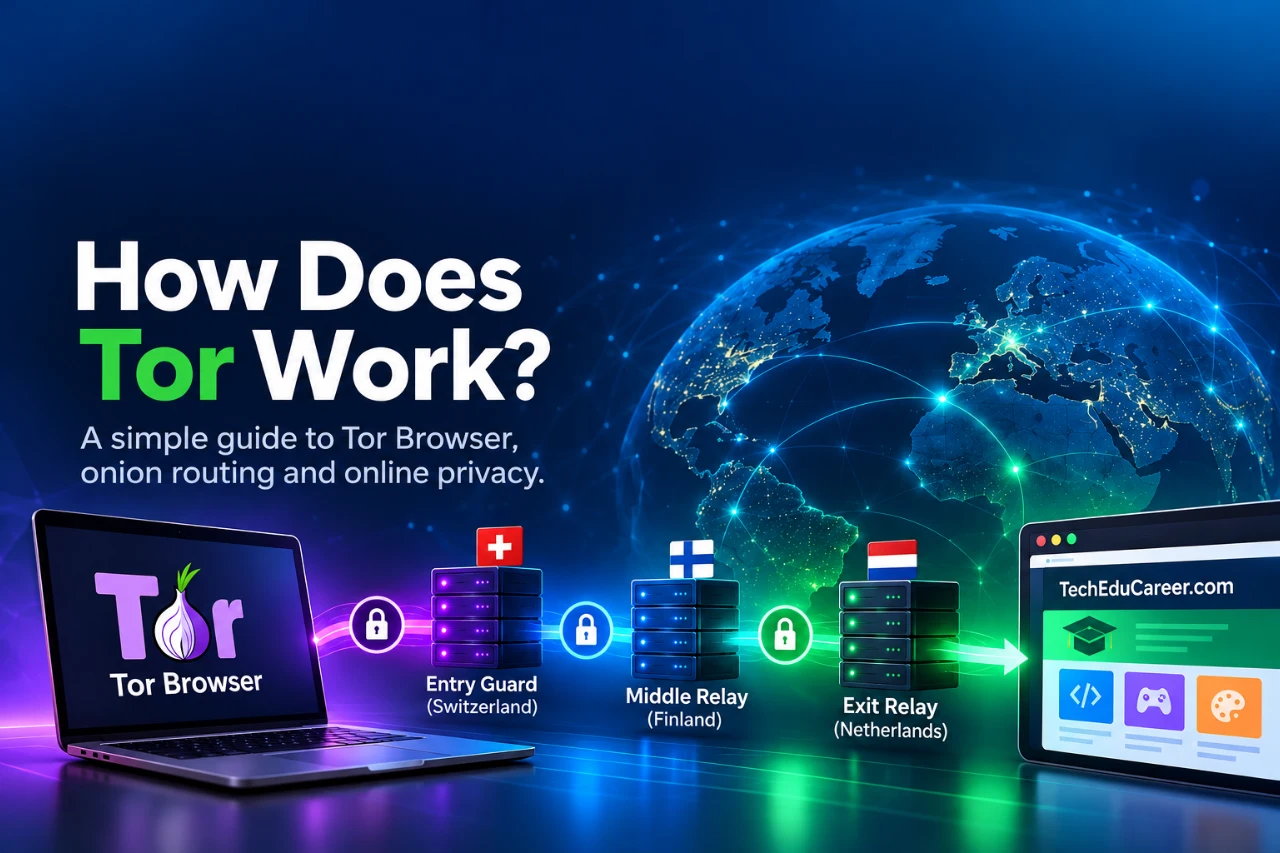
Tor Browser connection passing through entry, middle and exit relays before reaching a website.

How Does Tor Work? Onion Routing Explained for Beginners

What happens when you open a normal website in Tor Browser? We examined a real Tor circuit while visiting TechEduCareer and compared our observations with the Tor Project’s documentation.

How does Tor work, and what happens when you visit a website through Tor Browser? Most people open a browser without thinking about the route their internet connection takes. Tor changes that route by passing traffic through multiple relays, helping protect your IP address and online privacy.

What is Tor?

Tor is short for The Onion Router. Its network is made up of independently operated servers called relays. Tor Browser sends web connections through this network and includes browser-level privacy protections. You can use it to visit ordinary public websites, not just sites ending in .onion.

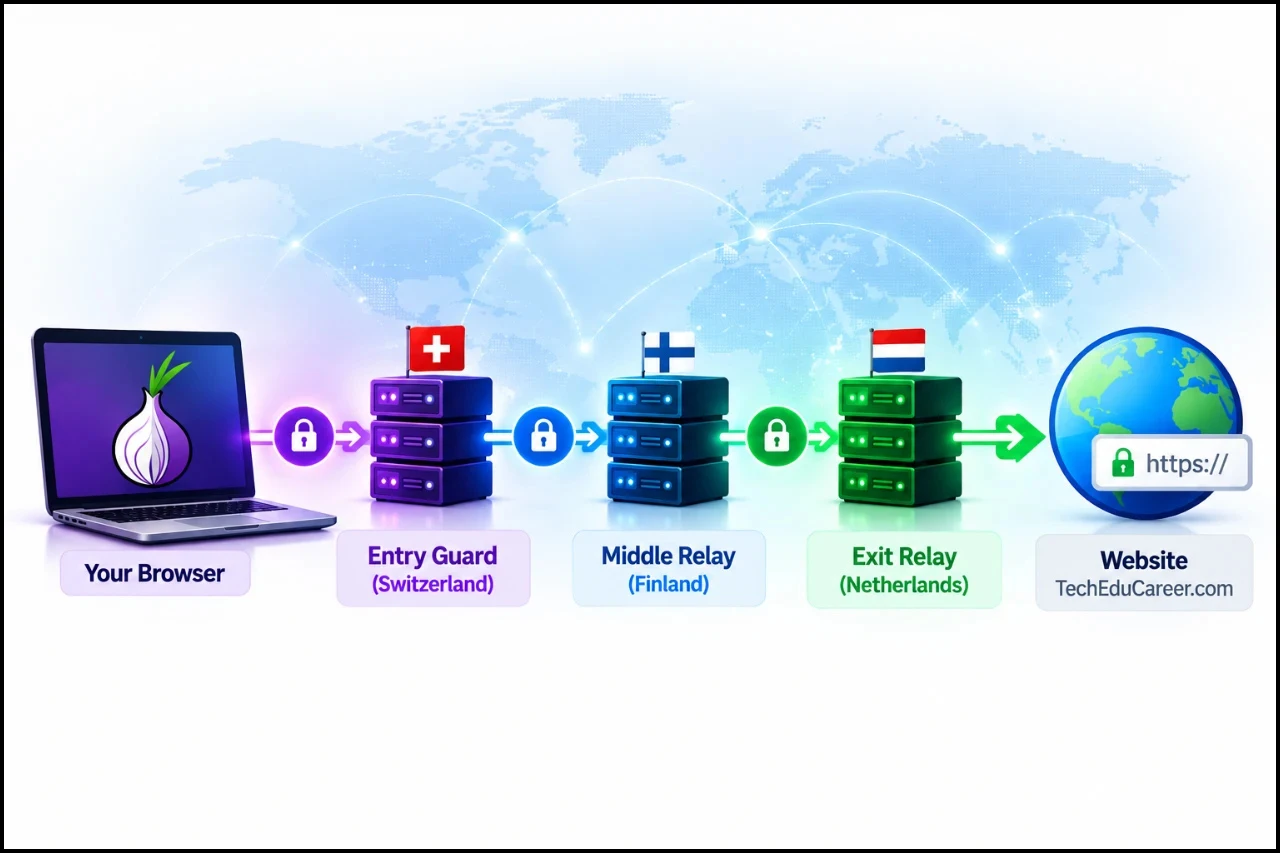
For a typical visit to a regular website, Tor builds a circuit with three relays: an entry guard, a middle relay, and an exit relay. The exit relay makes the final connection to the destination. The website generally sees the exit relay’s IP address instead of your original one. Source: Tor Project — About Tor Browser.

How Does Tor Work? Understanding Onion Routing

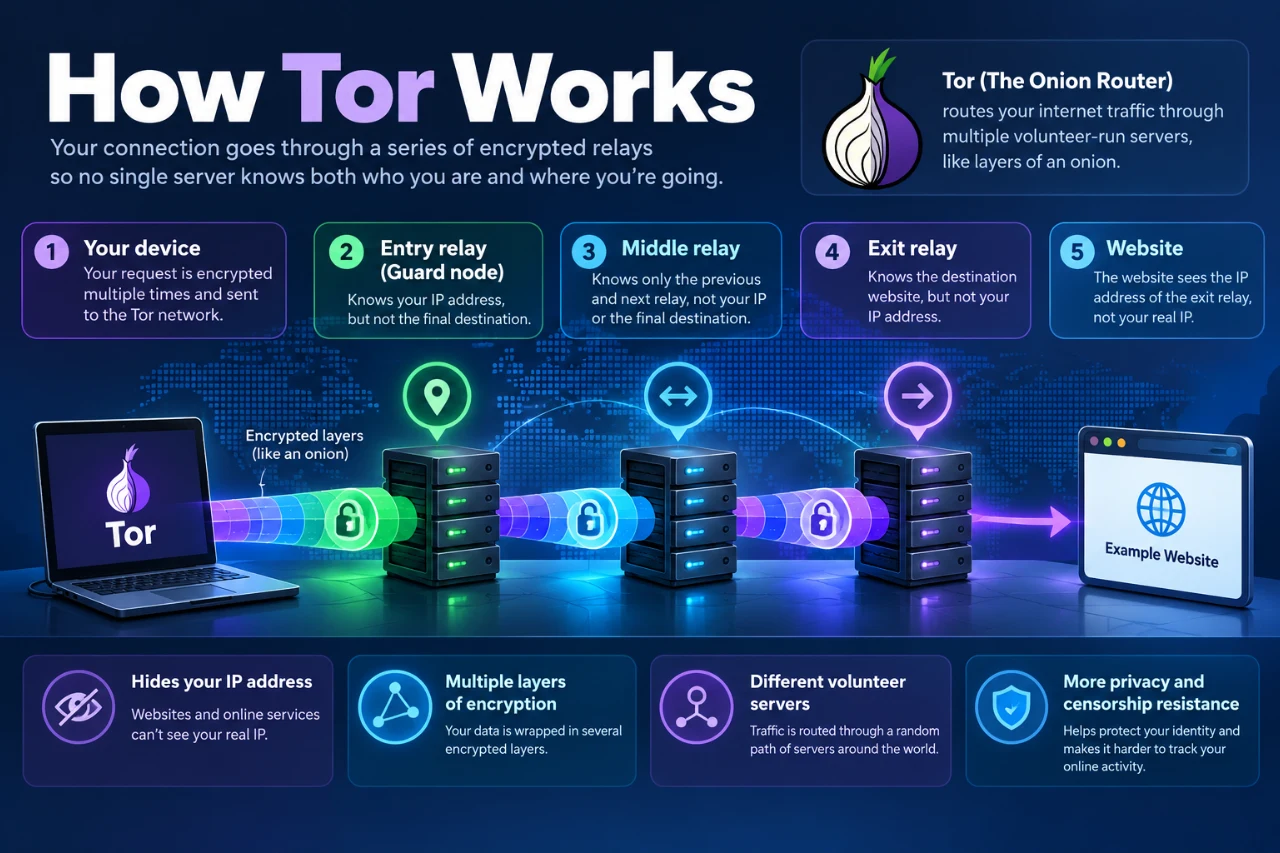
Educational diagram showing how Tor Browser routes internet traffic through an entry guard, middle relay, and exit relay before reaching a website.

Figure 1. How Tor’s onion routing works: three relays help protect your IP address by separating your identity from the destination website.

Imagine sending a message wrapped in several envelopes. Each intermediary can open only its own envelope to learn where to forward the remaining package. Tor uses layered cryptography to achieve a related effect: your browser establishes keys with relays, and each relay processes only the layer relevant to its hop.

Typical route to an ordinary website:

Your Tor Browser → Entry guard → Middle relay → Exit relay → Website

The design limits what any individual relay learns:

  • Entry guard: can see your connection’s source IP and the next relay, but not the final ordinary website destination from the Tor circuit alone.
  • Middle relay: knows its neighboring relays, not your original IP and the destination together.
  • Exit relay: connects to the destination and can see where traffic is going, but ordinarily does not know your original IP.
  • Website: sees a connection from the exit relay. It may still identify you if you log in or share personal details.

This is a simplified explanation. Tor’s actual circuit construction involves cryptographic handshakes, directory information, and additional safeguards. Source: Tor Project — Cryptographic keys.

Our Tor Browser Experiment: Testing a Real Tor Circuit

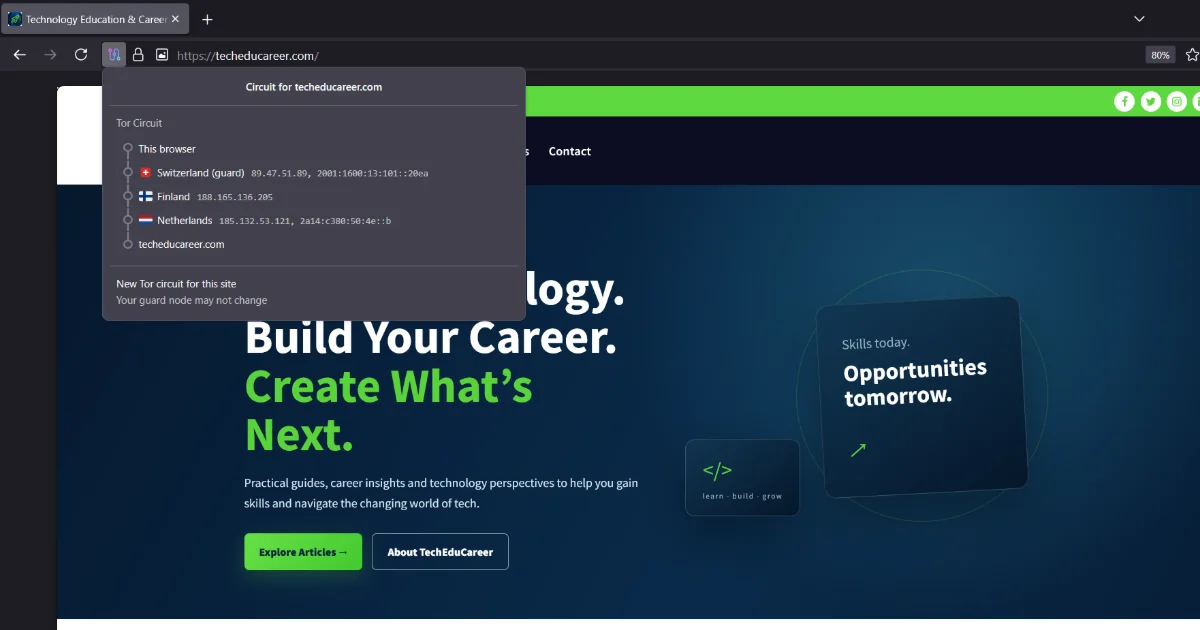
Tor Browser showing a three-relay circuit through Switzerland, Finland and the Netherlands while visiting TechEduCareer.com

Figure 2. Our Tor Browser experiment: a connection to TechEduCareer.com through Switzerland (entry guard), Finland (middle relay), and the Netherlands (exit relay). Relay locations may change between sessions.

To understand how Tor works in practice, we examined a real Tor Browser circuit. We installed Tor Browser and used it to open TechEduCareer.com, an ordinary website on the public web. Tor Browser’s circuit display showed one route passing through three countries:

  • Entry guard: Switzerland
  • Middle relay: Finland
  • Exit relay: Netherlands

In that session, the displayed exit IP was 185.132.53.121. An IP-information lookup identified the address as Tor-related. This was consistent with the circuit display: our visit to an ordinary website used a Tor exit relay.

What the test demonstrated: the browser displayed a three-relay path and an exit address that was different from the user’s direct internet connection. What it did not prove: that every Tor session uses those countries, that an IP-geolocation database is always accurate, or that a person using Tor cannot be identified by other means.

Why does the website see another IP address?

On a normal direct connection, a website commonly sees the IP address used by your network or its gateway. With Tor, the exit relay contacts the ordinary website on your behalf. The website therefore sees the exit relay’s address.

This also explains why a website may think a Tor visitor is in a different country. IP geolocation describes an address, not necessarily the physical location of the person using it. Security systems may recognize public Tor exit IP addresses and ask for a CAPTCHA or block a request. Recognizing Tor use is not the same as learning the user’s real IP.

Does Tor choose new relays every time?

Not exactly. Tor deliberately reuses a relatively stable entry guard over time. Constantly choosing new entry relays would increase the chance of encountering an adversarial guard. Middle and exit relays can change as circuits are created, including for different sites. The Tor Project explains why guards remain stable in its entry-guard guide.

New Circuit versus New Identity

Tor Browser has two options that sound similar but do different jobs:

  • New Tor Circuit for This Site reloads the site over a new circuit. It does not clear cookies or unlink your current session from earlier activity.
  • New Identity closes tabs and windows, clears private browsing data, and uses new circuits for subsequent activity.

Neither option makes you automatically anonymous to a service where you have already identified yourself. Source: Tor Project — Managing identities.

Tor, VPN and private browsing: what is different?

These tools solve different problems. A VPN generally routes traffic through infrastructure operated by a provider; that provider may be in a position to observe or associate some connection information. Tor distributes a typical web circuit among separate relays. Private or incognito mode, meanwhile, primarily changes how your browser stores local session data—it does not hide your IP address from websites.

Question Tor Browser Typical VPN Private/Incognito mode
Does a website usually see your original public IP? No, it sees the Tor exit No, it sees the VPN endpoint Yes
Uses several independently operated relays? Yes, for typical exit circuits Usually no No
Protects other apps automatically? No Often, if system-wide No
Primary purpose Network privacy and anonymity protections Encrypted tunnel to a provider Reduce local browsing traces
Comparison of how Tor Browser, a typical VPN, and private/incognito mode protect your connection.

Why might Tor feel slower?

A Tor connection takes extra hops and passes through relays with varying capacity and network load. That adds latency compared with many direct connections. Performance also depends on the destination website, the exit relay, and the current network. The privacy trade-off is real: Tor is not designed to be the fastest possible route.

What Tor cannot protect you from

Tor is useful, but it is not a magic anonymity switch:

  • Account identification: logging in to an account tells the service who you are, regardless of the visible exit IP.
  • Information you disclose: names, messages, files and other clues can reveal identity.
  • Unprotected applications: opening Tor Browser does not route your other browsers, games or applications through Tor.
  • Unsafe downloads: documents opened outside Tor Browser may contact external resources.
  • Traffic correlation and compromised devices: sophisticated observers or malware can undermine privacy even when the network design works as intended.

HTTPS still matters for ordinary websites. Tor encrypts and routes traffic inside its network, but an exit relay is not a substitute for HTTPS encryption between the browser and the destination service. With HTTPS, the exit relay cannot simply read the protected page contents. Source: Tor Project — Tor encryption.

Is Tor only for the dark web?

No. Our experiment used Tor Browser to visit an ordinary public website. Tor can help people reduce tracking, research sensitive topics and access information where censorship is a concern. Some websites block Tor exits, and laws and restrictions vary by location. Tor itself is a privacy technology, not a category of illegal content.

For context, see our earlier article: Surface Web, Deep Web and Dark Web: Where Do Hackers Actually Operate?

Should You Use Tor Browser for Everyday Browsing?

For most people, Tor Browser is worth knowing about, but it does not need to replace Chrome, Firefox, Edge, or another everyday browser. A regular, updated browser with sensible privacy settings is often more convenient for routine tasks such as streaming, shopping, and banking.

Tor Browser is particularly useful when you want to reduce IP-based tracking, research a sensitive topic, or reach information in an environment where access is restricted. However, Tor connections can be slower, some websites block known exit relays, and signing into a personal account still identifies you to that service.

Practical takeaway: use Tor when its additional network privacy protections serve a purpose, rather than assuming it makes every online activity anonymous.

Frequently asked questions

Can I open Google or other regular websites with Tor Browser?

Yes, although some services may require additional verification or block known exit relays.

Can my internet provider tell I use Tor?

On a direct Tor connection, the provider may recognize a connection to the Tor network. It generally cannot read the ordinary website destinations you access through Tor. Bridges can help where direct Tor access is blocked.

Does Tor change my IP for every page?

No. Circuits can be reused, and the entry guard is intentionally stable. Different sites can use different circuits.

Does Tor protect Chrome or other apps?

No. Only traffic configured to use Tor benefits from its routing; Tor Browser does not automatically protect unrelated applications.

Does Tor guarantee anonymity?

No. It makes some kinds of network tracing harder, but account logins, user behavior, malware and advanced attacks can still compromise privacy.

What comes next: onion websites

There is one major distinction we have intentionally left for Part 2. Ordinary websites are reached through Tor exit relays. Onion services ending in .onion use a different connection design that does not require an ordinary internet exit relay. We also tested an onion search service and saw that its circuit display differed from the one used for TechEduCareer.com.

In the next article, we will explain how onion websites work, what their unusual addresses mean, how they are discovered, and what our own Tor Browser experiments showed.

Sources and further reading

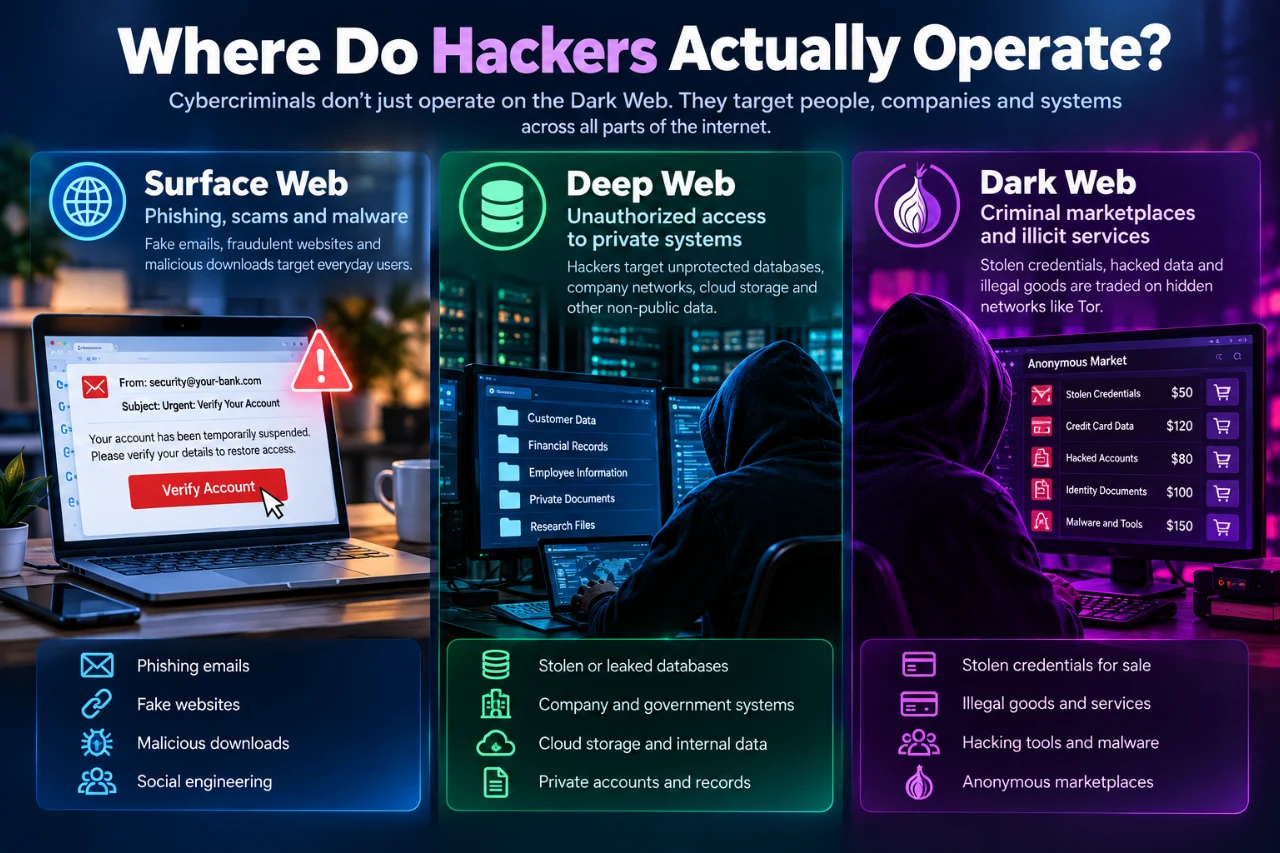
Infographic comparing the Surface Web, Deep Web and Dark Web, illustrating public websites, private online services, Tor networks and cybersecurity risks.

Surface Web, Deep Web and Dark Web: Where Do Hackers Actually Operate?

Imagine receiving an email that appears to come from your bank. It has the right logo, familiar colors, and an urgent warning about your account. You click a link, enter your password, and later discover that the message was fake.

Was the hacker hiding on the mysterious Dark Web? Perhaps—but the attack itself may have happened entirely on the ordinary internet you use every day.

That is one of the biggest misunderstandings about the Dark Web: cybercrime does not belong exclusively to a hidden digital world. To understand where hackers operate, we first need to distinguish the Surface Web, Deep Web, and Dark Web.

The internet is bigger than what Google shows you

Search engines discover and index many public pages, but they do not display every piece of web content. Your email inbox, banking dashboard, and school portal are also accessed through the web, yet their private contents are not publicly searchable. Other services operate through specialized privacy networks such as Tor.

1. Surface Web: The part everyone can find

The Surface Web (or Open Web) consists of public web content that conventional search engines can discover and index: news articles, educational websites, public forums, online stores, and company websites.

Not being indexed does not automatically make a page part of the Dark Web. A public page that Google has not discovered can still be accessible in an ordinary browser.

2. Deep Web: The private part you already use

The Deep Web is web content not indexed by ordinary search engines. Much of it is entirely routine: private email, online banking, school portals, medical records behind logins, company intranets, subscription content, and private databases.

You usually do not need special network software to access it—just the correct account or permission. The Deep Web is not inherently suspicious; privacy and access controls are normal parts of the internet.

3. Dark Web: Services on specialized networks

The Dark Web refers to content accessible through specialized networks or configurations designed to provide additional privacy or anonymity. The best-known example is Tor. Some Tor-hosted sites use addresses ending in .onion, called onion services.

An onion service can conceal the network location of the server. That can protect journalists and confidential sources, but the same privacy properties can be misused for criminal activity. The technology alone does not tell you whether its use is legitimate.

Surface Web vs Deep Web vs Dark Web

Feature Surface Web Deep Web Dark Web
Typical example Public news article Private email inbox Tor onion service
Indexed by ordinary search engines? Often Generally not Generally not
Special network software required? No Usually no Often yes
Automatically illegal? No No No
Can criminals use it? Yes Yes Yes
Main distinction Public discoverability Not publicly indexed Specialized privacy network
The categories describe access and discoverability—not whether the people using them are good or bad.

So where do hackers actually operate?

Infographic showing where hackers operate across the Surface Web, Deep Web and Dark Web, including phishing attacks, unauthorized access to private systems and illegal marketplaces.

Across all three. Many attacks on ordinary people do not require the Dark Web at all.

Example 1: A phishing attack on the ordinary web

A criminal creates a fake login page resembling a familiar service, then sends a convincing email or social media message. The page may be hosted on conventional web infrastructure with an ordinary domain name. The victim never visits the Dark Web.

Example 2: Unauthorized access to a private account

An attacker who compromises an employee account may reach confidential documents or internal systems. Those resources may be part of ordinary business services behind a login—not Dark Web sites. The problem is unauthorized access.

Example 3: Stolen data traded in criminal networks

After a breach, stolen credentials and access to compromised systems may be advertised on illicit marketplaces or forums, including some onion services. But criminals also use ordinary websites, messaging platforms, and other online infrastructure. Europol’s 2025 assessment describes stolen data as a commodity that enables further fraud, extortion, and cyberattacks.

Are all hackers criminals?

No. Ethical hackers test systems with authorization to find weaknesses and improve defenses. Security researchers investigate vulnerabilities and malicious activity. Malicious hackers break into systems without authorization, steal data, or cause harm. Their technical knowledge may overlap; permission, intent, and conduct make the difference.

Why would anyone use the Dark Web legitimately?

Privacy is not automatically suspicious. Journalists and confidential sources may need communication methods that reduce the risk of exposing their identities. SecureDrop, an open-source system used by news organizations, relies on Tor to support confidential submissions and communication. Other legitimate uses include resisting censorship, security research, and protecting sensitive conversations.

How does Tor actually work?

Diagram explaining how Tor routes internet traffic through an entry relay, middle relay and exit relay before reaching a website, helping conceal the user's IP address.

Tor, short for The Onion Router, ordinarily routes Tor Browser traffic to a conventional website through multiple relays. A simplified route is your device → entry relay → middle relay → exit relay → website. The destination generally sees the exit relay’s IP address instead of yours; no single relay ordinarily knows both your identity and your destination. Onion services use a different arrangement that keeps connections within Tor and can hide the server’s location. Read more in the Tor Project’s official documentation.

Does Tor make someone completely anonymous?

No technology guarantees anonymity in every situation. Signing into an account under your real name can identify you even if your IP address is concealed. Tor Browser does not automatically route every other application on your computer through Tor. Sophisticated attacks, including traffic correlation, can also threaten anonymity under certain conditions.

It helps to separate four goals: hiding a network address, encrypting communication contents, preventing tracking, and keeping a real-world identity private. These are related, but not identical.

Can Dark Web websites use cookies?

Yes. Onion websites can set browser cookies just like ordinary websites. A cookie can let a site recognize your browser while you navigate between pages, even if the site cannot see your real IP address. Tor Browser is designed to isolate website data and normally clear cookies when the browser session ends, but that does not prevent every form of tracking or identification.

For example, an onion site could assign a visitor a session cookie, recognize that visitor on the next page, and lose that particular cookie when the visitor fully closes and restarts Tor Browser. Account logins, browser fingerprinting, and other clues can still matter. We will explore these distinctions in a dedicated article about cookies and tracking.

Is visiting the Dark Web illegal?

In many jurisdictions, using Tor or accessing lawful onion services is not inherently illegal. Laws vary by country, however, and criminal conduct remains criminal regardless of the network used. Buying illegal goods, stealing data, or accessing systems without authorization does not become lawful because Tor is involved.

Is Web3 another part of the Dark Web?

No. Despite its name, Web3 is not another layer of the internet alongside the Surface Web, Deep Web, or Dark Web. Web3 generally refers to blockchain-based applications, decentralized systems, and digital ownership. A Web3 application can operate on the ordinary web, and some services may also use Tor. These terms describe different aspects of how online technologies work.

Five Dark Web myths worth questioning

Myth 1: The Deep Web and Dark Web are the same thing

False. Your private email inbox is Deep Web content, but it is not a Tor onion service.

Myth 2: Everything on the Dark Web is illegal

False. Privacy-preserving services can support journalism, research, and lawful communication.

Myth 3: Hackers only operate on the Dark Web

False. Phishing, account theft, malware, and many other attacks use ordinary internet infrastructure.

Myth 4: Tor makes you impossible to identify

False. Tor provides meaningful privacy protections, not a universal guarantee against identification.

Myth 5: The Dark Web has mysterious numbered levels

Viral stories about secret, increasingly dangerous levels are not a recognized technical model of how the web works.

What should ordinary internet users actually worry about?

For most people, the most effective protections are less dramatic than exploring hidden websites: use unique passwords, enable multifactor authentication or passkeys where available, keep software updated, and be skeptical of urgent messages and unexpected login requests. Understanding online safety is also a core digital skill, as we explain in our guide to digital skills students should learn before university.

A reputable password manager can make unique passwords practical across hundreds of accounts, although password vaults also introduce risks if a provider is breached or a device is compromised. That trade-off deserves a separate article—not a blanket claim that any storage method is perfectly safe.

A question worth exploring

Suppose you open a website right now. Who can see your connection: your internet provider, the website, your employer, or a VPN company? The answer depends on encryption, network configuration, and privacy tools. That’s where our next investigation begins: What Is Tor, and How Does It Hide Your IP Address?

Frequently asked questions

Is the Dark Web bigger than the Surface Web?

There is no reliable universal measurement establishing the Dark Web’s exact share of all web content. Be skeptical of dramatic percentages that confuse the Deep Web with the Dark Web.

Can Google search the Dark Web?

Ordinary search engines generally do not index onion services in the same way as public websites, although information about onion services can appear on the public web.

Is the Deep Web dangerous?

Not inherently. Many everyday private accounts and databases are Deep Web content. Their security depends on how they are protected and used.

Can you access the Deep Web without Tor?

Yes. Email, banking, and school portals are usually accessed with ordinary browsers.

Do you need to visit the Dark Web to learn cybersecurity?

No. You can learn about Tor, privacy, cybercrime investigations, and digital security from legitimate public documentation and educational research.

Further reading and primary sources

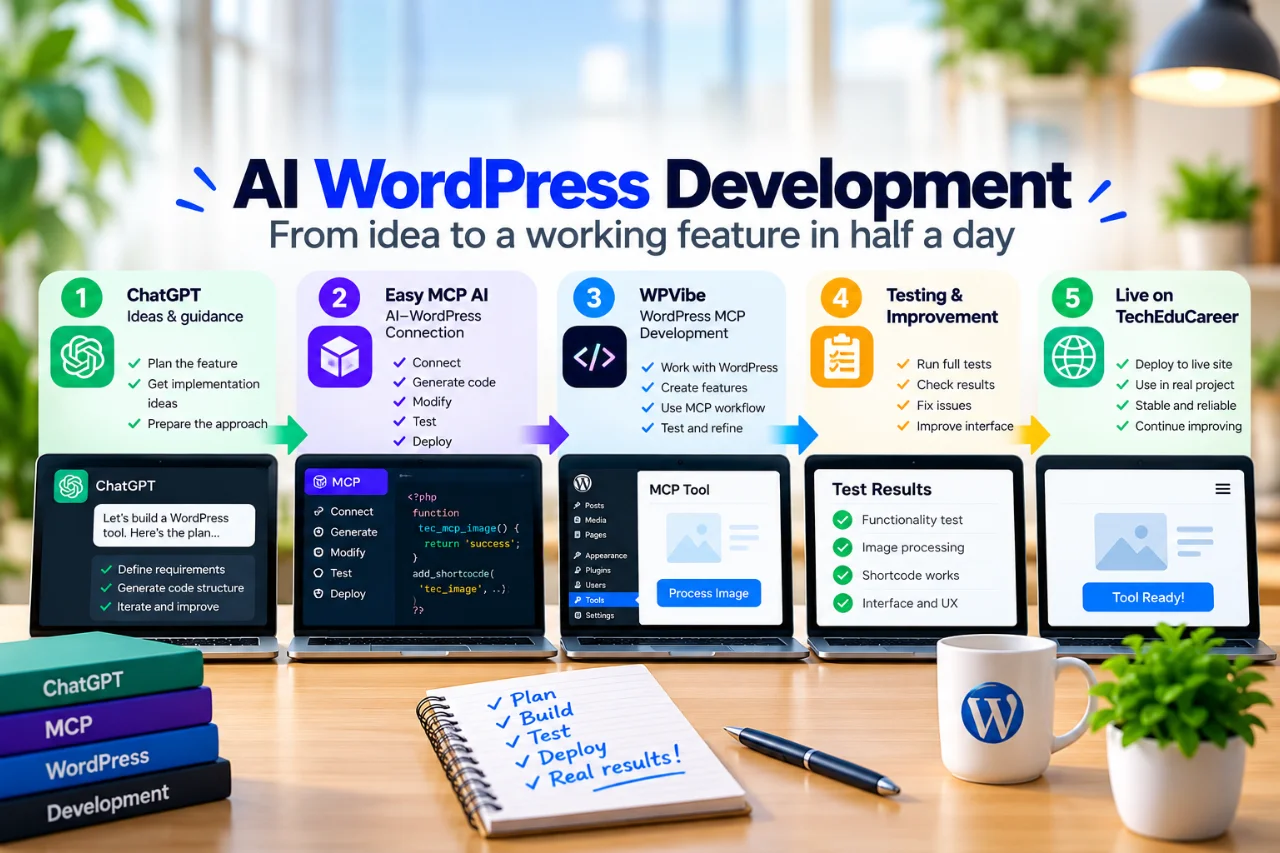
AI WordPress development workflow using ChatGPT, Easy MCP AI and WPVibe, from development and testing to production.

Building a WordPress Tool in Half a Day with ChatGPT, Easy MCP AI and WPVibe

Can AI WordPress development take a project from idea to a working feature in half a day—without buying another domain or using up a pile of connector credits? We decided to find out on TechEduCareer. This is the story of what worked, what surprised us, and why we’re thankful to the teams behind both Easy MCP AI and WPVibe.

In our beginner’s guide to Model Context Protocol (MCP), we explained the basics. We also looked at which AI tools support MCP. This time, we wanted to move beyond explanations and put an AI-connected WordPress workflow to work on a real project.

First, the challenge: more than a quick WordPress edit

Our goal was to build a new, multi-function browser-based feature for TechEduCareer. It needed a usable interface, several image-processing operations, downloadable results, and a clean way to live inside our existing WordPress website. This was more involved than changing a headline or adding a button.

We also wanted to avoid the classic development mistake: testing an experimental feature on a live website and hoping for the best. Hope is lovely, but it’s not much of a rollback plan.

So we set ourselves a few practical rules: develop away from the public site, test the main functions, keep backups, avoid unnecessary theme changes, and use AI connectors only where they genuinely helped.

Why we added Easy MCP AI to our toolkit

We had already been using WPVibe to work with WordPress through ChatGPT. It was helpful, and we wanted to keep it. But as our experiments grew, we became more conscious of credit usage. Development involves plenty of small operations: checking a page, looking at a plugin, inspecting a template, making a change, and checking again. Those little steps add up.

That made us think more carefully about which connector to use for each task.

We wondered whether we could handle many routine WordPress operations through another MCP connection, saving WPVibe for occasions when its particular capabilities were needed.

That’s what led us to Easy MCP AI. We installed it and started small: checking WordPress information, creating a test draft, and updating content. Once those operations worked, we became more comfortable using it in a larger project.

Importantly, this wasn’t a switch from one “winner” to a “loser.” Easy MCP AI became our primary route for supported everyday WordPress operations, while WPVibe remained connected in parallel for specialized theme and template work. WPVibe also provides a useful fallback when a task calls for capabilities outside our everyday workflow. That division of responsibilities turned out to be valuable later.

A development website without a second domain

Before building the feature, we prepared a separate WordPress development environment at dev.techeducareer.com. Our public website remained at techeducareer.com.

Here’s a useful tip for anyone starting out: you don’t necessarily need to buy a second domain to create a development site. If your hosting plan supports subdomains and has enough capacity, you can often create something like dev.example.com under the domain you already own.

The general approach is:

  1. Create a subdomain in your hosting control panel.
  2. Give the development installation its own WordPress files and database, rather than pointing it at production data.
  3. Set up HTTPS and make sure the development site works independently.
  4. In WordPress, go to Settings → Reading and select Discourage search engines from indexing this site.
  5. Add access protection, ideally at the hosting or HTTP-authentication level, so the site isn’t simply open to anyone who knows the address.
  6. Install and test experimental functionality there before bringing approved changes to the public website.

“Not indexed” doesn’t mean “private”

There’s a distinction worth making. WordPress’s search-engine visibility setting is a request to search engines, not a security lock. A noindex directive can discourage indexing when crawlers can access it, but it does not stop a person from visiting the URL. Blocking crawlers with robots.txt alone can also prevent them from seeing a noindex instruction.

For a development site, use proper access controls if the contents should be private. Also remember that two WordPress installations on one hosting account may still share server resources. A subdomain is a convenient starting point, not magical isolation.

For our project, the separate environment gave us room to install, experiment, correct problems, and test the feature’s main functions without putting those experiments directly in front of visitors.

AI WordPress Development Takes More Than Writing Code

ChatGPT helped us plan the functionality and prepare the PHP, JavaScript, and CSS needed for a standalone WordPress plugin. The browser handled the image-processing work, rather than requiring visitors to upload their images to our server for processing.

Our experience showed that AI WordPress development works best when coding, testing, and website management are treated as connected but distinct tasks. That was only part of the job.

We still needed to package the plugin, install it, make sure its shortcode rendered correctly, and try the actual user interactions. A feature that looks good in generated code isn’t automatically a feature that works on a real site.

We tested the main operations on the development installation, then installed the finished plugin on production and tested the functions again. Having a backup and a clear path to undo changes was part of the process—not an optional extra.

The surprise: our WordPress page wasn’t really controlled by the page editor

When it was time to integrate the new feature into our site’s existing directory, we expected a fairly ordinary page update.

Instead, we found that the directory’s layout came from a PHP page template. One of its existing entries had been added separately through a WPCode snippet. In other words, editing the page in Gutenberg wasn’t going to tell the whole story.

WordPress had hidden the interesting part backstage.

This was where keeping WPVibe available proved valuable. We used its capabilities to investigate the theme structure and understand how the existing entry had been integrated. Rather than rewrite the template or disturb the existing layout, we followed the site’s established pattern and added a separate, targeted snippet for the new entry.

The result was a consistent addition to the directory, with the existing elements left in place. It was a small integration change compared with the amount of functionality we’d built—and that’s exactly what we wanted.

How the tools worked together

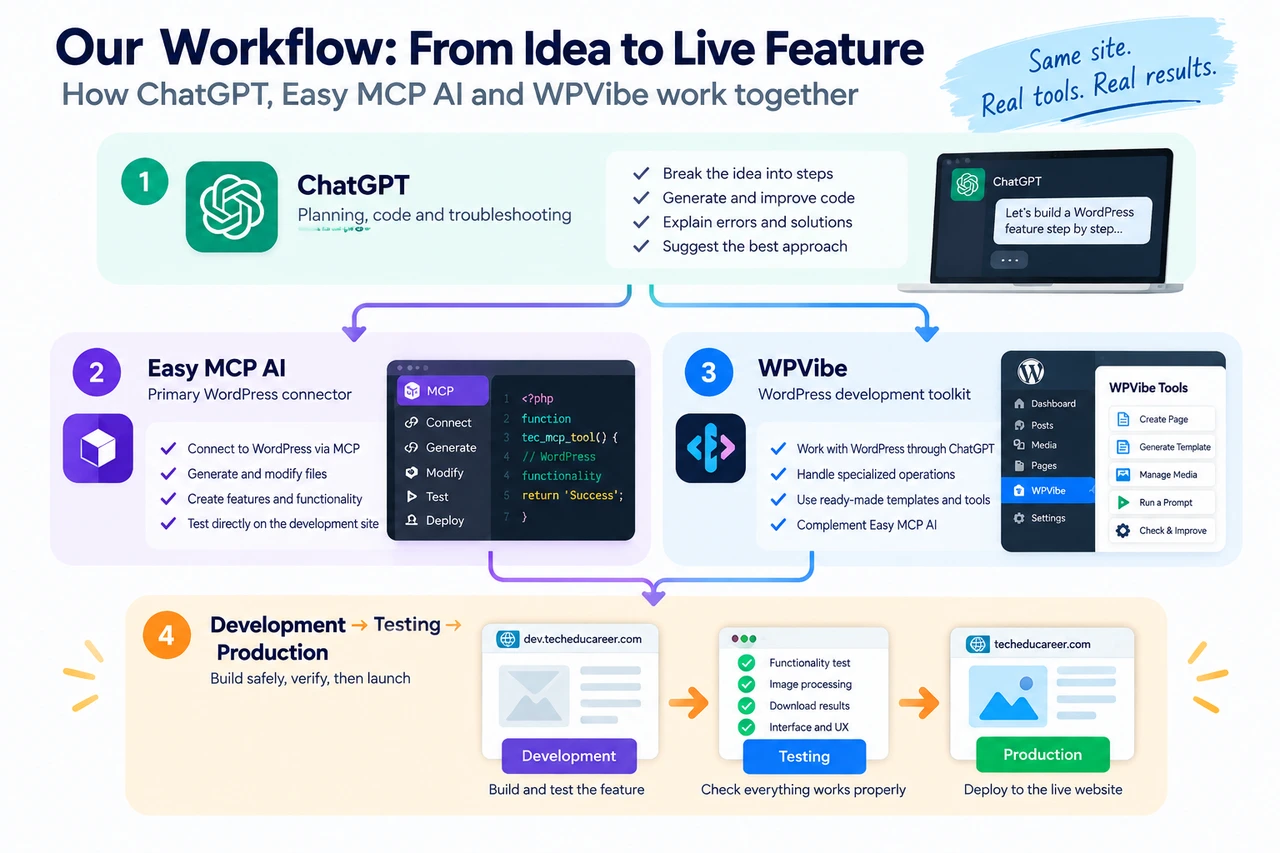
ChatGPT, Easy MCP AI and WPVibe workflow showing WordPress development, testing on a subdomain and production deployment.

Looking back, the most useful decision was not asking one tool to do everything.

  • ChatGPT supported planning, code development, troubleshooting, and packaging the feature.
  • Easy MCP AI provided a practical connection for supported WordPress management operations, including working with pages and checking site resources.
  • WPVibe worked alongside Easy MCP AI, helping us inspect theme templates and handle the specialized integration work. We also keep it available for controlled theme-file changes and draft previews, rather than treating it only as an emergency backup.
  • Our development subdomain provided a place to test before deploying to the public site.
  • WordPress and WPCode supplied the plugin, shortcode, template, and snippet mechanisms that made the integration possible.

We didn’t bypass any connector’s credit system. We simply did most application development outside those connectors and called on them for the operations they were good at. In this project, that meant almost no WPVibe credit consumption, even though WPVibe still played a useful role.

That is our experience, not a measured pricing comparison or a guarantee that every project will cost the same. Hosting, AI model usage, time, and other services still have costs.

From idea to live feature in roughly half a day

In approximately half a day, we moved through planning, plugin development, testing on a separate WordPress installation, production installation, page creation, integration into the existing directory, and final checks.

We finished with a working multi-function feature, rather than a mockup or an unfinished code sample. The timeline surprised us, too—but it reflects this particular project’s scope and our existing setup. A larger application or a more complicated hosting environment could take much longer.

What impressed us most wasn’t just the speed. It was that we could keep the process relatively controlled: test first, make focused changes, verify the result, and avoid rebuilding parts of the site that were already working.

A genuine thank-you to the Easy MCP AI and WPVibe teams

We want to thank both the Easy MCP AI and WPVibe development teams. Connecting an AI assistant to a platform as flexible—and occasionally surprising—as WordPress is not a trivial job. Both teams have built tools that helped us accomplish something practical.

Easy MCP AI made our everyday AI-to-WordPress workflow more accessible and efficient. WPVibe supplied complementary theme and template capabilities, and we continue to use both connections side by side according to the task. We’re grateful for both, and we look forward to seeing how their products develop.

This article is an account of our own experience, not a sponsored review or a controlled head-to-head benchmark.

What we’d tell another WordPress site owner

If you’re curious about building with ChatGPT and MCP, start with a manageable task. Set up a development installation if you can. Protect it properly. Keep a backup. Test the actual functionality—not just the code. And don’t assume that every WordPress page is controlled by the editor you see on screen.

Most importantly, don’t feel you must pick one connector and force it to handle every part of the project. Different tools can work together remarkably well.

Our half-day experiment reminded us that AI WordPress development is most useful when paired with ordinary good engineering habits: understand the environment, choose the smallest safe change, test carefully, and give credit where it’s due.

And yes, sometimes the “quick WordPress update” turns out to involve a PHP template, a code snippet, and a small detective story. At least this one had a happy ending.

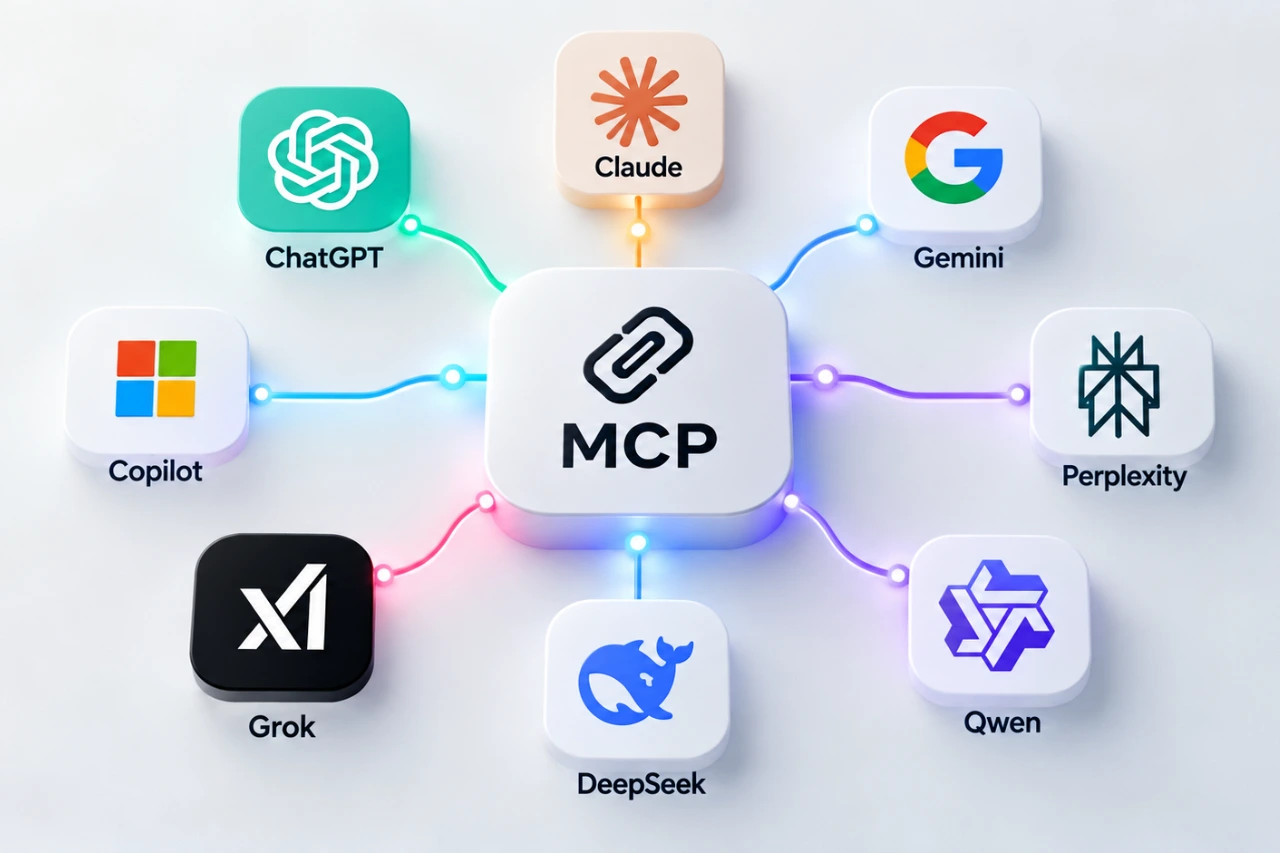
MCP connecting ChatGPT, Claude, Gemini, Copilot, Perplexity, Grok, DeepSeek and Qwen

Which AI Tools Support MCP? ChatGPT, Claude, Gemini, Copilot and More

Research checked: October 6, 2026. MCP support is changing quickly. The features, plans and limitations described below reflect what we could verify on this date and may change later.

Which AI tools support MCP today? Model Context Protocol (MCP) is spreading quickly across AI products, but a simple “yes” can mean very different things. If MCP itself is new to you, start with our beginner’s guide to Model Context Protocol.

For one assistant, MCP may mean that an ordinary user can paste a server URL into a web interface. For another, it may mean installing a command-line tool and editing configuration. For another, MCP may mainly exist inside an enterprise agent platform. And sometimes an AI model can be used inside somebody else’s MCP-compatible software even though its own consumer chat is not an MCP client.

So we tried something slightly different: we asked eight major AI assistants to describe their own MCP support, then checked the important claims against their companies’ current documentation.

What “supports MCP” actually means

Before comparing products, it helps to separate several questions that are often squeezed into one MCP checkmark. Can you use MCP in the normal consumer chat? Can you connect your own server? Is the server local or remote? Can the AI only read information, or can it take actions? Is the feature free? And can a beginner configure it without writing code?

Those distinctions matter. A platform can genuinely support MCP while still being impractical for a beginner who simply wants to experiment.

MCP support comparison

Can I use MCP with this AI?

Want to try MCP yourself? Click an AI assistant’s name in the tables to open its official MCP documentation.

AI assistantWebMobileCustom MCPFreeNo-code
ChatGPT✓*✕*✓*✕✓*
Claude✓✓*✓✓*✓
Gemini✓*✓*✓*✓*✓*
Microsoft Copilot✓*✓*✓*✕*✓*
Perplexity✓*✓*✓✕✓
Grok✓✓*✓✓*✓
DeepSeek✕✕✕✕✕
Qwen✕*✕✓*✕*✕*
✓ = supported; ✕ = not supported. * Availability may depend on plan, region, device, account type, product surface or permissions. See the platform notes below for details.

What kind of MCP does it support?

AI assistantLocalRemoteReadWrite/actionsCLI/API
ChatGPT✕*✓✓✓*✓
Claude✓*✓✓✓✓
Gemini✓*✓✓✓*✓
Microsoft Copilot✕*✓✓✓✓
Perplexity✓*✓✓✓✓
Grok✓*✓✓✓*✓
DeepSeek✕✕——Third-party
Qwen✓*✓*✓✓✓
* Asterisked capabilities have important restrictions or apply only to particular products, plans or environments. Details are explained in the individual platform sections below.

ChatGPT: powerful MCP, but plan and product matter

ChatGPT supports custom remote MCP servers, but its capabilities are not identical across plans. OpenAI’s current documentation distinguishes Pro access, which can use custom MCP for read/fetch scenarios, from fuller MCP support on Business and Enterprise/Edu, where write and modify actions can be available.

ChatGPT does not directly connect to a local stdio MCP server in the same way some desktop and CLI clients do. OpenAI instead documents remote servers and a secure tunnel approach for private or locally hosted infrastructure. Custom MCP apps are also not simply available everywhere ChatGPT runs.

This is a good example of why “ChatGPT supports MCP” is true but incomplete. A user’s plan, ChatGPT mode, the MCP server and the connected service can all affect what actually works.

Claude: one of the easiest places to experiment

Claude currently offers unusually broad MCP access. Anthropic documents custom remote connectors across Free, Pro, Max, Team and Enterprise plans. Free users can add one custom remote connector, making Claude one of the more accessible ways for a beginner to try MCP without first buying a higher-tier subscription.

Claude Desktop can also work with local MCP servers, while Claude Code provides a more technical command-line route. Depending on the tools exposed by a server and the permissions granted, Claude can both retrieve information and perform actions.

Gemini: consumer-friendly MCP with important restrictions

Google’s implementation is another interesting case. Gemini can connect a custom app through an MCP server URL from its consumer interface, and configured apps can be used from the Gemini web and mobile experiences. Actions that change data require confirmation.

However, availability is not universal. At the time of this research, Google documents restrictions including age, region, account type, language and activity settings for consumer custom apps. Gemini CLI is much more flexible technically and supports local stdio as well as remote MCP transports.

Microsoft Copilot: MCP is strongest in the agent ecosystem

Microsoft clearly supports MCP, particularly through Copilot Studio and Microsoft 365 agent extensibility. Users can connect remote MCP servers to agents, work with resources and tools, and build workflows capable of reading data or performing actions.

What we could not verify is a comparable feature that lets any ordinary free consumer Copilot user simply attach an arbitrary MCP server to a normal chat. For beginners, that distinction is important: Microsoft’s MCP story is currently much more closely tied to agents, organizations and its broader enterprise ecosystem.

Perplexity: capable custom connectors, but paid

Perplexity supports custom remote MCP connectors for paid users, including Pro, Max and Enterprise, and its macOS application supports local MCP through a helper component. Remote connectors can be configured through the interface without writing code.

There is a documentation wrinkle worth noting: an older Perplexity Help Center page still contains wording suggesting remote MCP was coming soon, while a newer 2026 product announcement confirms Bring Your Own Connector. We therefore used the newer product information for this comparison.

Grok: broader MCP support than you might expect

xAI documents custom MCP connectors through Grok’s connector interface. Users can add a remote server URL, while developers have additional MCP options through the API and Grok Build. Grok Build supports local stdio servers as well as remote HTTP MCP servers.

The main practical distinction is that consumer custom connectors use remotely reachable servers; local command-based MCP belongs to the developer-oriented Grok Build environment. Availability is broad, but specific usage quotas can still depend on the Grok plan and on the connected services.

DeepSeek: an MCP participant is not necessarily an MCP client

DeepSeek gave perhaps the cleanest “no” in our experiment. We could not verify native support in DeepSeek’s normal consumer chat for connecting arbitrary external MCP servers.

That does not mean DeepSeek models cannot appear in an MCP workflow. Community tools and third-party clients can use DeepSeek models while also supporting MCP. But that is different from saying that DeepSeek Chat itself is an MCP client. This distinction is easy to lose when comparing AI products.

Qwen: strong developer support, but watch outdated information

Qwen supports MCP primarily through Qwen Code and Alibaba Cloud Model Studio. Qwen Code supports local and remote MCP configurations, while Model Studio exposes MCP through developer APIs. This is much more developer-oriented than a simple consumer “paste a URL” experience.

Our experiment also produced a useful warning about rapidly changing AI features. Qwen told us that Qwen Code offered a free tier through Qwen OAuth with daily quotas. Current Qwen documentation says that free OAuth tier was discontinued on April 15, 2026. We therefore did not treat the assistant’s answer as current.

So which AI is easiest for a beginner?

If the goal is simply to learn what MCP feels like without immediately building infrastructure, Claude and Gemini currently stand out because they offer consumer-facing ways to connect custom MCP servers, although Gemini has significant eligibility restrictions. Grok also provides a consumer connector interface, while Perplexity offers a friendly route on paid plans.

ChatGPT has substantial MCP capabilities, but custom access and write functionality are more strongly differentiated by plan. Microsoft’s strongest MCP implementation is currently centered on Copilot Studio and agents. Qwen is attractive for developers comfortable with CLI/API workflows, while DeepSeek currently relies on external MCP-capable tools rather than providing a native consumer MCP client.

There is no single “best MCP AI” because the answer changes depending on whether you want a no-code experiment, local file access, developer automation, enterprise governance or write actions.

Where MCP limits actually come from

One lesson was consistent across almost every platform: MCP limits are rarely controlled by just one company.

  • The AI service can restrict MCP by subscription, workspace policy, token allowance or product surface.
  • The MCP server or connector provider can impose its own quotas, authentication rules, pricing and tool restrictions.
  • The connected application can impose API rate limits, account permissions and subscription restrictions of its own.

In practice, the strictest layer wins. Being able to connect an MCP server does not mean the connection is unlimited.

A real example: hitting an MCP limit while designing in Figma

We experienced this distinction while working on an EdTech dashboard design in Figma through an AI integration. The AI could inspect and work with the design through connected tooling, but eventually the available Figma-side tool calls were exhausted. The AI subscription itself was not enough to explain the limit.

That experience is a useful reminder that you may already have used an MCP-style integration without thinking about the protocol underneath it. From the user’s perspective, you are simply talking to an AI. Underneath, several services, permissions and quotas may be involved.

Can you trust an AI to describe its own MCP support?

Mostly — but not completely.

The eight assistants generally gave useful answers and several were impressively careful about distinguishing native support from third-party integrations. But the Qwen free-tier claim showed why current documentation still matters. AI products change faster than many model responses and help pages can keep up with.

Our rule for this comparison was therefore simple: ask the product, then verify the important claim. That is also good advice for anyone choosing an MCP setup of their own.

The bottom line

By October 2026, MCP has moved well beyond being a niche developer experiment. Most of the major AI ecosystems we examined now interact with MCP in some form. But the phrase “supports MCP” hides enormous differences in accessibility, pricing, local versus remote connections, permissions and the ability to take actions.

For beginners, the most useful question is no longer simply “Does my AI support MCP?” It is:

What kind of MCP support can I actually use, on my plan, with my device and the application I want to connect?

That question usually leads to a much better answer than a green checkmark.

For a practical example, read our WordPress MCP case study using ChatGPT, Easy MCP AI and WPVibe, where we describe how the tools worked together to build and launch a real website feature.

Young game creator overlooking a fantasy game world, illustrating the journey from learning game development to publishing on Steam

What Is Steam? How Anyone Can Create and Publish a Game

Have you ever wondered what Steam is, or who actually creates the games you play? Maybe you imagined a huge studio and a budget running into millions. But some successful games begin with one person, a computer, and an idea that refuses to go away.

But first, what is Steam, and how does it help independent creators? Today, independent creators can reach players around the world through platforms such as Steam. Is it just a place to download games, or can ordinary people publish their creations there too?

What Is Steam, and Why Is It So Popular?

Steam is an online gaming platform created by Valve Corporation. Launched in 2003, it has become one of the best-known places to discover, buy, download, and play PC games. Think of it as a digital game store combined with a personal library and an online community.

Additionally, Steam provides automatic updates, achievements, player reviews, multiplayer features, and community discussions.

Creating an account and downloading Steam are free. You can visit the official Steam website to explore free and paid games. You can also check the free-to-play section.

Who Uses Steam?

  • Players discover games, play with friends, and share reviews.
  • Independent developers publish games without necessarily needing a traditional publisher.
  • Game studios distribute both smaller projects and major releases.
  • Students and aspiring developers can explore game design and eventually publish their own work.

The same platform that hosts games from enormous studios can also host a project created by a small team. Of course, being listed doesn’t automatically mean millions of people will discover it.

What Are Steam Charts and Rankings?

The official Steam Charts help players explore popular games. Top Sellers ranks games by revenue over a specified period; Most Played highlights concurrent player counts. You can also explore new releases and yearly highlights.

For developers, these rankings offer clues about the gaming market. But popularity isn’t the same as quality: a small puzzle game with a few hundred enthusiastic fans can still be a wonderful achievement.

Young indie game developer playing Fallgate on a computer, showing real gameplay from the game published on Steam.

Can Anyone Publish a Game on Steam?

You don’t have to own a major studio. Independent developers can distribute games through Steamworks, Valve’s developer platform. But publishing involves more than dragging a file onto a website.

  1. Create your game. Tools such as Unity, Godot, and Unreal Engine can help you build a playable project.
  2. Register with Steamworks. Supply required identity, banking, and tax details.
  3. Pay the Steam Direct fee. Steam charges $100 per game, recoupable after $1,000 in adjusted gross revenue. A free game without revenue may never recover the fee.
  4. Prepare your store page. Add artwork, screenshots, a description, and system requirements.
  5. Upload and test. Valve reviews the store page and game build.
  6. Meet the waiting periods. First releases require at least 30 days after the fee payment, and a publicly visible Coming Soon page for at least two weeks.
  7. Release. Once the requirements are met, make the game available to players.

Are There Alternatives to Steam?

Absolutely. Different platforms serve different needs, and some are especially welcoming to beginners.

PlatformPublishing costBest suited for
Steam$100 per gameIndie developers seeking a large PC audience
Epic Games Store$100 recoupable fee per gameDevelopers seeking another major storefront
itch.ioFree publishing optionStudents, game jams, prototypes and hobbyists
GOGCurated submission and commercial reviewGames suited to its DRM-free catalog

Steam

Steam has established player communities, reviews, wishlists, and discovery tools. Competition for attention can be intense.

Epic Games Store

Epic Games Store provides another major PC storefront. Under its current model, eligible developers retain 100% of their first $1 million in net revenue per product per year from transactions through Epic’s payment system, after which the standard 88/12 split applies. Store and technical requirements still apply.

itch.io

itch.io is particularly approachable for beginners: you can publish a small project without an upfront listing fee. Creators can choose their platform revenue share, although payment processing may still cost money.

GOG

GOG is known for DRM-free games. It uses a curated submission and selection process rather than itch.io’s open publishing model.

If you have just finished your first small game, itch.io may be a practical starting point. If you’re preparing a more complete PC release, Steam is worth exploring. There’s no universal winner.

Can Indie Game Developers Really Earn Millions?

Yes, some independent games have become extraordinary commercial successes. Their stories show that a small team doesn’t necessarily mean a small idea.

1. Stardew Valley

Stardew Valley, created by Eric Barone (ConcernedApe), began as a solo-developed farming and life simulation game. Its official press information reported more than 41 million copies sold across platforms by December 2024, including over 26 million on PC. A thoughtful idea can stand out without photorealistic graphics.

2. Terraria

Terraria, developed by Re-Logic, is a 2D sandbox adventure about exploration, building, and discovery. Its developers reported over 58 million copies sold across platforms in 2024. Its longevity also demonstrates the value of updates and community support.

3. Balatro

Balatro transforms familiar poker hands into an inventive roguelike card game. Created by solo developer LocalThunk, it passed 5 million copies sold across platforms by January 2025, according to its publisher. You don’t need an enormous virtual world to make something players love.

Does Every Indie Developer Become Rich?

Not quite! These are exceptional outcomes, not typical earnings. Copies sold, revenue, and personal profit are different things. Store commissions, refunds, discounts, taxes, contractors, and development costs all matter. Even releasing a small game enjoyed by a handful of people can be a meaningful achievement and a valuable portfolio project.

Can Students Create and Publish Their Own Games?

Yes. You don’t have to begin as a programming expert. Imagine a small maze game where a character must escape before time runs out. You’ll learn about movement, obstacles, collisions, sound, and how to make the game feel fair. Each feature becomes a problem to solve.

  • Start small. Choose an achievable idea.
  • Pick a game engine. Explore Unity, Godot, or Unreal Engine.
  • Build a prototype. Make one gameplay mechanic work.
  • Test with others. Friends may spot confusing controls or bugs.
  • Improve and polish. Work on visuals, sound, performance, and menus.
  • Prepare for release. Check store rules, intellectual property, account eligibility, and publishing responsibilities.

Students who are minors may need an eligible adult or legal representative to handle contracts and publishing arrangements. The important thing is that learning doesn’t have to end with a tutorial: you can build something of your own.

From an Idea to Steam: Meet Fallgate

We’ve previously introduced Fallgate and the story behind its development. Now there’s a new chapter: Fallgate was released on Steam on October 7, 2026, and is free to play.

Fallgate is a multiplayer arena shooter featuring fast-paced first-person combat, advanced movement, projectile-based weapons, and competitive player-versus-player matches. It was developed by NoOne, Anon, and TSB and published by SinStone Games.

Its release is a real example of independent creators bringing a game to a major digital storefront. Getting there involves design, programming, testing, networking, and fixing bugs. And release day isn’t the end: feedback and updates remain part of the journey.

Want to Give Fallgate a Try?

Here’s the best part: Fallgate is free to play. There’s no game purchase or subscription fee required to access it. You’ll need a compatible PC, Steam, and an internet connection for multiplayer.

Whether you enjoy competitive shooters, want to discover an independent game, or are simply curious about what a small team can create, you’re welcome to try it. Play Fallgate for free on Steam. And if you enjoy it, consider sharing constructive feedback with its creators.

Frequently Asked Questions

Is Steam free to use?

Yes. Steam accounts and the application are free. Individual games may be paid or free to play.

Can I download free games on Steam?

Yes. Steam has a free-to-play section. Some games offer optional in-game purchases.

Can anyone publish a game on Steam?

Independent developers can apply through Steamworks if they meet legal, technical, payment, and review requirements. Minors may need an eligible adult to handle publishing.

How much does publishing on Steam cost?

The Steam Direct fee is $100 per game, potentially recoupable after $1,000 in adjusted gross revenue.

Is Steam better than Epic or itch.io?

It depends on your project. Steam has a large established ecosystem; Epic offers another major store; itch.io is especially accessible for small experimental games.

Can I earn money from a game I create?

Yes, but success is not guaranteed. Exceptional indie hits shouldn’t be treated as typical results.

What are Steam rankings?

They organize games by measures such as sales revenue and concurrent player counts.

Is Fallgate free to play?

Yes. Fallgate is available as a free-to-play multiplayer arena shooter on Steam.

Final Thoughts: Your Game Doesn’t Have to Stay on Your Computer

For millions of people, Steam is a place to discover and play games. For someone learning game development, it represents something more: games are made by people, sometimes by huge studios, sometimes by small teams, and occasionally by one determined creator.

Not every project will become the next Stardew Valley. But you can start with an idea, learn one skill at a time, make something playable, and share it with others. And if you’d like to try an independent game that’s already made that journey, Fallgate is waiting for you on Steam. It’s free to play. Come give it a try!

Illustration showing MCP connecting an AI assistant to Google Drive, WordPress, Unity, GitHub, Google Calendar and AWS

What Is MCP? A Beginner’s Guide to Model Context Protocol

AI assistants can answer questions, explain concepts, write text and help solve problems surprisingly well.

But there is an awkward limitation.

Ask an AI to summarize a document stored in your Google Drive, and it may not be able to see the document. Ask it what is causing an error in your Unity project, and it cannot inspect the project unless you give it the relevant code or error messages. Ask it which posts are currently sitting as drafts on your WordPress website, and the same problem appears.

So what do we usually do?

Open the app. Find the information. Copy it. Paste it into the AI. Get the answer. Copy that answer. Go back to the original app.

Humanity has become remarkably good at Ctrl+C and Ctrl+V.

MCP — Model Context Protocol — is designed to make that relationship between AI and our tools much smarter.
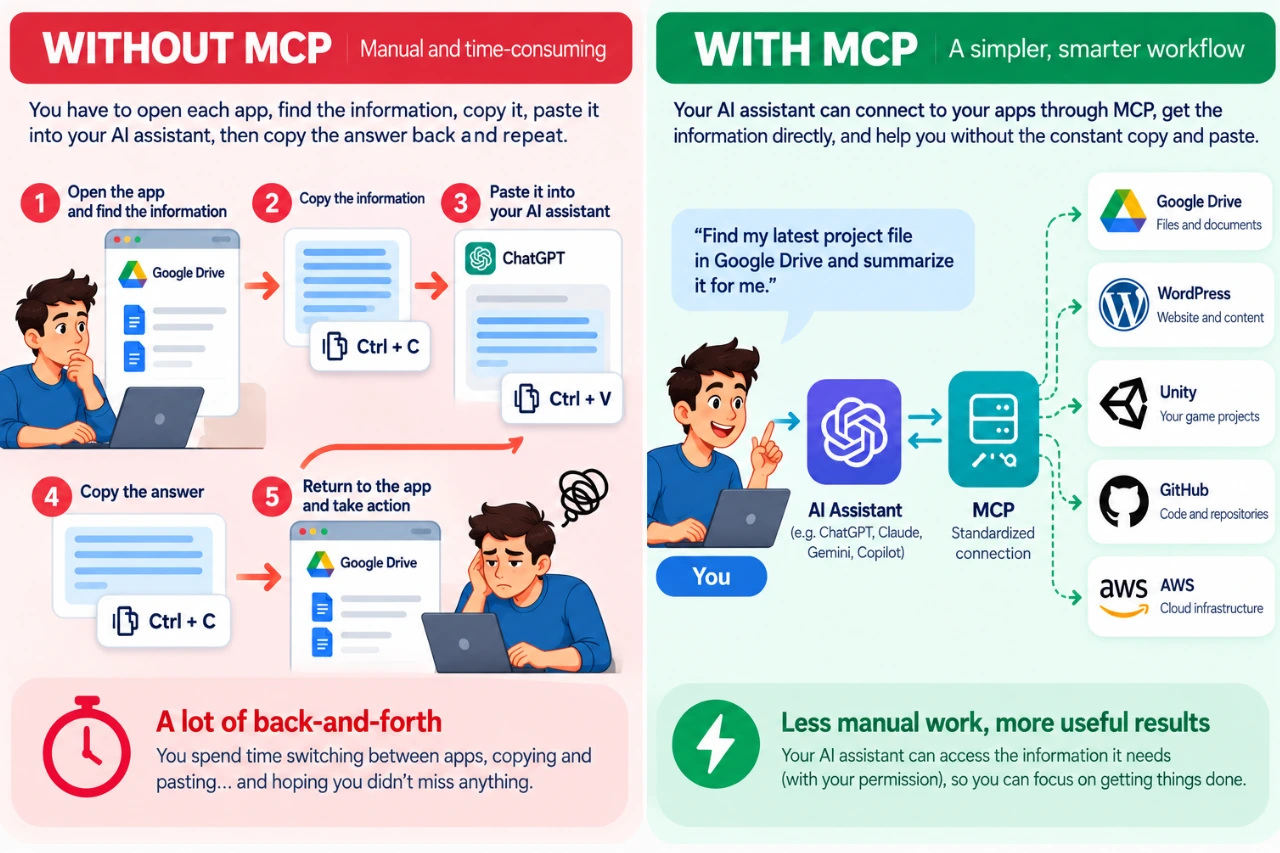
Comparison of a manual copy-and-paste AI workflow without MCP and a connected workflow using MCP

Instead of constantly carrying information between an AI assistant and the applications we use, MCP provides a standardized way for AI applications to connect to external tools and data.

And despite the rather technical name, the basic idea is surprisingly simple.

What Does MCP Stand For?

MCP stands for Model Context Protocol.

The three words make more sense when we separate them:

Model — the AI model helping you.

Context — information and capabilities outside the model that may be useful for your request.

Protocol — an agreed set of rules that allows different systems to communicate.

Put them together and MCP is essentially a common language that AI applications can use to work with external systems.

It was introduced by Anthropic in 2024 as an open standard and has since developed into a broader ecosystem used across different AI applications, developer tools and services.

The important word here is open. MCP isn’t a feature that belongs exclusively to one AI assistant or one software company. Different AI applications and services can implement the same protocol.

Think of MCP Like USB-C — Sort Of

The official MCP documentation uses USB-C as an analogy, and it’s a useful one.

Your laptop doesn’t need a completely different concept of connectivity for every keyboard, monitor, storage device or dock you attach to it. USB-C provides a common standard.

MCP tries to provide something similar for AI applications and external software.

But don’t take the analogy too literally. There isn’t a tiny AI USB cable hiding behind your computer.

A better way to think about it is:

MCP = the standard
MCP server = something that implements that standard and exposes particular tools or information
Your application = the system containing the data or functionality you want the AI to work with

And this distinction is important because MCP itself is not a product you install. An MCP server is one of the pieces that makes the connection possible.

How Does MCP Work?

Let’s imagine you ask an AI assistant:

Find my latest project document in Google Drive and summarize it.

Without a connection to Google Drive, the AI cannot simply wander into your account looking for the file.

With an appropriate MCP connection, the process can look roughly like this:

You → AI application → MCP → MCP server → Google Drive

Behind that simple diagram there are a few more pieces. The AI application acts as the host. It can use an MCP client to communicate with an MCP server. The MCP server exposes specific tools, resources or capabilities that the AI application is allowed to use.

So a slightly more technical version looks like:

You → AI host → MCP client ↔ MCP server → external application

You don’t need to memorize those terms to use MCP.

The important idea is that the AI isn’t receiving unrestricted access to an entire application. It receives access to particular capabilities made available through the MCP server and permitted by your account and configuration.
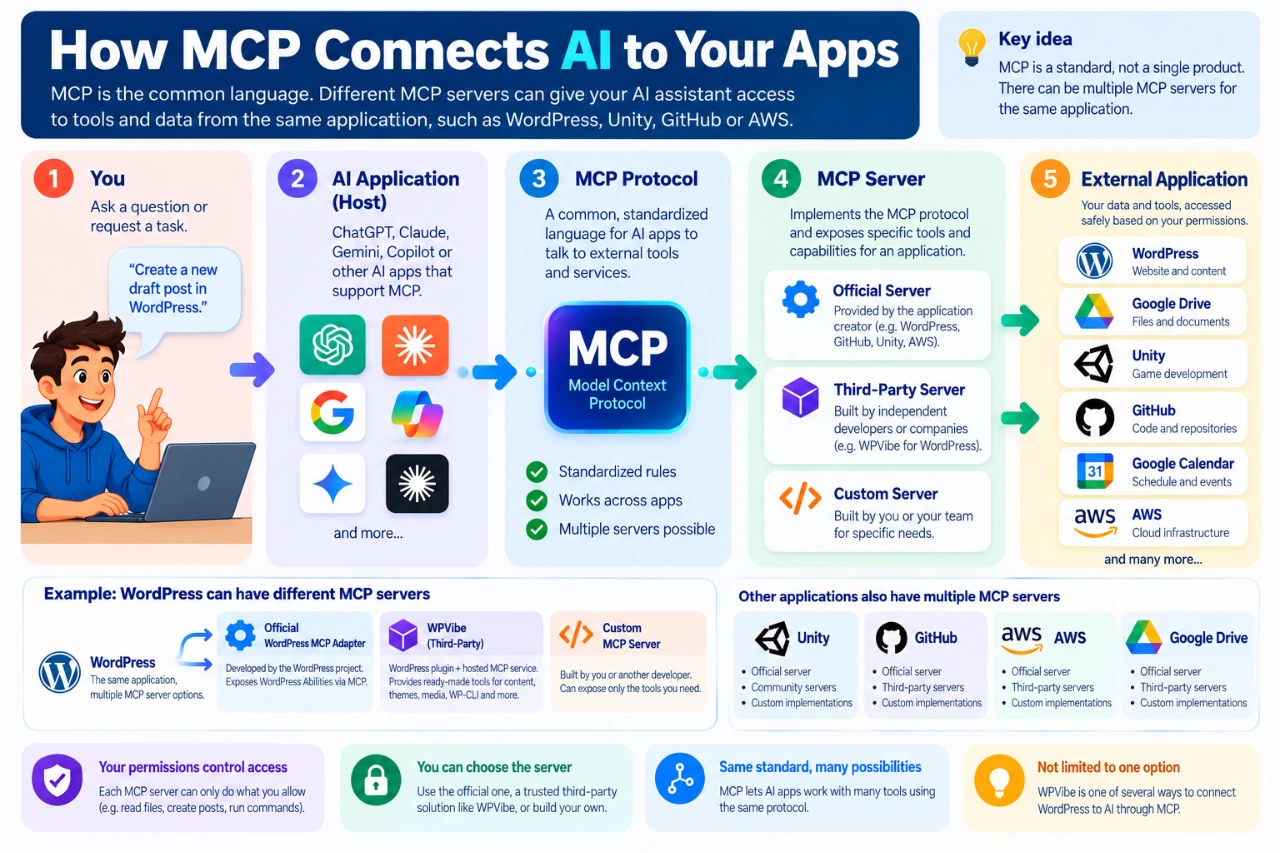
Diagram showing how an AI application connects through MCP to official, third-party or custom MCP servers and external apps

One App Can Have More Than One MCP Server

This is an easy detail to miss.

An MCP server doesn’t necessarily have to be created by the company that makes the application you’re connecting to. There can be official MCP servers created or maintained by the application provider, third-party MCP servers created by another company or developer, and custom MCP servers built by you or your organization for a particular workflow.

That means two MCP servers connecting to the same application may expose very different capabilities.

WordPress is a good example. WordPress has an official MCP Adapter that can expose selected WordPress abilities through MCP. But third-party solutions can also provide MCP access to WordPress. One example is WPVibe, which provides a WordPress integration and MCP-based service for exposing WordPress capabilities to compatible AI environments. Developers can also build their own implementations.

So:

MCP is the common standard.
WPVibe is one way of implementing the connection for WordPress.

That’s similar to USB-C docks: several manufacturers can build different docks around the same standard, and those docks don’t necessarily provide exactly the same capabilities.

The same principle applies beyond WordPress. An application such as Unity, a development platform such as GitHub, or a cloud environment such as AWS may have official, community-built or specialized MCP implementations.

What Can an MCP Server Let AI Do?

The easiest way to understand its capabilities is to divide them into two groups: LOOK and DO.

LOOK

An AI may be allowed to retrieve or inspect information. For example, it might find a document, read a file, inspect code, list WordPress posts, check a calendar, examine an error log or retrieve project information.

The AI is essentially saying: “Let me look at the information I need.”

DO

An MCP server may also expose tools that allow the AI to perform actions. It might create a document, create a WordPress draft, create a GitHub issue, update a calendar event, trigger a development workflow or perform an allowed cloud operation.

Now the AI isn’t simply reading information. It’s doing something.

And that distinction matters enormously. Giving an AI permission to read your draft posts is very different from giving it permission to publish or delete them.
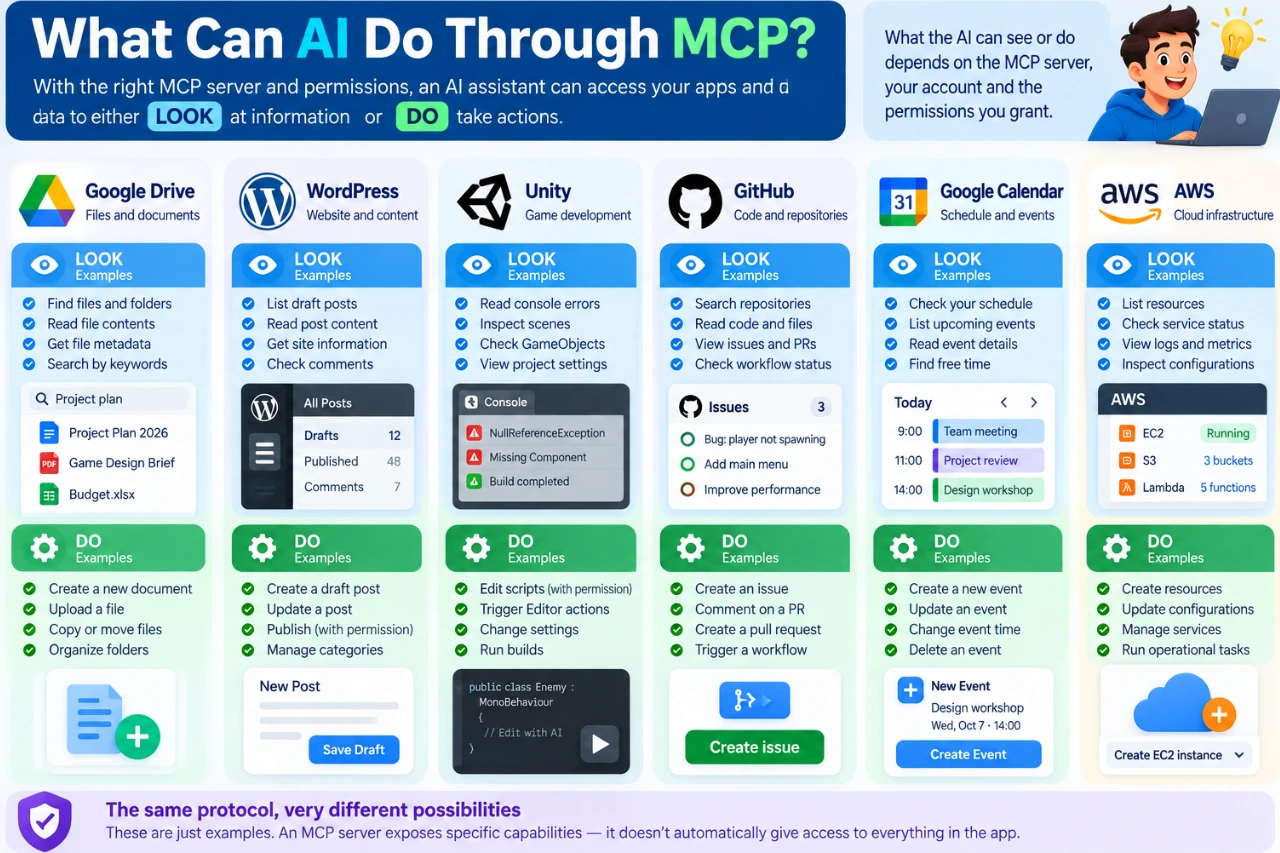
Examples of information AI can read and actions it can perform through MCP across Google Drive, WordPress, Unity, GitHub, Calendar and AWS

What Can You Connect With MCP?

MCP isn’t limited to websites or cloud services. Depending on the available server and integration, MCP can expose capabilities from cloud services, local applications, files and folders, developer environments, databases, internal business systems and other software-controlled resources.

The key word is expose. MCP doesn’t automatically see everything. An MCP server deliberately makes selected capabilities available to the AI application.

Google Drive and Google Workspace

Imagine asking:

Find the project proposal I worked on last month and summarize the main points.

With an appropriate Google Workspace connection, an AI application can potentially search and retrieve permitted information from services such as Drive. Depending on the available integration and permissions, capabilities can also extend beyond reading information to actions such as working with files or calendar events.

Instead of downloading a document and uploading it into an AI conversation, the AI can retrieve the permitted information through the connection.

Unity

Unity is especially useful for understanding that MCP is not just about cloud software, particularly if you are learning game development.

An MCP server can communicate with a locally running Unity environment and expose selected project information to a compatible AI assistant. The assistant could potentially inspect project context or console errors and, when appropriate tools and permissions are available, trigger certain Editor actions.

Instead of repeatedly copying an error message into an AI chat, you can potentially give the assistant controlled access to the environment where the error actually exists.

It still won’t build GTA VII before lunch, unfortunately.

GitHub

A GitHub MCP server can give an AI assistant structured access to development information such as repositories, code, issues, pull requests and workflows.

Depending on the tools and permissions available, the AI might inspect an issue, summarize changes or perform permitted actions such as creating an issue.

This is especially useful for coding assistants because the AI can work with current project context instead of relying entirely on snippets pasted into a conversation.

AWS

MCP can also connect AI applications to cloud infrastructure. AWS provides MCP tooling that can allow compatible AI environments to interact with AWS services while respecting the user’s AWS permissions.

This is a good reminder that MCP isn’t only about documents and chat. An MCP server can expose real operational tools.

Which is also why permissions become extremely important.

WordPress

WordPress is a particularly interesting example for anyone managing a website.

An MCP connection can potentially expose selected WordPress capabilities such as reading posts, finding drafts, inspecting site information, working with media, creating or updating content, and performing selected administrative or development tasks.

But again, MCP doesn’t automatically expose your entire WordPress site.

What the AI can actually see or do depends on the MCP server, the capabilities it exposes, your WordPress permissions and the AI application you’re using.

There can also be different ways of connecting WordPress. The official WordPress MCP Adapter is one approach. Third-party services such as WPVibe are another. Developers can also create custom implementations.

We’ll explore that properly later in this series when we actually connect an AI assistant to WordPress and test what it can do.

Can MCP Connect to Software on My Computer?

Yes. MCP isn’t limited to websites and cloud services.

An MCP server can run locally and expose selected capabilities from software, files, development tools or other resources on your computer.

Unity is a good example: a suitable MCP server can communicate with a locally running Unity project and expose selected project context or Editor tools to a compatible AI environment.

But installing an application on your computer doesn’t automatically make it accessible to AI.

If you have Adobe Photoshop installed, for example, an AI assistant cannot simply open Photoshop because MCP exists. There would need to be an appropriate integration or MCP server capable of communicating with Photoshop, and the AI application would need a supported way to connect to that server.

MCP can expose what the MCP server knows how to expose — not everything on your computer.

The same principle applies to local files, databases, development environments and other desktop applications.

Can MCP Connect AI to Any Website or App?

Not automatically.

MCP isn’t a magic key that suddenly gives an AI assistant access to every application on the internet—or everything installed on your computer.

For the connection to work, there needs to be an MCP server or integration capable of exposing the relevant application’s data or tools. That server might be provided by the application itself, provided by a trusted third party, hosted locally, hosted remotely, or built specifically for your organization.

And even when an MCP server exists, the AI application still needs to support the way that server is being used.

So the real question isn’t:

“Does MCP support this application?”

A better question is:

“Is there a suitable MCP server for this application, does my AI application support it, and what capabilities and permissions does it provide?”

That’s less catchy. But considerably more useful.

Learning a New Tool? Search for Its MCP Ecosystem

This is where MCP becomes especially interesting for students and young people learning digital skills.

Suppose you’re learning Blender, AutoCAD, ZBrush, Mathcad, Excel, Unity or another creative or technical application. Alongside ordinary tutorials, you can investigate whether an MCP integration exists for the software you’re learning.

A simple search such as “Blender MCP server”, “MCP for AutoCAD” or “Excel MCP server” can be a useful starting point.

But finding a project with “MCP” in its name doesn’t automatically mean you should install it.

Before using one, check:

  • Who created it? Is it official, from a known company or developer, or an unknown project?
  • What can it actually do? Does it only read information, or can it change your files or projects?
  • Is it maintained? Look for current documentation, recent releases or development activity.
  • How does it connect? Is it a remote service or something you install locally?
  • Does your AI application support it? An MCP server existing doesn’t mean every AI assistant can use it.
  • What permissions does it require? Don’t grant more access than you need.

For learning, the difference can be significant.

Without integration:
Student → describes the problem → AI works from the description.

With suitable MCP access:
Student → AI can inspect permitted project context → AI explains the problem using that context.

That doesn’t replace learning the software yourself. Used well, it can give an AI tutor better context about the thing you’re actually trying to learn.
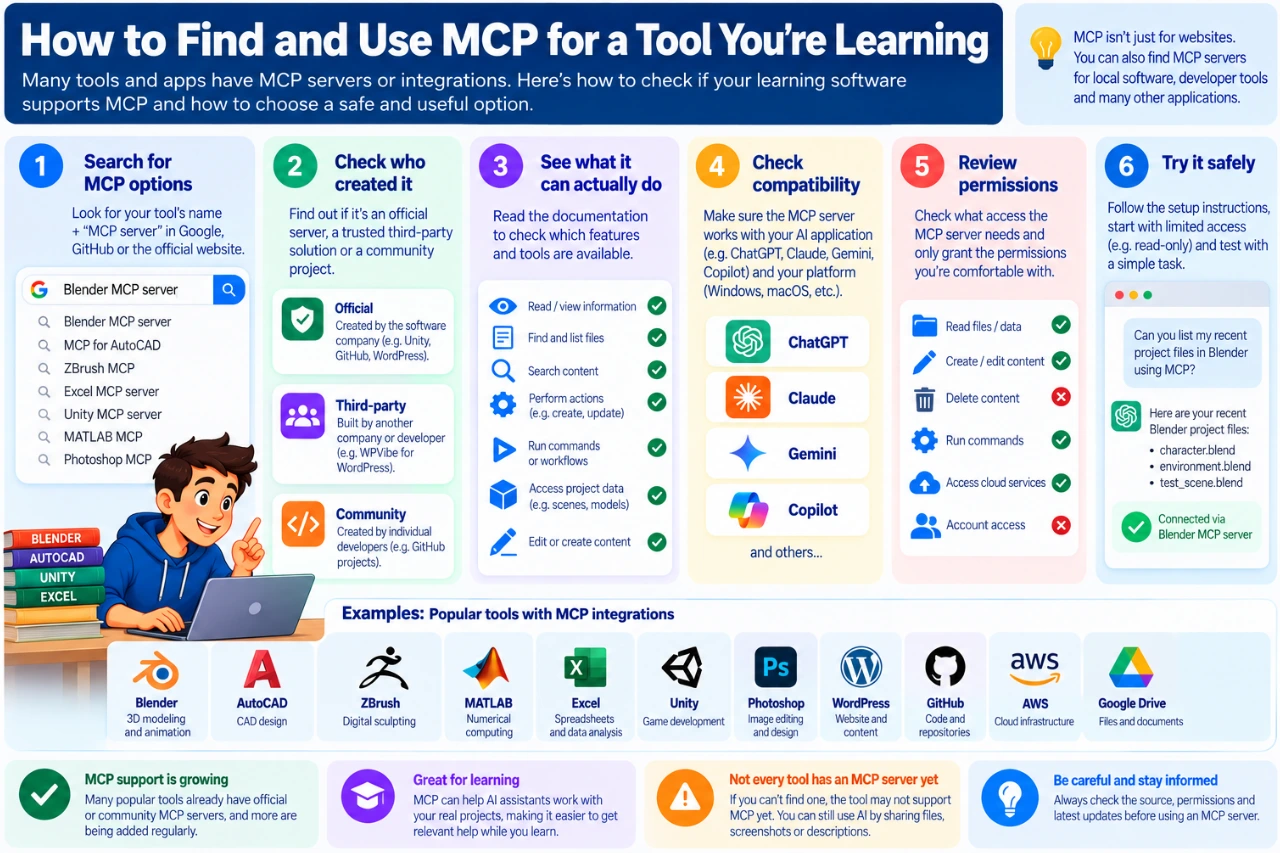
Six-step guide to finding and safely evaluating an MCP server for software you are learning

MCP vs API: Haven’t Apps Been Talking to Each Other for Years?

Yes.

APIs already allow software applications to communicate with each other, and they aren’t disappearing because MCP exists.

In fact, an MCP server may use an application’s API behind the scenes.

The difference is mostly about standardization for AI applications. Traditionally, developers integrate separately with different APIs. Each service can have its own authentication, endpoints, data structures and documentation.

MCP provides a common way for AI applications to discover and use tools and context exposed by MCP servers.

A useful beginner shortcut is:

API = how software can interact with a service
MCP = a standardized way of presenting external tools and context to AI applications

They aren’t enemies. MCP often sits on top of systems and APIs that already exist.

So if someone tells you MCP has “killed the API,” you may safely keep one eyebrow raised.

Is MCP the Same as a Plugin or Connector?

Not necessarily.

This terminology gets confusing because AI products use words such as apps, connectors, integrations, plugins and tools. Those describe features you see as a user. MCP describes a protocol that may be used underneath some of those integrations.

One connector might use MCP. Another might use a company’s proprietary API.

From a beginner’s perspective, you don’t need to obsess over the terminology. Instead, ask two questions:

What information can the AI access?

What actions can the AI perform?

Those answers matter much more than the marketing label attached to the connection.

Is MCP Safe?

MCP can be used safely, but connecting an AI assistant to external systems creates responsibilities that ordinary AI chat doesn’t have.

If an AI can only answer a question, a mistake may produce a bad answer. If an AI can modify a website, create cloud resources or change a repository, a mistake can have real consequences.

A sensible approach is to:

  • start with read-only access where possible
  • use MCP servers you trust
  • grant only the permissions actually required
  • review important actions before they happen
  • be especially careful with delete, publish, payment, infrastructure and account-management capabilities
  • revoke connections you no longer use

You should also treat credentials carefully. Don’t paste ordinary passwords, API secrets or other sensitive credentials into an AI conversation simply because a random tutorial tells you to.

And remember that an MCP server itself becomes part of your security chain. An untrusted or poorly designed server can create risks regardless of how good the AI application is.

The more an AI can do for you, the more carefully you should decide what it’s allowed to do.

Do I Need to Know How to Code?

Not necessarily.

If you’re building an MCP server, then yes, you’re entering developer territory.

But if you’re using an existing MCP integration, the experience can be much simpler.

Some integrations can be configured through graphical interfaces. Others require installing software, entering configuration information, using credentials designed for integrations or running a few commands.

So MCP isn’t universally “one click” yet.

Sometimes it’s easy. Sometimes it’s still nerd territory.

But the direction is clear: more applications are packaging these connections so ordinary users don’t need to understand the underlying protocol.

Is MCP Free?

MCP itself is an open protocol.

That doesn’t mean everything you connect through MCP is free.

A typical setup can involve several layers:

AI service → MCP support → MCP server → external service

Any one of those layers may have its own pricing or usage limits.

An MCP server may be free while the AI service requires a paid plan. The AI client may be free while the external cloud service charges for resources you use. Or a third-party MCP provider may offer a limited free tier and charge for additional capabilities.

So remember:

Open protocol ≠ everything is free.

We’ll look at this more closely in the next article because the differences between AI assistants matter quite a bit here.

Why Does MCP Matter?

The bigger story isn’t really MCP itself. It’s what happens when AI assistants stop being isolated chat boxes.

For the first few years of mainstream generative AI, much of our interaction looked like this:

Ask → receive answer → manually do something with the answer.

Connections such as MCP can change that workflow to something closer to:

Ask → retrieve context → reason → use a tool → return the result.

For students, that might mean an AI assistant understanding permitted context from a coding, 3D or Unity project. For developers, it might mean working with repositories and development tools. For content creators, it could mean working with documents and publishing systems. For businesses, it can mean connecting AI to internal tools and workflows.

And for website owners, it may mean something as practical as asking:

Which WordPress posts are still drafts?

and getting the answer without opening WordPress and searching manually.

That’s a considerably more useful AI than one waiting patiently for another copy-and-paste.

Five Things to Remember About MCP

  1. MCP stands for Model Context Protocol. It is an open standard for connecting AI applications with external tools and data.
  2. MCP is the protocol, not the individual product. MCP servers implement the protocol and expose particular capabilities.
  3. There can be multiple MCP servers for the same application. They may be official, third-party or custom-built.
  4. MCP can connect to cloud and local resources. What matters is whether an appropriate server can expose them to your AI application.
  5. AI can potentially LOOK and DO — so permissions matter. Reading information and performing actions are very different levels of access.

Once those ideas click, most of the confusing MCP terminology becomes much easier to understand.

What’s Next?

Understanding MCP is only the first part of the story.

The next question is probably the one most people actually care about:

Which AI assistants can I use with MCP — and how much will it cost me?

In our comparison of AI tools that support MCP, we examine ChatGPT, Claude, Gemini, Copilot and other assistants, including free and paid access and how beginner-friendly the options are.

Then we’ll stop talking about MCP in theory.

In our real-world WordPress MCP case study, we show how ChatGPT, Easy MCP AI and WPVibe helped us build, test and launch a working feature.

Because eventually, even Ctrl+C and Ctrl+V deserve a day off. 😄

AI supporting a human recruiter in candidate selection and HR decision-making

Recruitment and HR in the Age of AI

While AI and the media keep shouting that the professions of Recruitment and HR will soon disappear, companies are still hiring recruiters and HR professionals. And there is a good reason for that.

Many companies mistakenly believe that investing in an HR or Recruitment team is not the best use of their budget. They can simply post a vacancy on LinkedIn and receive hundreds of applications — many of them completely irrelevant to the role. Then, a company director may spend hours, or even days, going through resumes.

They may eventually choose someone — but that doesn’t necessarily mean they have chosen the best candidate. And there is no guarantee that the selection criteria will go beyond technical skills to include equally important factors such as cultural fit, communication style, adaptability, motivation, and alignment with the company.

Is this really cheaper for the company? Absolutely not.

Meanwhile, the best professionals are usually not actively looking for a new job. They are already being approached by recruiters from companies that understand the importance of investing in one of the most critical aspects of their business: people.

So, let’s take a closer look at the difference between Recruitment and HR — and the options available on the market today.

Recruitment Models

The key function of Recruitment is to identify and attract the right candidates for a specific position within a specific company.

There are several common models of cooperation:

1. Pay per Placement

The recruiter charges usually 15–30% of the hired candidate’s annual salary.

Pros:

Predictable. In most cases, there are no, or only minimal, upfront costs.

Cons:

It can become expensive, especially when hiring for senior or highly specialized positions. The recruiter is usually not dedicated to the company — their main objective is to make the placement and collect the fee.

2. EOR / Monthly Salary Commission

A monthly commission is paid to the recruiter, usually around 15–25% of the hired candidate’s salary.

Pros:

Predictable costs, with little or no upfront investment in most cases.

Cons:

The company continues paying for a recruitment service even after the original hiring work has been completed. Over time, this can become significantly more expensive than a traditional pay-per-placement model.

3. Hourly Recruitment

The recruiter is paid by the hour for as long as the client needs their services.

Pros:

The client can hire as many candidates as needed during each recruitment cycle and maintain clear control over the budget.

Cons:

The model can create the wrong incentives: when recruiters are paid by the hour, there is less motivation to complete the process as efficiently as possible.

If you hire a junior recruiter, the costs can quickly become too high without necessarily delivering the desired results.

And there is another critical factor to consider: the network.

The stronger and broader the recruiter’s network, the stronger the talent pool they can access. Experience, reputation, and relationships in the market can make a significant difference in the quality and speed of hiring.

4. In-house Recruitment Team

Pros:

A stable, predictable budget allocated to recruitment. The team is fully dedicated to the company and can consistently represent the employer brand while managing all aspects of the recruitment process.

Cons:

In-house teams may have less pressure around productivity and measurable results than external service providers. There are also ongoing employment costs that are difficult to reduce when hiring demand decreases.

5. Dedicated Talent Partner — Available When Needed

A dedicated Talent Partner is paid hourly, but only when recruitment support is actually required.

Pros:

For employers, this can be one of the most flexible options. Budgets remain under control, expectations are high, and measurable results are critical to continuing the partnership.

There is no need to maintain the administrative and employment costs of a permanent recruitment team, while experienced recruitment support remains available when hiring volumes increase.

Most importantly, this is not a one-time agency transaction. The recruiter becomes a long-term Talent Partner who understands the company, its culture, its business, and its hiring needs.

The recruiter does not simply appear when there is a vacancy. They become an extension of the company’s team.

Cons:

Mostly for the Talent Partner itself.

The provider needs to maintain a strong team of experienced recruiters who can handle large volumes when needed. At the same time, they must be prepared for periods when clients have no open positions — and therefore no recruitment revenue — while the recruitment team still needs to be maintained.

Talent Partner vs. HR Partner

Now let’s look at the difference between a Talent Partner and an HR Partner.

While the use of AI, project management platforms, automation, and other technologies continues to grow, the core value behind any successful company is still people.

This becomes even more important in a globalized world where companies are building distributed and remote teams.

An HR Manager or HR Partner is responsible for much more than hiring.

They help build the company culture, establish processes and operations, maintain employee engagement, manage the organizational climate, and support people throughout their journey within the company.

HR is also the function that measures performance, communicates organizational changes, resolves challenges, and often becomes the person employees turn to when they start thinking:

“Is it time for me to consider a new job?”

Especially when they receive an attractive offer from another recruiter.

And this is exactly why AI is still posting jobs for HR Managers.

As long as companies are made of people, HR will remain an essential part of the equation.

AI can automate processes. It can analyze data. It can identify candidates, write job descriptions, schedule interviews, and support decision-making.

But it cannot replace the human responsibility of building a team that actually works together.

Ultimately, HR and Recruitment can make the difference between a team that simply fills positions and a team that wins.

And that is why, even in the age of AI, the most successful companies will continue to invest in people.

Game development for beginners with a student creating a 3D game using a game engine, code and game controller

How to Start Game Development: A Beginner’s Guide

Game development for beginners can look intimidating from the outside. A finished game may combine programming, art, animation, sound, interface design, physics and storytelling—but beginners do not need to learn all of those skills before they start.

The most useful first goal is much smaller: choose a simple game engine, build one tiny playable project, and learn each new skill when the project requires it. That approach turns game development from a huge subject into a series of manageable problems.

1. What does game development actually involve?

Game development is the process of turning an idea into an interactive experience. Even a small game can involve several disciplines: game design defines the rules and player experience; programming creates behaviour and systems; visual art and animation create characters and environments; sound adds feedback and atmosphere; UI design creates menus and on-screen information; and testing helps identify bugs and improve the experience.

You do not need to become an expert in every area. Working on a small game is actually a useful way to discover which parts interest you most.

2. Do you need to know coding before learning game development?

No. You can start learning how a game engine works before you are comfortable with programming. What matters is being willing to learn basic logic as your projects become more interactive.

Modern engines provide editors and visual tools that let beginners create scenes, place objects, adjust physics, work with animation and test ideas without writing everything from scratch. Unreal Engine, for example, includes Blueprint visual scripting, while programming with C++ remains available when a project needs it. Unity also provides visual scripting alongside its native C# scripting workflow. Godot supports GDScript and C#, and its documentation recommends GDScript as an accessible starting point for people who are new to programming.

Eventually, learning some programming makes it much easier to create your own mechanics instead of relying entirely on templates. Start with variables, conditions, loops, functions, input and simple object behaviour rather than trying to learn an entire language first.

3. Unity vs Godot vs Unreal Engine: which should a beginner choose?

There is no single best game engine for every beginner. The right choice depends on the kind of game you want to make, the computer you have and the learning workflow you prefer.

Unity

Unity is a general-purpose real-time engine for 2D and 3D development. It uses C# for scripting and has structured beginner learning resources that cover programming, audio, UI, animation, materials and lighting. It is a practical choice if you want to learn an engine while gradually developing transferable programming and game-development skills.

Godot

Godot is particularly approachable for small projects and 2D development, although it also supports 3D. Its own beginner documentation recommends starting with 2D because it lets new developers become comfortable with the engine before dealing with the extra complexity of 3D. Godot’s GDScript is designed to be relatively easy to learn, and C# is also supported.

Unreal Engine

Unreal Engine is a powerful option for 3D interactive experiences. Beginners can create gameplay with its node-based Blueprint visual scripting system and later combine Blueprints with C++ when appropriate. Its advanced rendering capabilities can also make it more demanding on hardware than a lightweight beginner project requires.

Do not spend weeks trying to identify the theoretically perfect engine. Pick one that fits your first project and follow a complete beginner pathway. Skills such as debugging, game logic, level design, iteration and testing transfer when you eventually explore another engine.

4. Which programming language should you learn for game development?

Let the engine narrow the choice. Unity uses C# for scripting. Godot offers GDScript and C#, with GDScript being a beginner-friendly option. Unreal Engine combines C++ with Blueprint visual scripting.

The first language you learn does not lock you into a career. Once you understand concepts such as variables, functions, conditions, loops, objects and debugging, learning another language becomes much easier. If you are still deciding where to begin, see our guide Which Programming Language Should You Learn First?

5. How much maths do you need for game development?

You do not need advanced mathematics before making your first game. For a simple beginner project, basic arithmetic, coordinates, angles, speed, distance and logical problem-solving are enough to get started.

More advanced maths becomes useful when you work with topics such as 3D movement, vectors, physics, procedural systems, graphics or complex simulations. Learn those concepts when your projects give you a reason to use them. A moving character is often a much better motivation for understanding coordinates and vectors than memorizing formulas without context.

6. Game designer vs game programmer: what is the difference?

A game designer focuses primarily on how the game works for the player: rules, mechanics, progression, levels, balance and the overall experience. A game programmer focuses on implementing the systems that make those ideas function in software.

Real projects contain many other roles too, including 2D and 3D artists, animators, UI/UX designers, sound designers, technical artists, writers, producers and quality-assurance testers. In a small student project, one person may perform several of these roles.

That is one reason game development is such a useful field to explore while you are still deciding on a direction: one project can expose you to several creative and technical careers.

7. What should your first game be?

Your first game should be much smaller than the game you dream of eventually making. A one-level platformer, simple obstacle game, basic puzzle, short top-down game or tiny arcade-style project is enough.

A good approach to game development for beginners is to keep the first project simple: one player, one core mechanic, a goal, a lose condition, a restart function, a little sound and a simple interface. Finishing that teaches more than beginning an enormous open-world game that never reaches a playable state.

Use placeholder art when necessary. Reuse legal assets where appropriate. Concentrate first on making the game playable, then improve its appearance and sound.

8. A simple beginner game-development roadmap

  1. Choose one engine. Unity, Godot and Unreal are all capable starting points; choose according to your project and learning preferences.
  2. Complete one structured beginner tutorial. Learn the editor, scenes or levels, objects, input and basic scripting.
  3. Rebuild something small without copying every step. Change the mechanic, level or rules so you have to solve problems yourself.
  4. Learn programming as you need it. Focus on the concepts required by your current mechanic.
  5. Add basic art, UI and sound. This introduces the other disciplines involved in making a complete game.
  6. Test and improve. Ask another person to play without explaining what to do and observe where they struggle.
  7. Finish and document the project. Save screenshots or video, explain what you built and what you learned, and keep the project as early portfolio evidence.

9. What computer do you need to start game development?

You do not need a high-end gaming workstation to begin learning game development. Hardware requirements depend heavily on the engine, whether you are working in 2D or 3D, and the complexity of your project.

Godot can run simple projects on relatively modest hardware; its current documentation lists 4 GB RAM as the minimum for the native editor and 8 GB as recommended for a smooth experience with simple projects. Unity’s current documentation recommends at least 8 GB RAM for the editor, while noting that larger projects require more. Unreal Engine is considerably heavier: Epic’s current recommended Windows development specification includes 32 GB RAM and 8 GB or more graphics memory.

Those specifications are not a reason to postpone learning. If your computer is modest, begin with 2D or small 3D projects, keep scenes simple and choose tools that run comfortably on your machine. Always check the engine’s current official requirements before buying hardware because they change over time.

10. Can game development become a real career?

Yes, but “game developer” is not one job. The industry brings together programming, game design, art, animation, audio, UI/UX, production, testing and other specialties. Exploring game development can therefore help you discover a career direction even if you eventually work outside the games industry.

For students, the useful goal is not to predict a job title immediately. Build projects, notice which problems you enjoy solving, learn to collaborate and gradually develop evidence of your skills. Our Career Readiness for Students guide explains how projects and portfolios can support that process.

11. Start small, but finish something

The hardest part of beginning game development is often not coding, art or maths. It is controlling the size of the idea.

Choose one engine. Build one mechanic. Make one small level. Let someone else play it. Fix what does not work. Then finish it.

Once you have completed one tiny game, the next project can introduce a new challenge—better art, more sophisticated programming, animation, sound, UI or a larger level. That gradual increase in complexity is how a collection of unfamiliar skills starts becoming game-development experience.

If you are preparing for university or exploring creative technology more broadly, our guide What Digital Skills Should Teenagers Learn Before University? places game development alongside coding, 3D design, UI/UX, sound and AI literacy as part of a broader skills pathway.

Sources and further learning

Fallgate multiplayer game created by a small international team of high-school students

From Gamers to Game Creators: How a High-School Team Built a Game for Steam

For many teenagers, gaming is one of the first reasons a powerful computer becomes important. Hours can disappear into games, online matches and conversations with friends. For parents, that can create a familiar question: can an interest in games become an interest in actually creating something?

For one small international team of high-school students, the answer gradually became yes.

Their story did not begin with professional game-development training, a university course or a plan to start a studio. It began much more simply: with teenagers who enjoyed games and, eventually, became curious about how games are made.

When screen time starts to change

One member of the team had previously been, for the most part, a computer user and gamer. Having access to a powerful PC did not automatically translate into learning technical or creative skills. Most of the screen time was still spent playing games.

The change began when gaming was joined by structured learning.

Through TechTitans Creative Technology Hub, he began exploring two subjects in parallel: Game Development with Unity and Digital Art with Blender.

Because the platform’s subscription provides access to its different learning subjects rather than limiting learners to a single track, it was possible to move between programming, game development and digital art instead of treating them as completely separate skills.

This did not instantly turn a gamer into a game developer. What it provided was a starting point: enough structured exposure to begin experimenting independently.

Learning became a real project

The next step was not Fallgate.

It started with an idea for an environmentally focused game in which players could interact with a city, collect waste, recycle it and earn rewards. The concept later became connected with a much larger collaborative school initiative: GAIA NOVA: Rebuild the Earth.

GAIA NOVA developed into a 3D educational game focused on sustainability, environmental responsibility and learning through play. The project brought together students from different school disciplines, with students contributing not only to the game itself but also to ideas, communication, presentations and promotional activities.

An initial functional version of GAIA NOVA was developed using Unity and Blender. The project included simulations of real Greek cities and interactive missions related to sustainability and social responsibility.

The experience showed something important: skills that had initially been practised through online lessons and personal experimentation could be used to build something that other people could actually see, test and discuss.

GAIA NOVA went on to receive 1st Prize at Bravo Schools 2026 in Goal 4 – Quality Education, as part of the nationwide school competition connected with the UN Sustainable Development Goals.

But the most important result for the next stage may have been less visible. After working on a real game project, the idea of developing another game no longer seemed purely theoretical.

What comes after the first real project?

After the school project, a new question emerged: could a small group of high-school students create their own multiplayer game and eventually put it on Steam?

That question became Fallgate.

The project was created by a small international team of high-school students aged around 16–17. The team members live in different countries and have never met one another in person.

They collaborate entirely online.

English is their common working language, while Discord serves as their main communication space. Development decisions, ideas, testing and coordination all happen remotely.

That makes Fallgate interesting for reasons that go beyond programming. Building the game has also required the students to practise remote teamwork, communication in a second language, problem-solving, coordination and shared responsibility.

These are digital skills that are difficult to learn from theory alone.

Building Fallgate during the summer

Development of Fallgate took roughly three to four months, with much of the work happening during the students’ summer holidays.

The contrast with the beginning of the story is striking. Time in front of the computer had not necessarily decreased. Instead, its purpose had changed.

The same kind of summer hours that could once have disappeared entirely into playing games were now being spent building one.

Fallgate is a multiplayer arena first-person shooter inspired by classic arena shooters. Public information about the game describes features including competitive player-versus-player combat, advanced movement, projectile-based weapons and parkour-style gameplay.

But completing a playable game was only part of the process.

Making a game is different from releasing one

For first-time developers, one of the lessons came after much of the development work was already complete: creating a game and preparing a game for public release are two different challenges.

The team still had to work through the process of establishing its Steam presence, completing verification requirements, preparing store information and visual assets, creating a trailer and presenting the game to potential players.

That process took additional time and introduced an entirely different set of skills.

A game project therefore became more than an exercise in Unity or game mechanics. The students were also encountering elements of product presentation, communication, publishing and project management.

Fallgate reaches Steam

Fallgate now has a public presence on Steam and is listed as a Free to Play multiplayer arena FPS intended for Early Access.

At the time of writing, the game is still shown publicly as Coming Soon.

The team’s initial strategy is deliberately simple: make the game available for free, attract players and learn from what happens next.

Instead of treating the first public version as a finished product, the students plan to use player feedback to understand what works, what does not and which improvements or new features may be worth developing.

Monetization may be explored in later versions, but the immediate objective is more fundamental: build a player community, collect feedback and continue improving the game.

Learning does not stop when the course ends

There is another part of this story that matters.

The students behind Fallgate are not professional developers, and this is not the result of years of formal game-development education.

For the team member whose journey began with Unity and Blender lessons, those courses were a starting point rather than the end of the learning process. Much of what followed was self-directed: encountering a problem, searching for a solution, experimenting, failing, fixing it and moving to the next problem.

That is often how practical digital skills develop.

A structured course can provide the first vocabulary, tools and direction. A real project then creates reasons to learn things that were never part of the original lesson.

More than game-development skills

It would be easy to look at Fallgate and focus only on Unity, programming or game design. But the project illustrates a much wider collection of skills.

  • Game development and technical problem-solving
  • Digital art and working with 3D assets
  • Remote collaboration
  • Communication in English
  • Testing and iteration
  • Project planning
  • Preparing digital content for publication
  • Responding to feedback

For high-school students who have not yet chosen a university path or career, experiences like these can be particularly valuable. A teenager does not need to decide at 16 that game development will become a lifelong profession.

Creating something real is already useful because it helps reveal what they enjoy, what they are good at and what they may want to learn next.

From consuming technology to creating with it

The most interesting part of this story may not be that a group of teenagers managed to put a game on Steam.

It is what happened before that.

A computer that had primarily been used to consume entertainment gradually became a tool for learning and creation. Online lessons led to experimentation. Experimentation led to a school project. The school project created confidence to attempt something independent. And that independent idea eventually became a multiplayer game being prepared for real players.

The amount of screen time is only part of the story. What young people are doing with that screen time can matter just as much.

For parents and educators, that may be the more useful lesson from Fallgate. An interest in gaming does not automatically become an interest in technology, programming or digital creation. But given the right starting point and an opportunity to build something meaningful, playing can sometimes become curiosity — and curiosity can become creation.

Fallgate is currently listed as Coming Soon. Details about the game and its Early Access plans may change as development continues.